
.svg)


How to Configure Inbound Routing for the AI Agent in OmniServe
Learn how to configure inbound routing for the AI Agent in OmniServe to assign conversations, enable human agent escalation, and choose routing methods like Round Robin or Balanced.
Before You Start
You need Team Lead permission in the AI Agent to access and modify these settings. Make sure your inbound routing conditions are already set up in OmniServe before assigning them here.
How Conversation Assignment Works
There are two ways the AI Agent receives conversations.
Inbound Routing assigns conversations to the AI Agent when a routing condition is met. Go to the AI Agent settings and select a condition from the available list. If a condition is already assigned to another AI Agent, it will be greyed out and unavailable. Once selected, the condition will appear in the agent's settings to confirm the assignment.
Unassigned Conversations automatically directs any new conversation that has not been assigned to this AI Agent. If another AI Agent is already handling unassigned conversations, this option will be disabled. Hover over it to see a tooltip explaining why.
Step 1. Choose an Assignment Method
Select either Inbound Routing or Unassigned Conversations as the method for this AI Agent. Only one can be active per agent.
Step 2. Configure Human Agent Routing
Enable Allow Routing to a Human Agent if you want the AI Agent to be able to transfer conversations to a human when needed. This happens in two situations: when a human agent manually reassigns the conversation, or when the AI Agent cannot provide adequate assistance due to gaps in available information.
When escalation is triggered, the AI Agent sends an automated message to the customer confirming they're being connected with a human agent. The conversation then appears in the assigned agent's inbox. If no direct assignment is set, it will appear in the Unassigned tab. The human agent takes over with full visibility into the conversation history.
When this option is enabled, three additional settings become available:
- Reassign to Team: select the team that will receive conversations transferred from this AI Agent.
- Assignment Method: choose how conversations are distributed to the team: Round Robin or Balance.
- Optional Message: write the automated message the AI Agent will send to the customer when transferring them to a human agent.
An email notification will also be sent to the assigned human agent alerting them of the reassignment.
How Conversations Are Distributed Once Reassigned
Once a transferred conversation reaches the selected team, it's distributed to an individual agent using the Assignment Method you chose above:
- Round Robin: assigned in sequential order.
- Balance: distributed based on current workload.
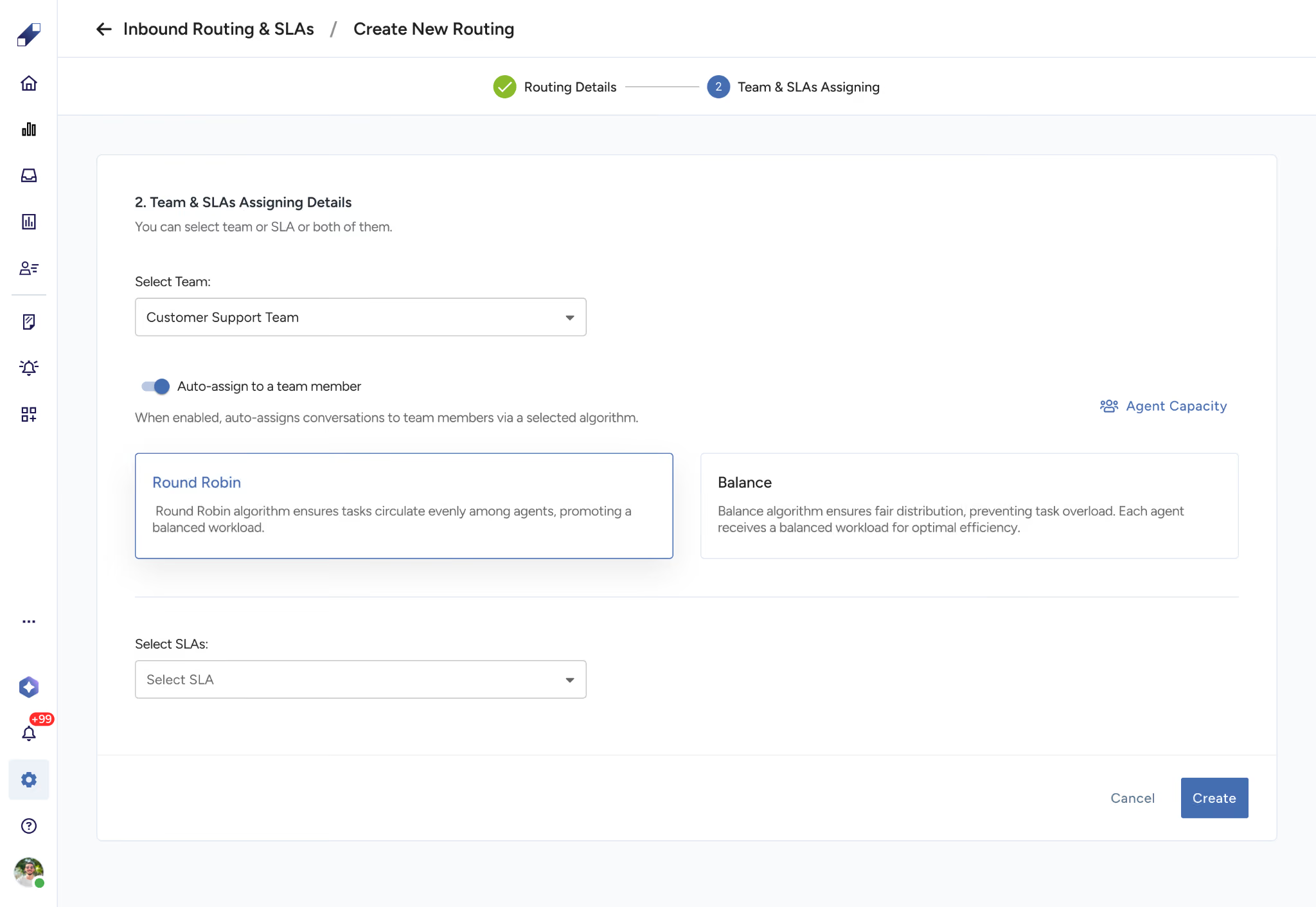
Agent Capacity
Under the Balance method, team leaders define how many uncompleted engagements an agent can handle at the same time.
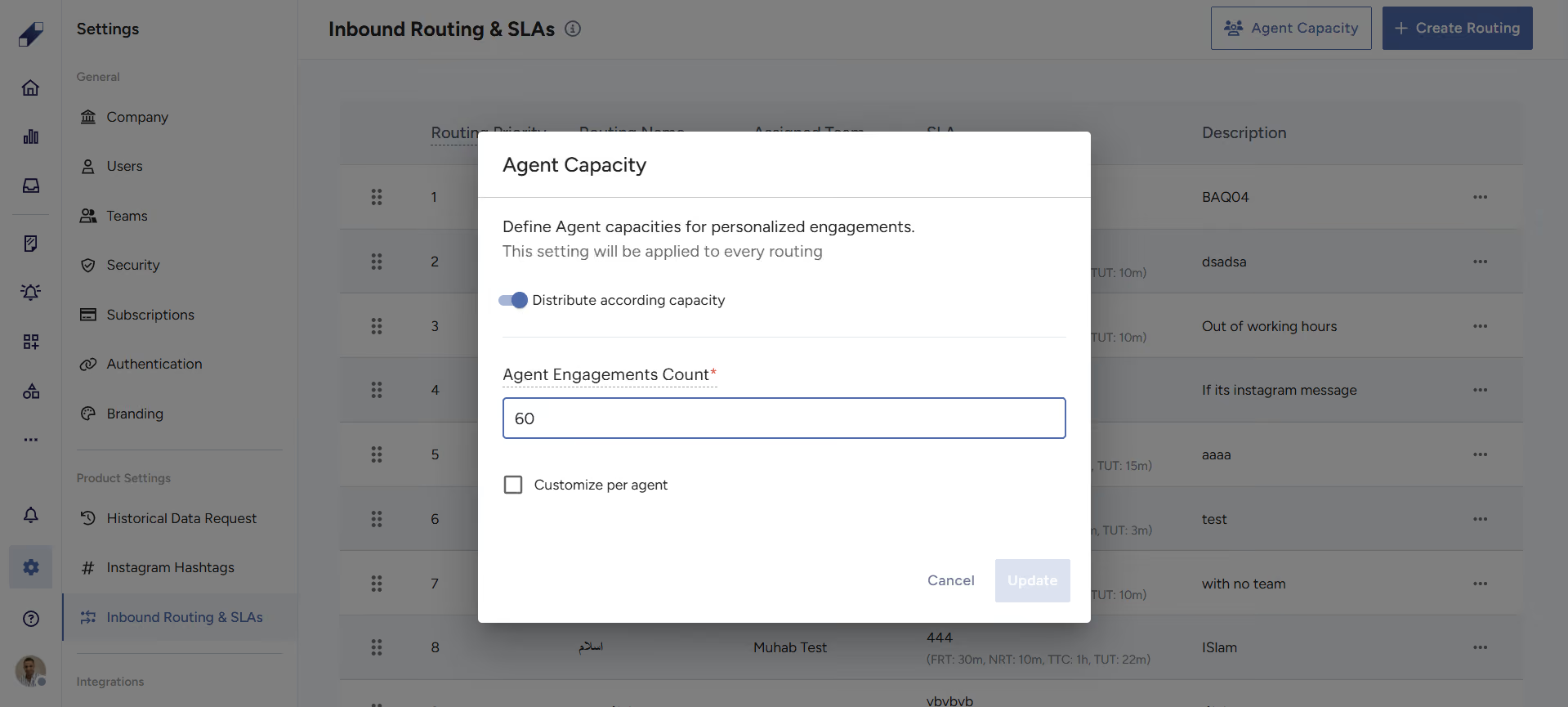
Agent Availability
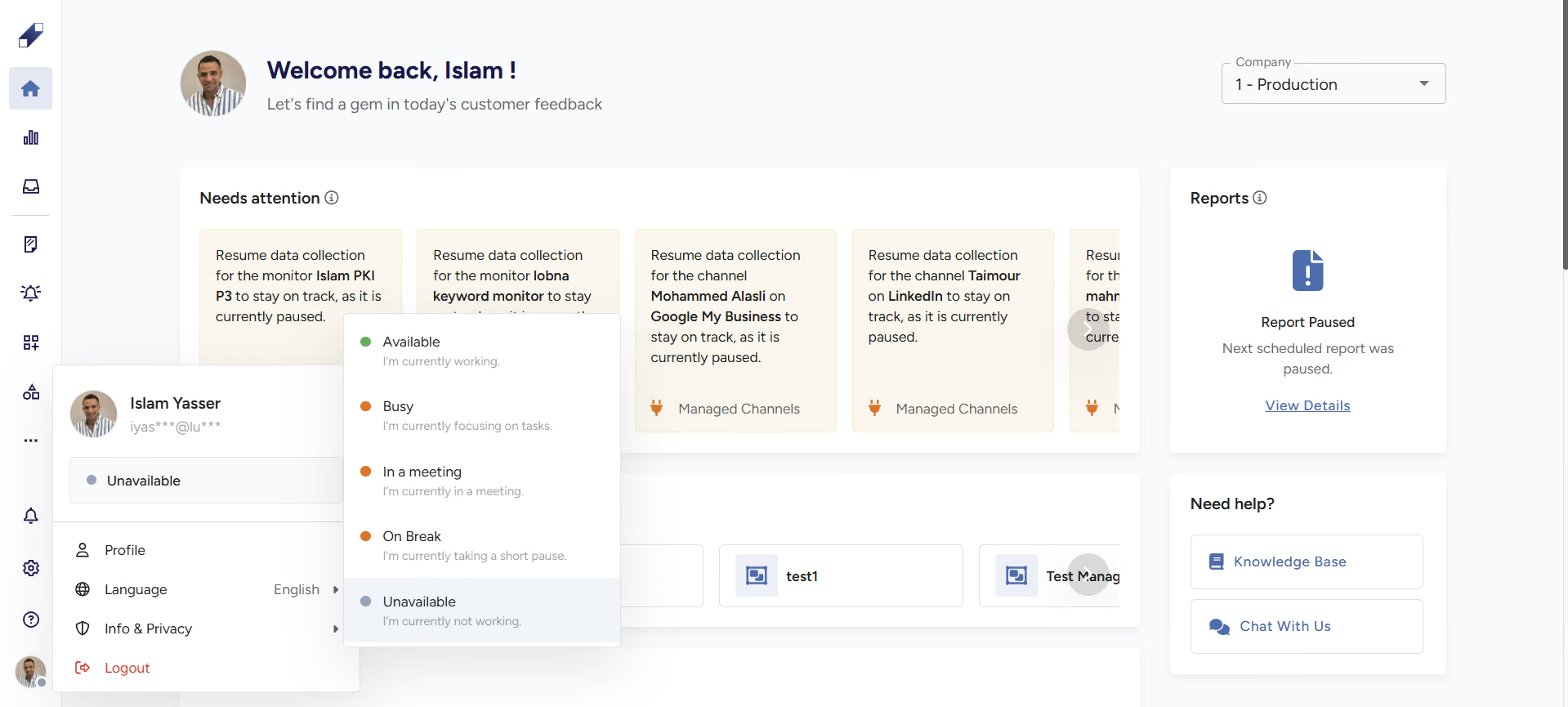
To receive a reassigned conversation, a human agent must meet two conditions:
- Their status must be set to Available.
- They must have access to the relevant channel.
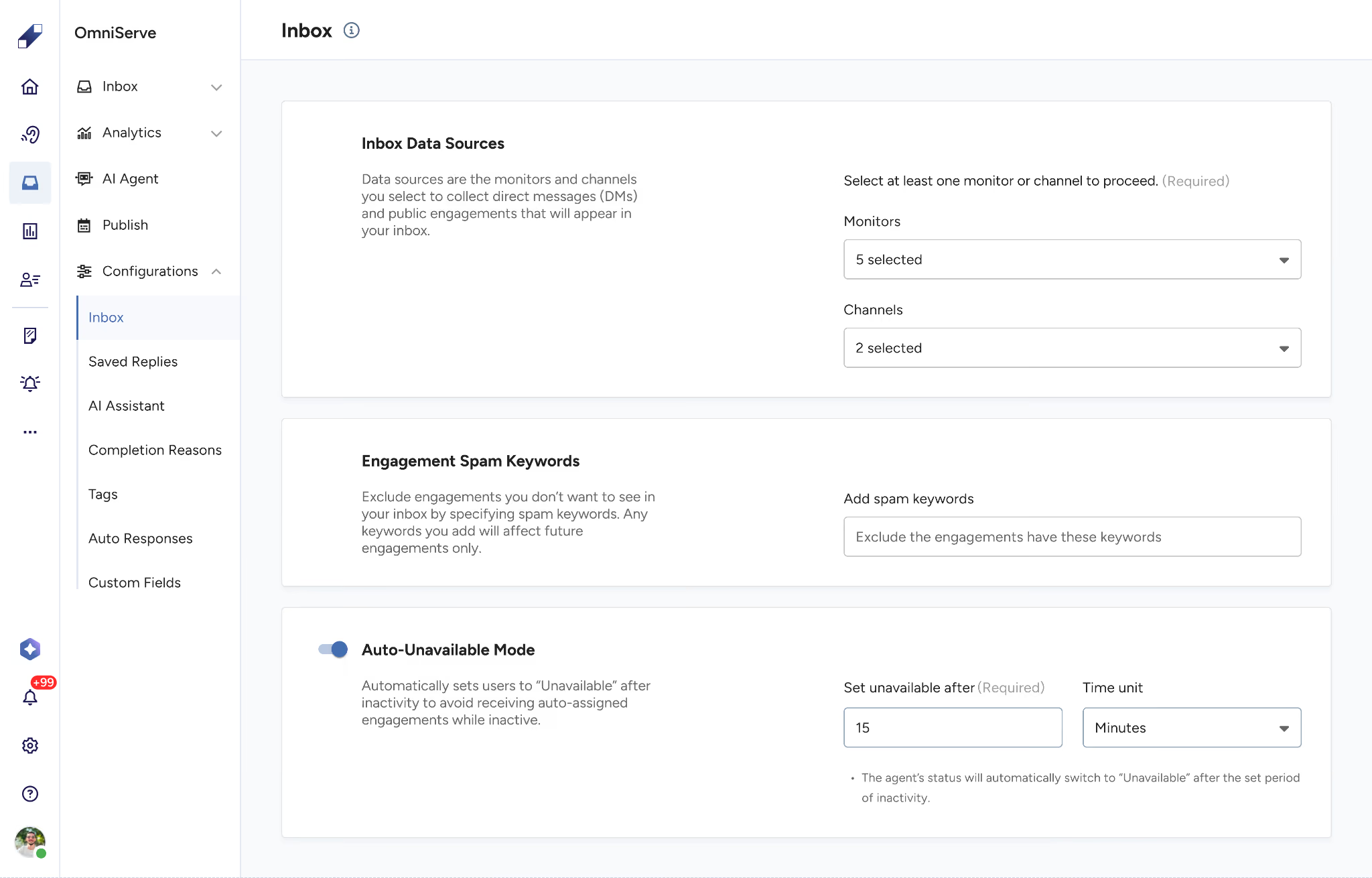
Auto-Unavailable
Agents are automatically marked as unavailable when they sign out or remain inactive for a specified period. This ensures reassigned conversations are only sent to active agents, maintaining efficient workload distribution. This feature can be turned off if required.
SLA Requirements
SLA timers (First Response Time, Next Response Time, and Time to Completion) are triggered only when inbound routing is active. Conversations reassigned to a human agent must go through an active inbound routing rule for SLA tracking to apply.
Step 3. Save Your Settings
Once your routing configuration is complete, save your changes. A save bar will appear at the bottom of the screen if any modifications have been made.
For further assistance contact Lucidya Support.
Frequently asked questions
A warning message will appear prompting you to open the inbound routing settings and add agents to the selected routing condition before the AI Agent can receive conversations through it.
No. Each routing condition can only be assigned to one AI Agent at a time. If a condition is already in use it will be disabled in the selection list.
The AI Agent will handle every conversation it receives from start to finish without transferring to a human agent, regardless of the complexity of the request.
It will appear in the Unassigned tab in the OmniServe Inbox, where it can be picked up manually by an available agent.