
.svg)


How to Configure the Ticketing System in Lucidya
Learn how team leaders configure the Lucidya Ticketing System, including ticket templates, custom fields, tags, teams, user permissions, and SLAs.
Configurations is where team leaders set up the foundation of the Ticketing System — ticket templates, custom fields, tags, teams, and user permissions. Agents can use everything built here but cannot create or modify configurations.
Users and Permissions
Two roles are available: Team Leader and Agent. Once a user is assigned a role, you can configure their advanced permissions.
- Visible Ticket Tabs, choose which of the five tabs (My Tickets, Teams Assigned, Unassigned, Archived, All Tickets) the user can see.
- Analytics Access, grant or restrict access to the Analytics section.
- Export Tickets, control who can export ticket data.
- Tags Management, set permissions for creating, editing, disabling, and deleting tags.
Note: Agents cannot access tag management in Configurations, so the Edit and Disable/Delete options are unavailable for them.
Agent Capacity can also be managed here. Set a default capacity limit for all agents, or define specific limits per agent. If an agent already has assigned tickets when a new limit is applied, those tickets count toward the new limit. If the new limit is lower than the current number of assigned tickets, the excess tickets will be automatically unassigned.
Note: If a user's Ticketing access is removed after they've been assigned tickets, those tickets remain assigned but the user can no longer access them. A team leader can reassign or unassign on their behalf.
Teams
Each team is assigned to a single product: either OmniServe or Ticketing. This product assignment cannot be changed after the team is created. When creating a Ticketing team, only users with Ticketing access appear in the member selection. Working hours configured for the team affect SLA calculations.
Note: Auto-reply settings are only shown when OmniServe is selected as the product, they do not apply to Ticketing teams.
Ticket Templates
Templates define the fields agents fill in, the statuses a ticket moves through, how it gets assigned, and what SLAs apply. Up to 100 templates can be created. Template creation is a four-step process.
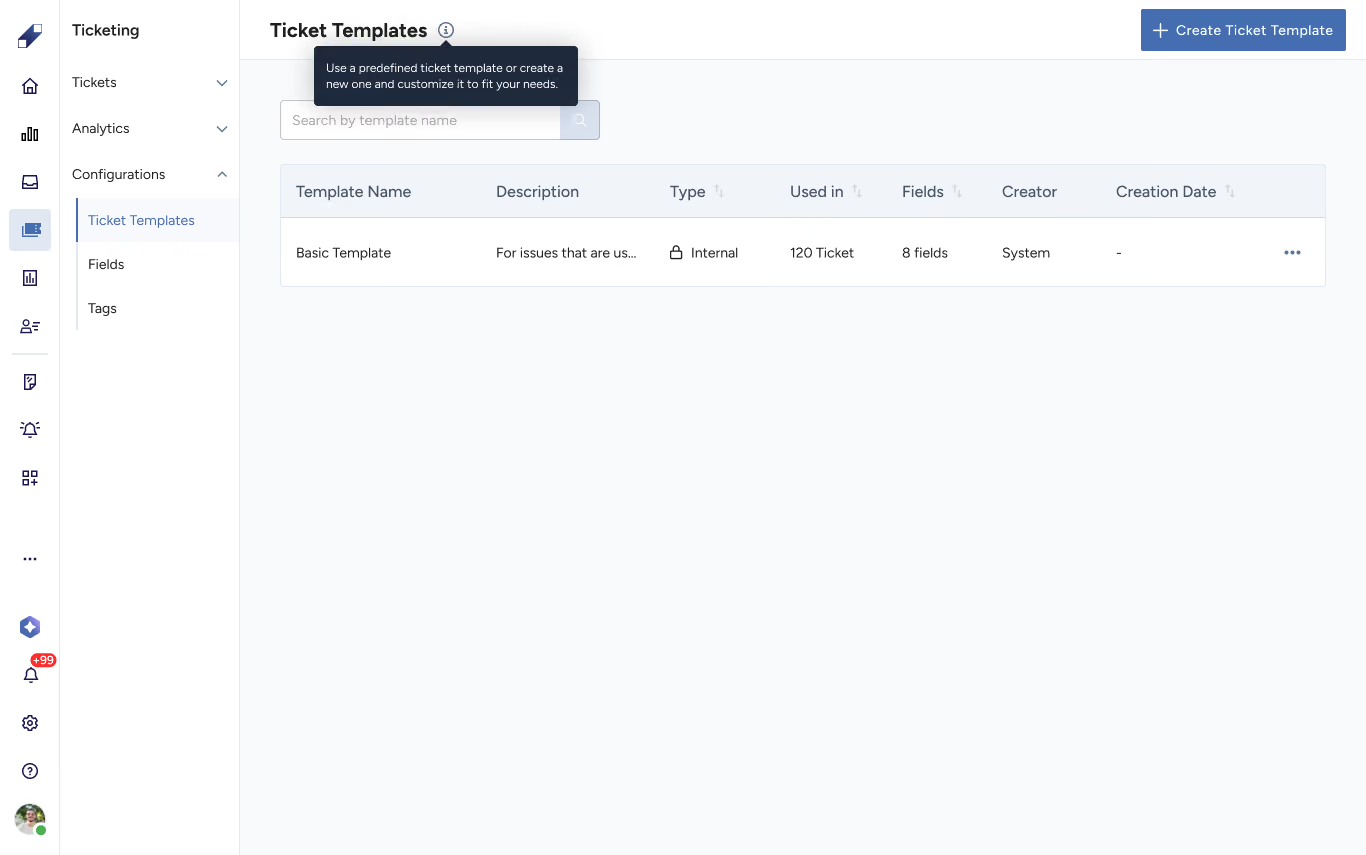
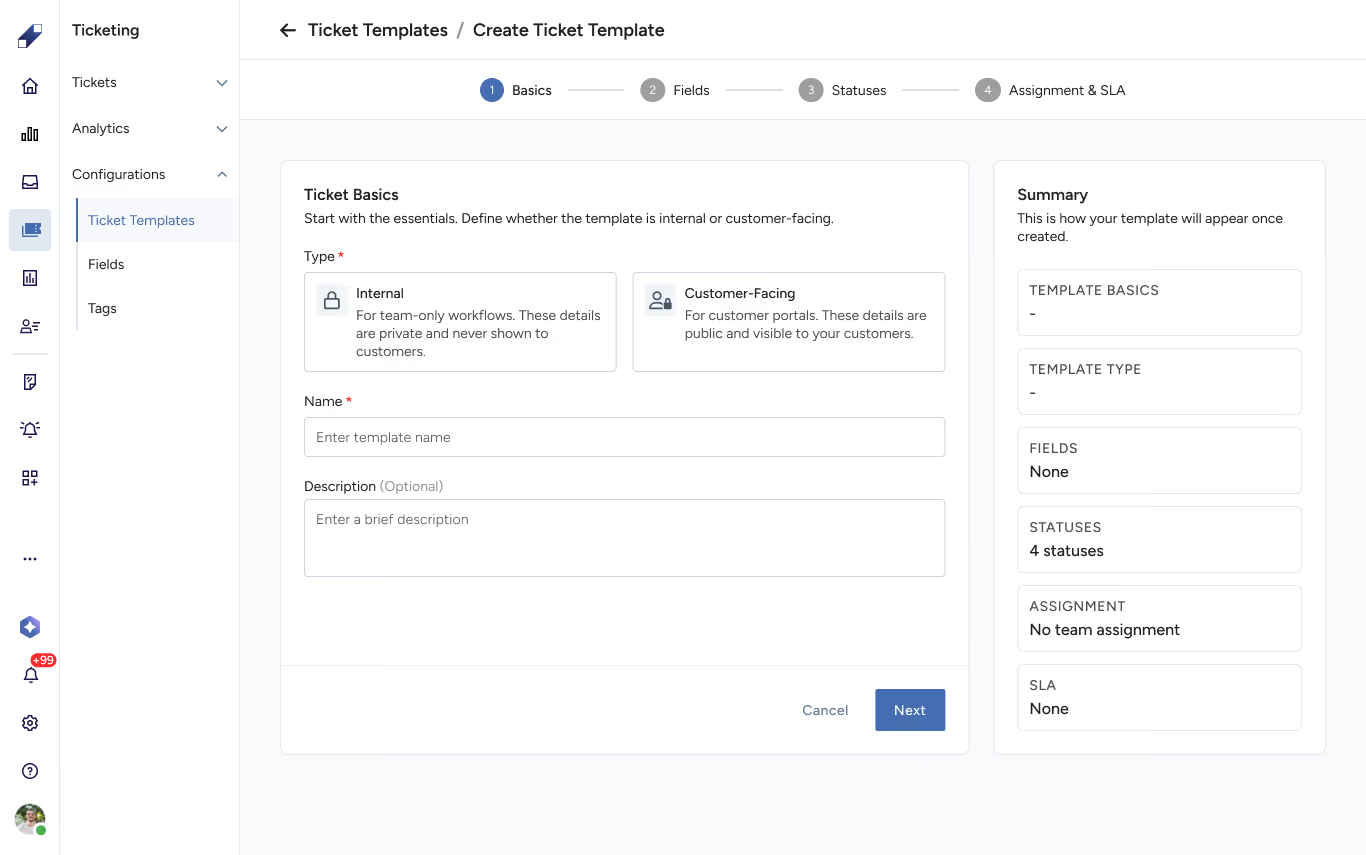
Step 1. Basics
Name the template, choose its type (Customer Facing or Internal), and add an optional description. Customer Facing templates send status change notifications to the customer via SMS or email and to agents internally. Internal templates send notifications to agents only.
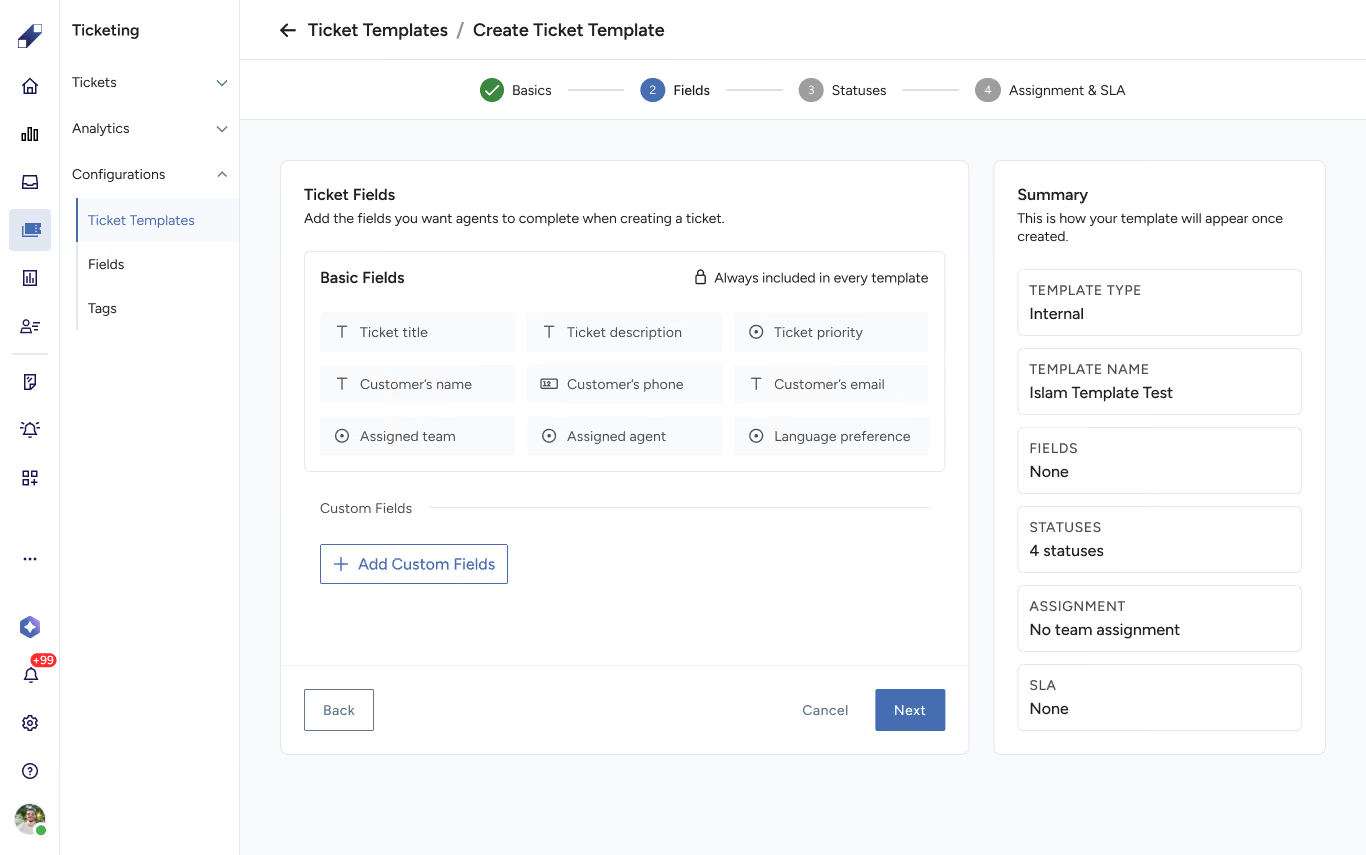
Step 2. Fields
Every template includes eight fixed fields that cannot be removed or reordered: ticket title, description, priority, customer name, customer phone, customer email, assigned team, and assigned agent.
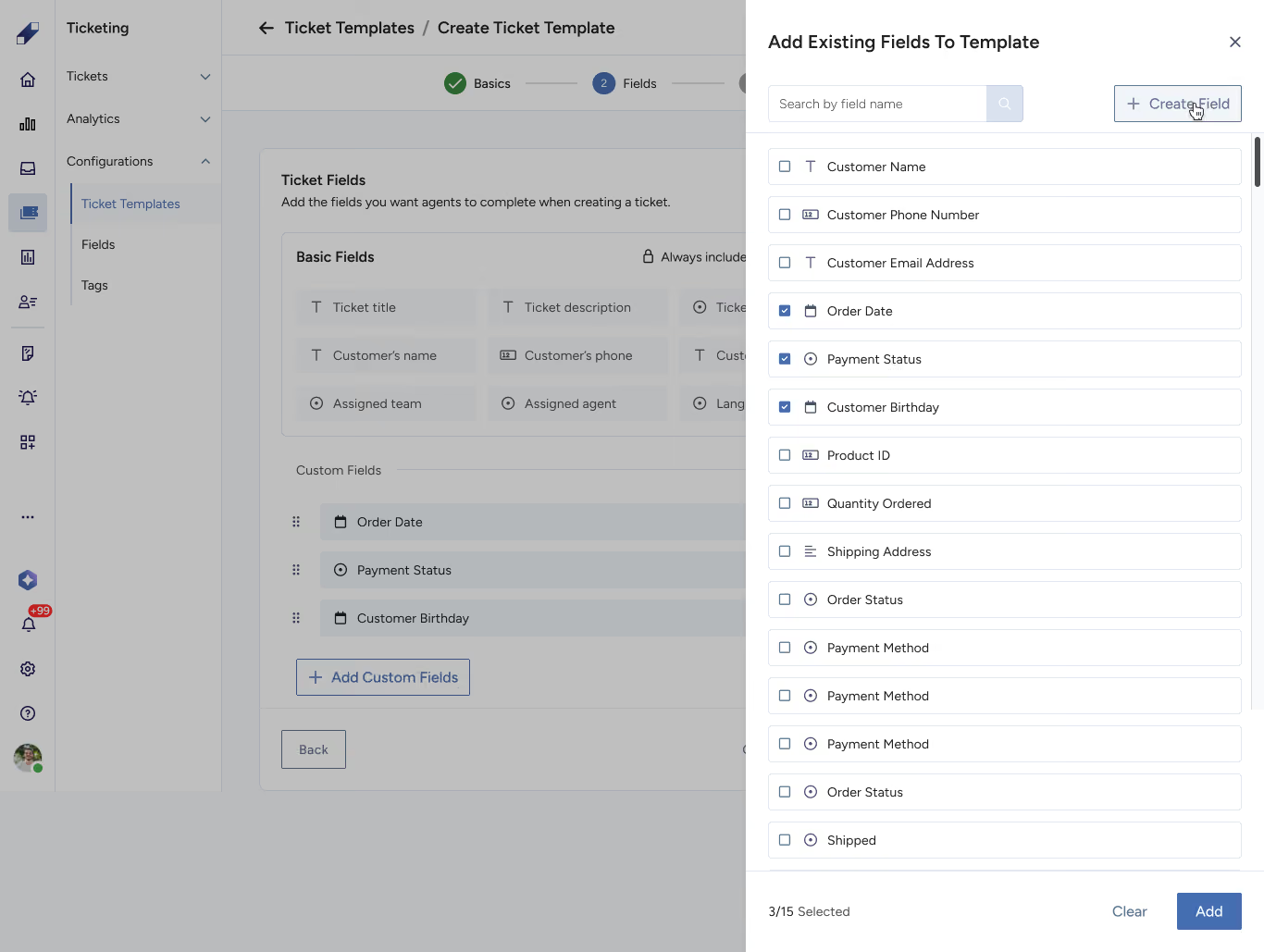
You can add up to 15 additional custom fields from the Fields library. Fields can be reordered, and the order defines how the form appears to agents.
Step 3. Statuses
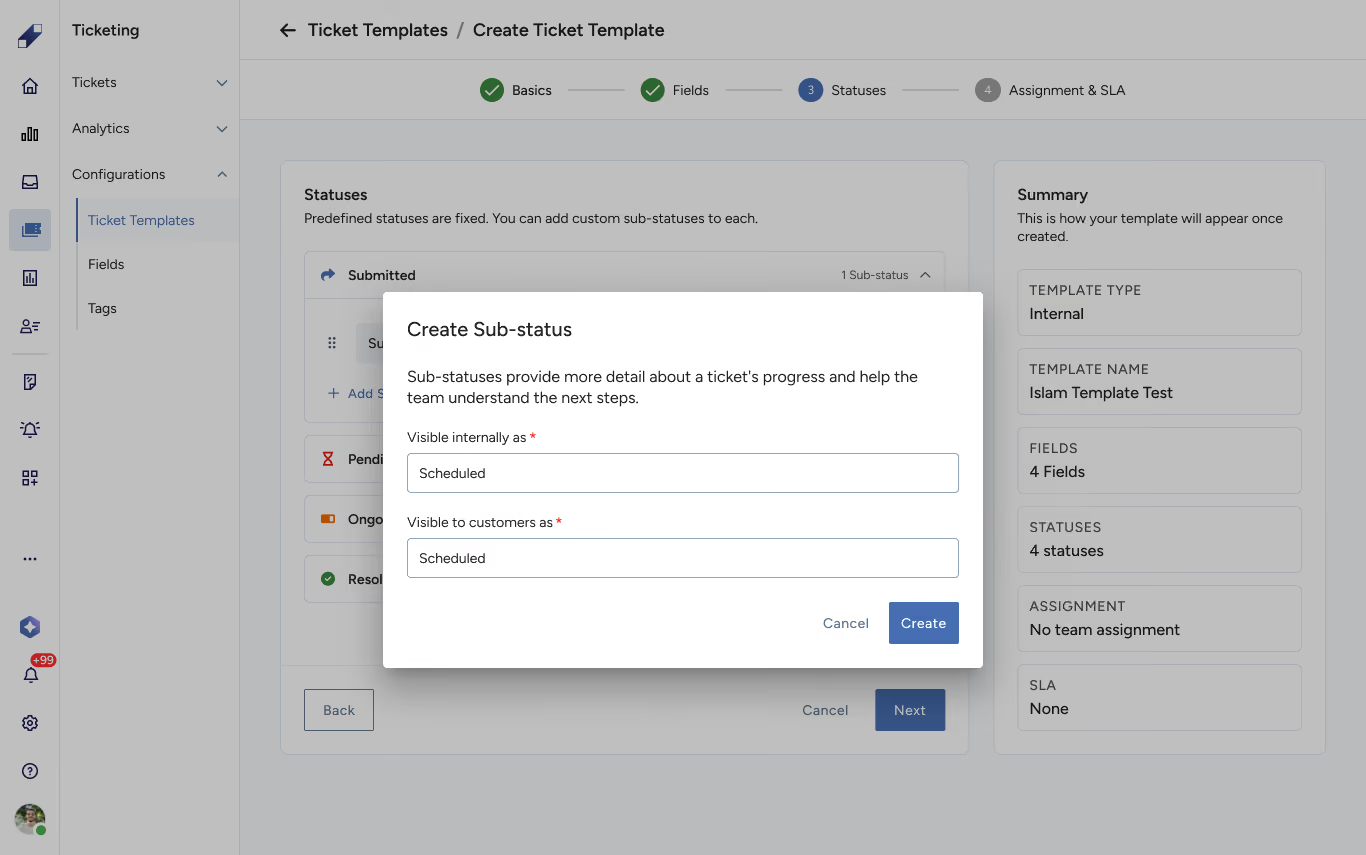
Configure the sub-statuses for each of the four main statuses (Submitted, Pending, Ongoing, Resolved).
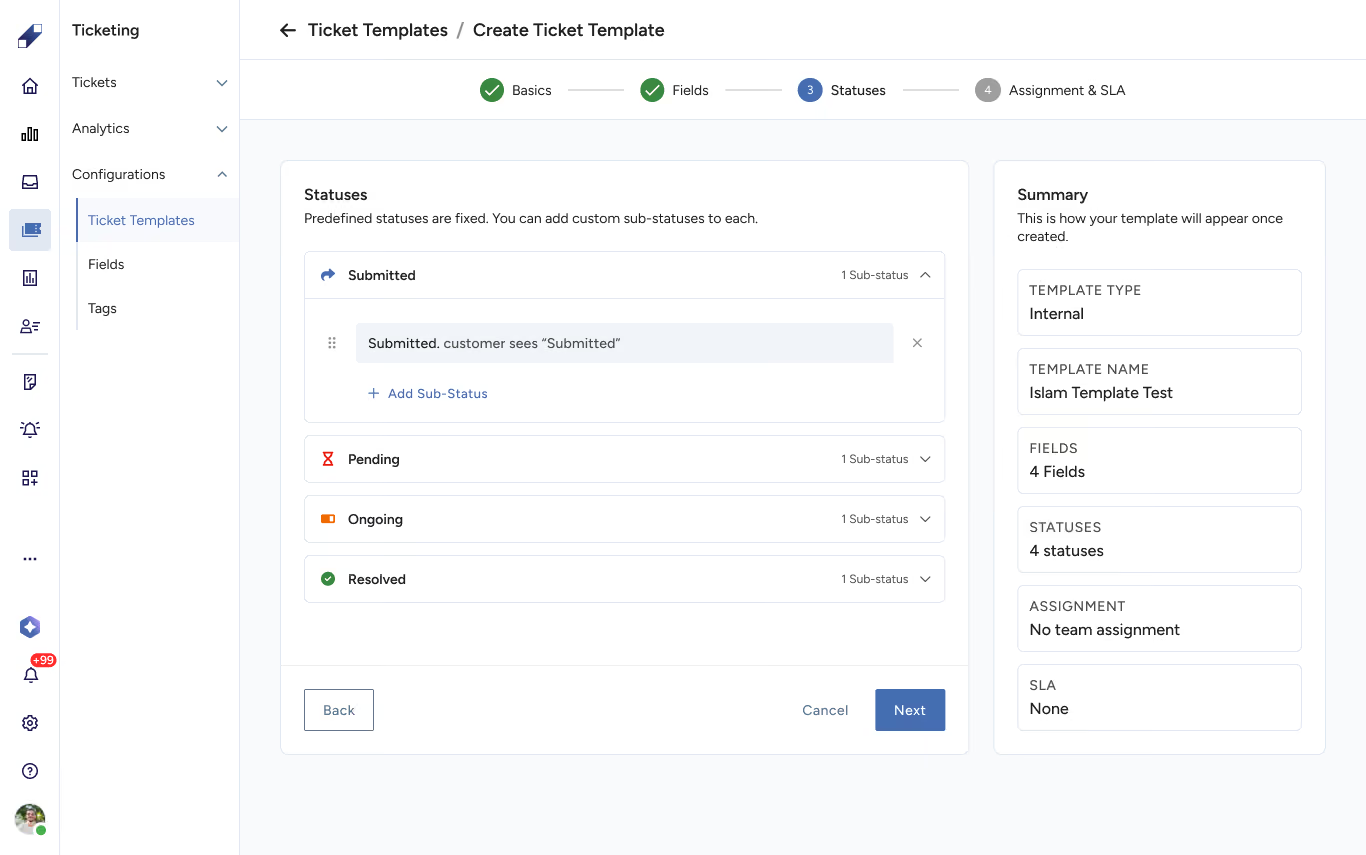
Each status requires at least one sub-status and supports up to four. For Customer Facing templates, each sub-status has two labels, one visible to agents internally and one visible to the customer.
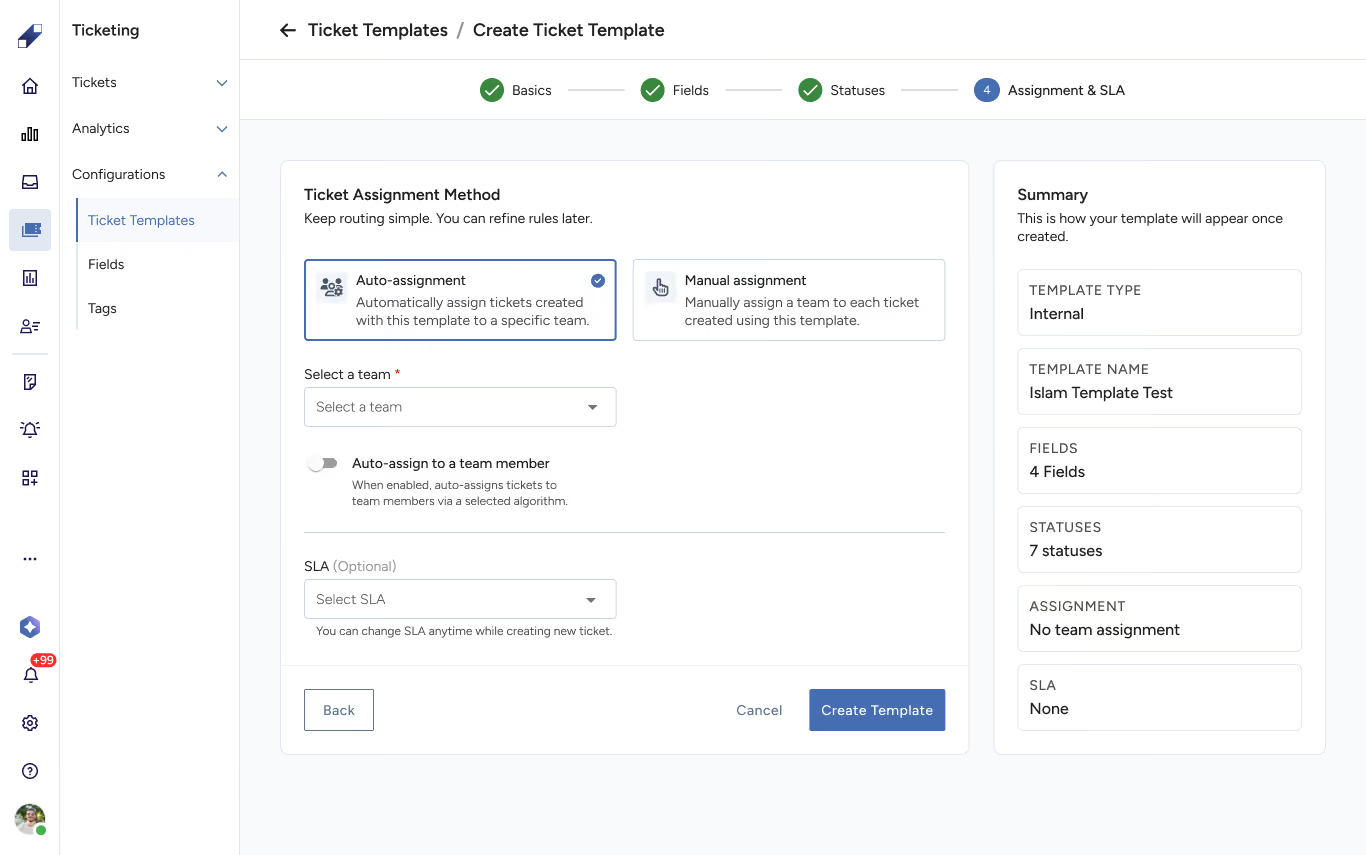
Step 4. Assignment and SLA
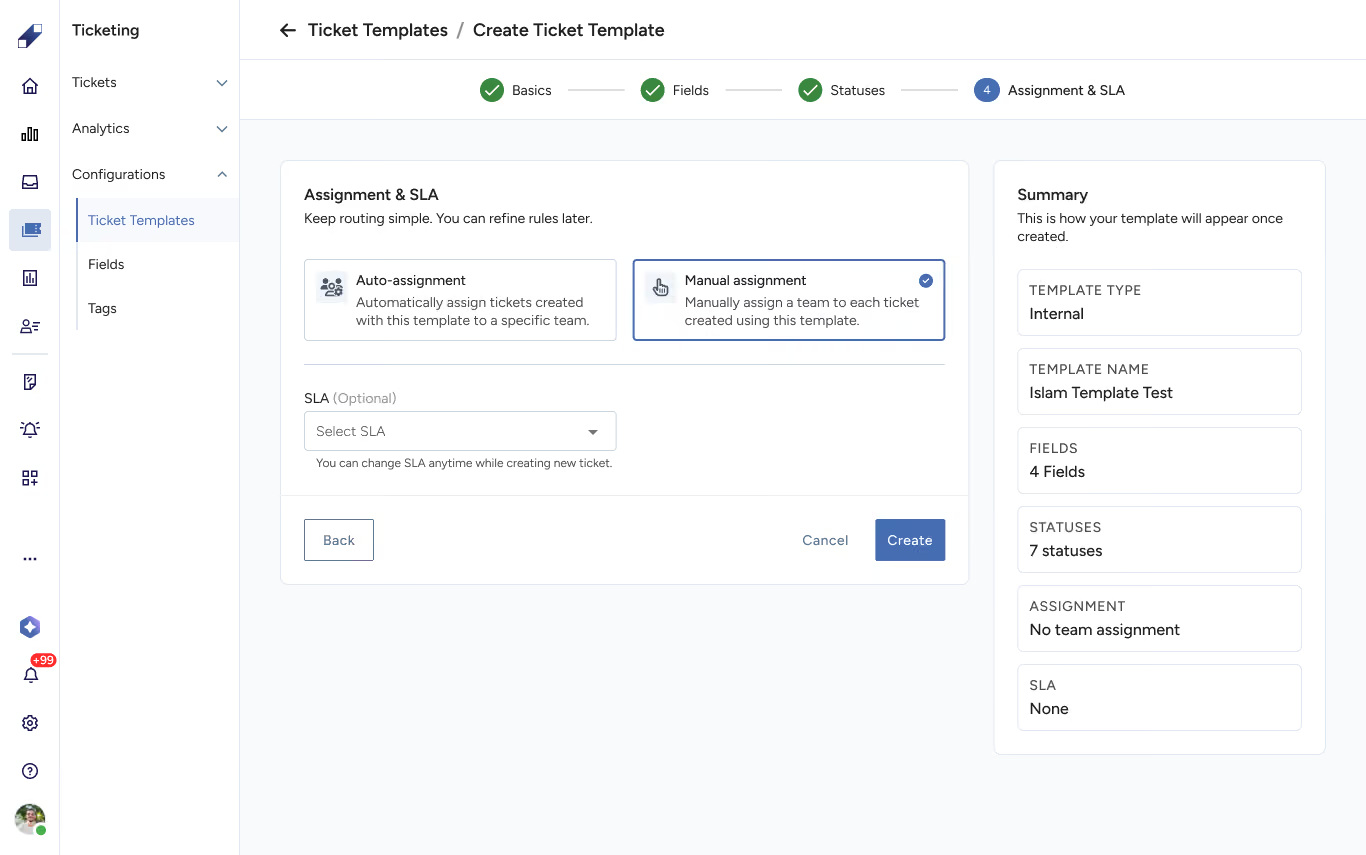
Choose between auto-assignment and manual assignment.
Auto-assignment requires selecting a team and choosing a method, Balance (assigns to the agent with the fewest active tickets) or Round Robin (rotates in a fixed order).
Manual assignment means no automatic routing. Attach an SLA to the template by selecting from existing SLAs or creating a new one. SLAs track time to complete (TTC) and total unassigned time (TUT).
Templates can be edited, copied, or archived. Archiving prevents new tickets from being created with that template, but existing tickets are not affected. The template table shows usage counts so you always know how widely a template is being used.
Fields
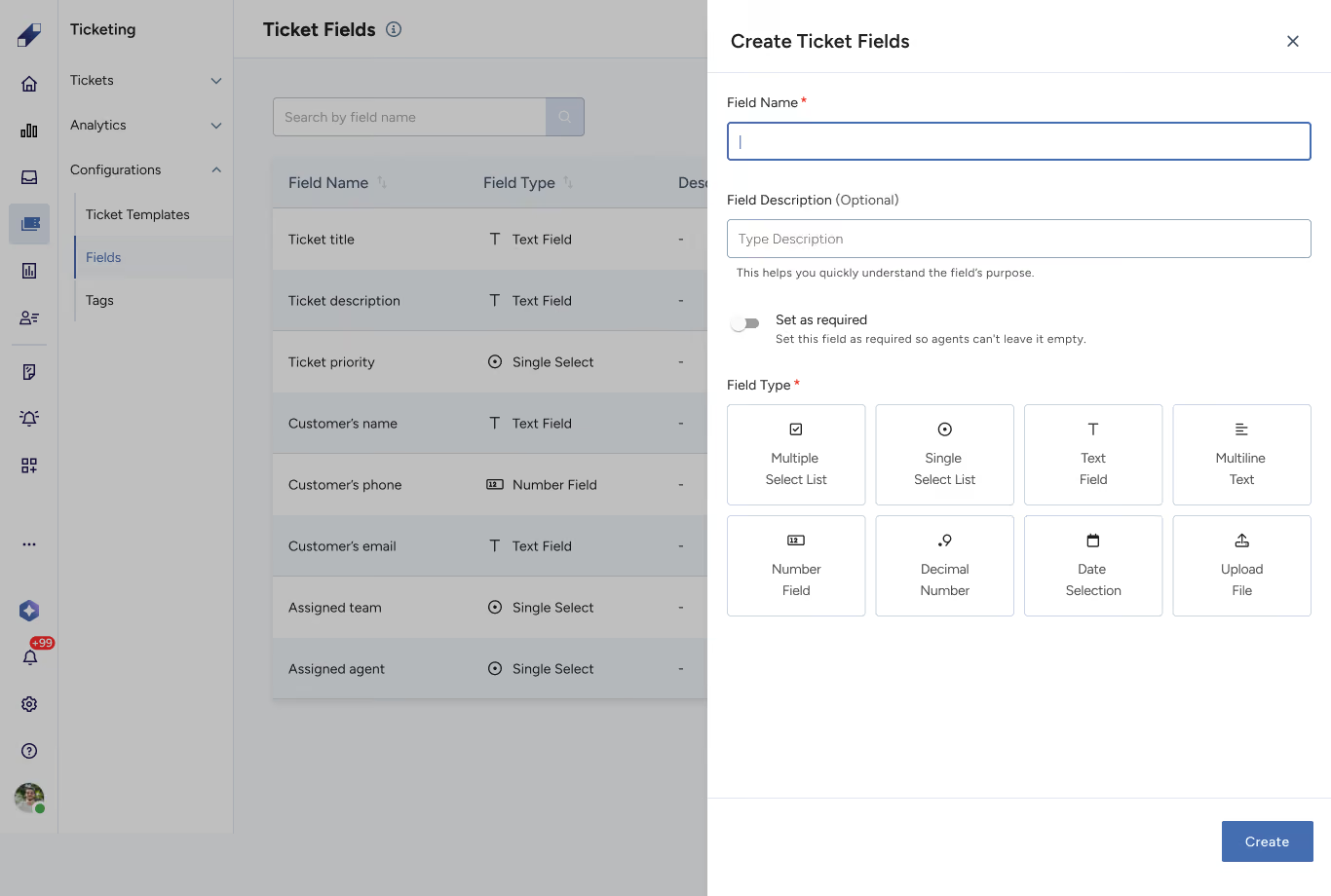
Fields are the building blocks of templates. Creating a field library gives you reusable components that can be added to any template without recreating them each time. Up to 100 custom fields can be created.
Supported field types: Text (single-line, up to 150 characters), Multiline Text (up to 2,500 characters), Number (whole numbers only), Decimal (up to 3 decimal places), Single Select, Multi-Select, Date Selection, and File Upload (PDF, Word, Excel, PowerPoint, images, and videos, up to 10 files per field, max 50 MB per file).
Each field can be set as required or optional. Field names must be unique, even with archived fields. Fields can be copied, edited, or archived. Archiving a field removes it from all templates going forward, but existing tickets that already used it are not affected.
Tags
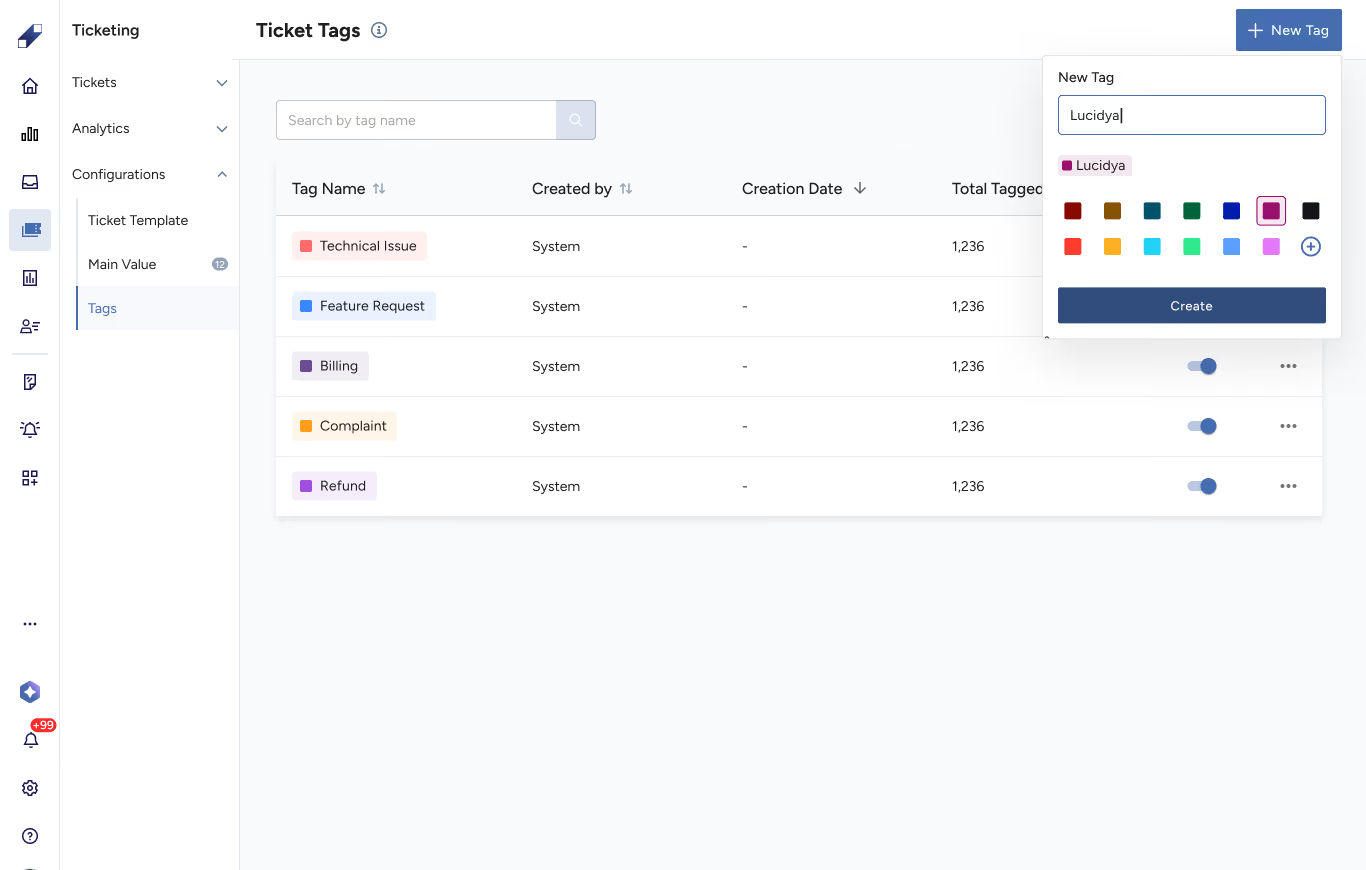
Tags let you categorize tickets by business goals, campaigns, or any internal classification. Up to 350 tags can be created. Once this limit is reached, existing tags must be deleted before new ones can be created.
Creating a tag requires a name (up to 50 characters, no special characters) and a color. Tag names must be unique across the system.
Tags can be disabled without deleting them, a disabled tag stays on tickets it was already applied to and its historical data is preserved, but it's hidden from the tag selection list. Re-enabling a tag brings it back. Deleting a tag removes it permanently from the system, from all tickets, analytics, and filters.
For further assistance, contact Lucidya Support.
Frequently asked questions
Only Team Leaders. Agents can use everything built in Configurations but cannot create or modify configurations.
Customer Facing templates send status notifications to the customer via SMS or email and to agents. Internal templates send notifications to agents only.
No new tickets can be created with that template, but existing tickets already using it are not affected.
Disabling hides the tag from selection but preserves it on existing tickets and in historical data. It can be re-enabled. Deleting removes it permanently from the system, all tickets, analytics, and filters.
Each template includes 8 fixed fields and supports up to 15 additional custom fields from the Fields library.