
.svg)


How to Create and Manage Themes in Lucidya
Learn how to create and manage color-coded themes in Lucidya using either manual keywords or AI-generated descriptions to organize and categorize your data.
Themes let you categorize and organize your data using color-coded labels across the platform. Each theme is defined using either manually added keywords or an AI-generated description, and is applied automatically to matching conversations and content.
How to Access Themes
Go to the Lucidya platform homepage. Click the three-dot menu in the top navigation. Select Themes.
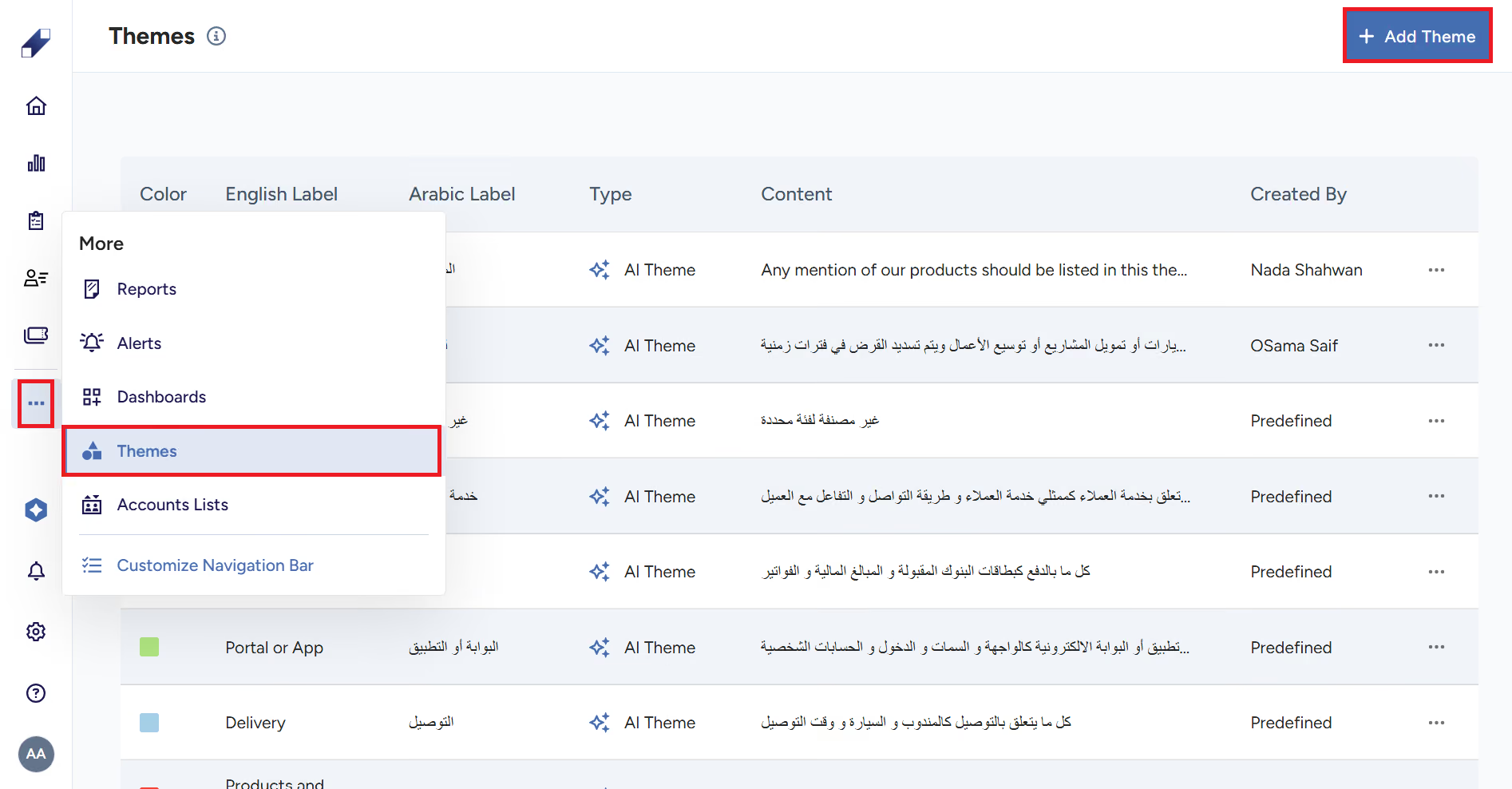
Creating a New Theme
Click Add Theme, then configure the following.
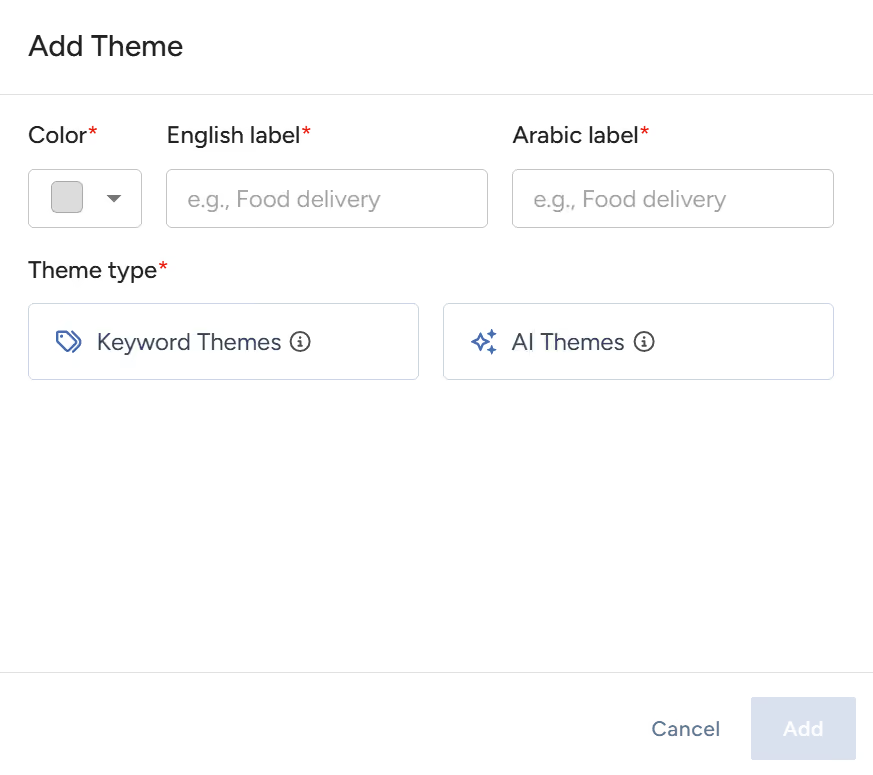
Step 1: Choose a Color
- Select a color to represent your theme.
- Choose from the available presets or enter a custom color.
Step 2: Enter Labels
- Enter the theme name in English (required) and in Arabic (required).
Step 3: Select Theme Type
You have two options.
- Keyword Themes: define your theme manually by adding up to 50 keywords. Conversations matching these keywords will be tagged with this theme.
- AI Themes: describe your theme in up to 300 characters and let the AI define it automatically. You can optionally add up to 10 keywords to refine the AI results.
Managing Existing Themes
To edit a theme, open the Themes section, select the theme you want to modify, and update the color, labels, keywords, or AI description. Changes apply to new conversations going forward.
For further assistance contact Lucidya Support.
Frequently asked questions
Keyword Themes use manually defined keywords to match conversations. AI Themes use a text description to let the AI identify relevant content automatically. AI Themes also support optional keywords to refine the results.
Keyword Themes support up to 50 keywords. AI Themes support up to 10 optional keywords alongside the AI description.
Yes. You can select from preset colors or enter a custom color when creating or editing a theme.
The source material does not confirm this, flag for Lucidya's team to verify whether themes apply to historical data or only to new conversations going forward.