
.svg)


How to Create and Manage Tickets in Lucidya
Learn how to create customer-facing and internal tickets in Lucidya, update statuses, link tickets, add internal notes, manage tags, and archive resolved cases.
Creating a Ticket from OmniServe
When handling a customer engagement in OmniServe, agents can open the Tickets sidebar from the action bar and create a ticket linked to that engagement. The process has two steps.
Step 1:
Select a ticket template, add a title, description, and priority.
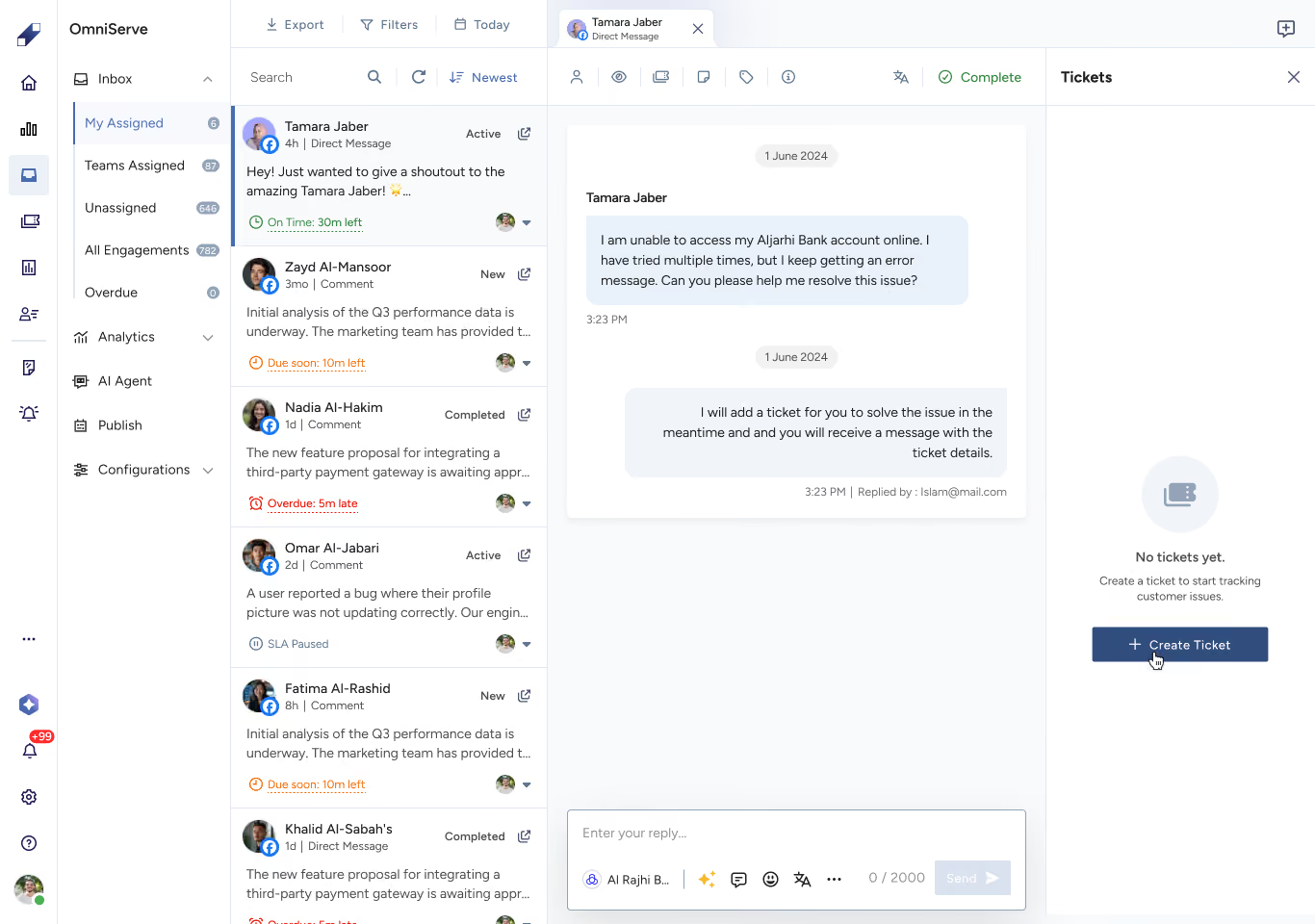
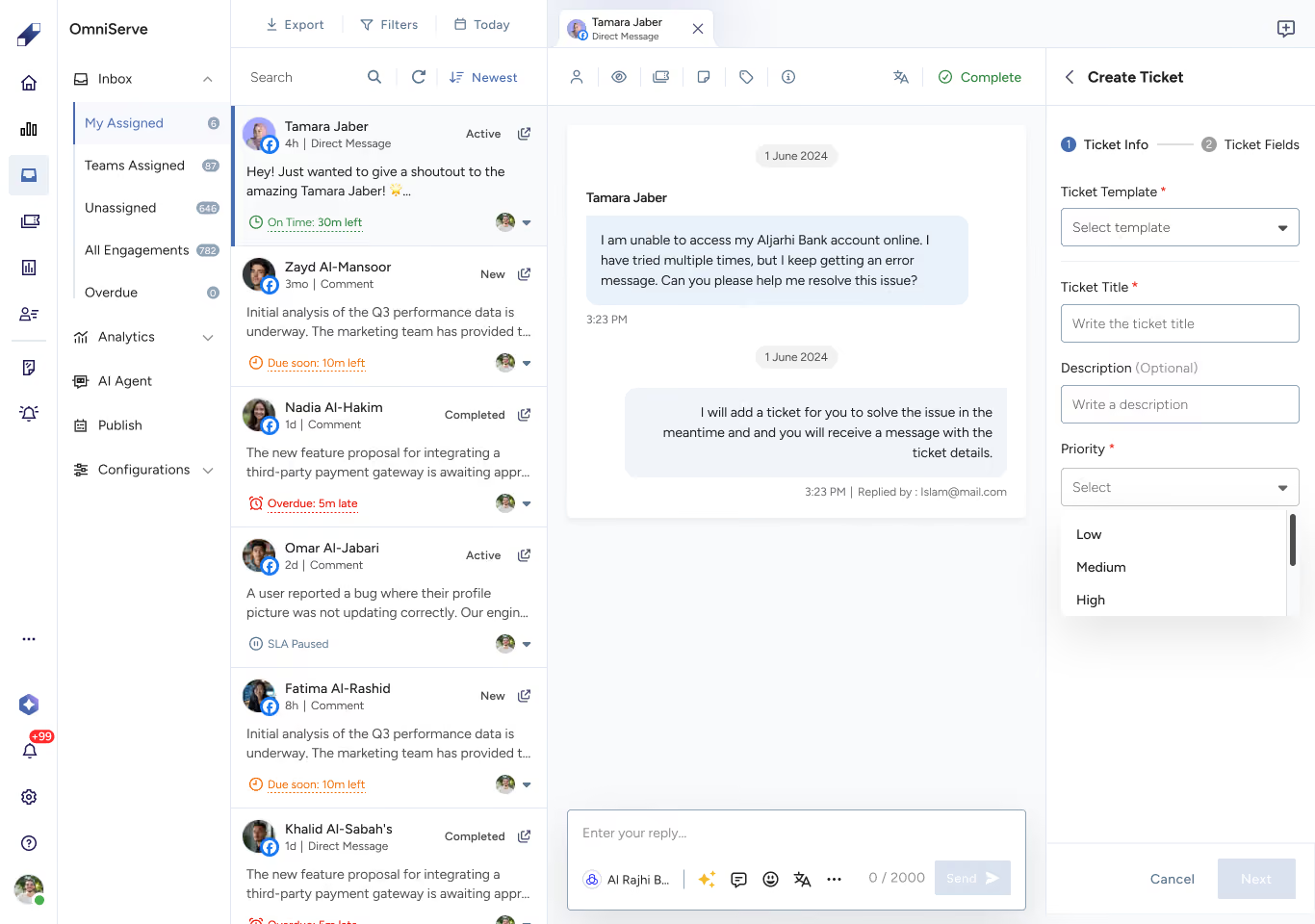
Step 2:
Enter the customer's name, phone number, and email (at least one of phone or email is required), assign a team and agent if needed, and complete any custom fields defined in the template.
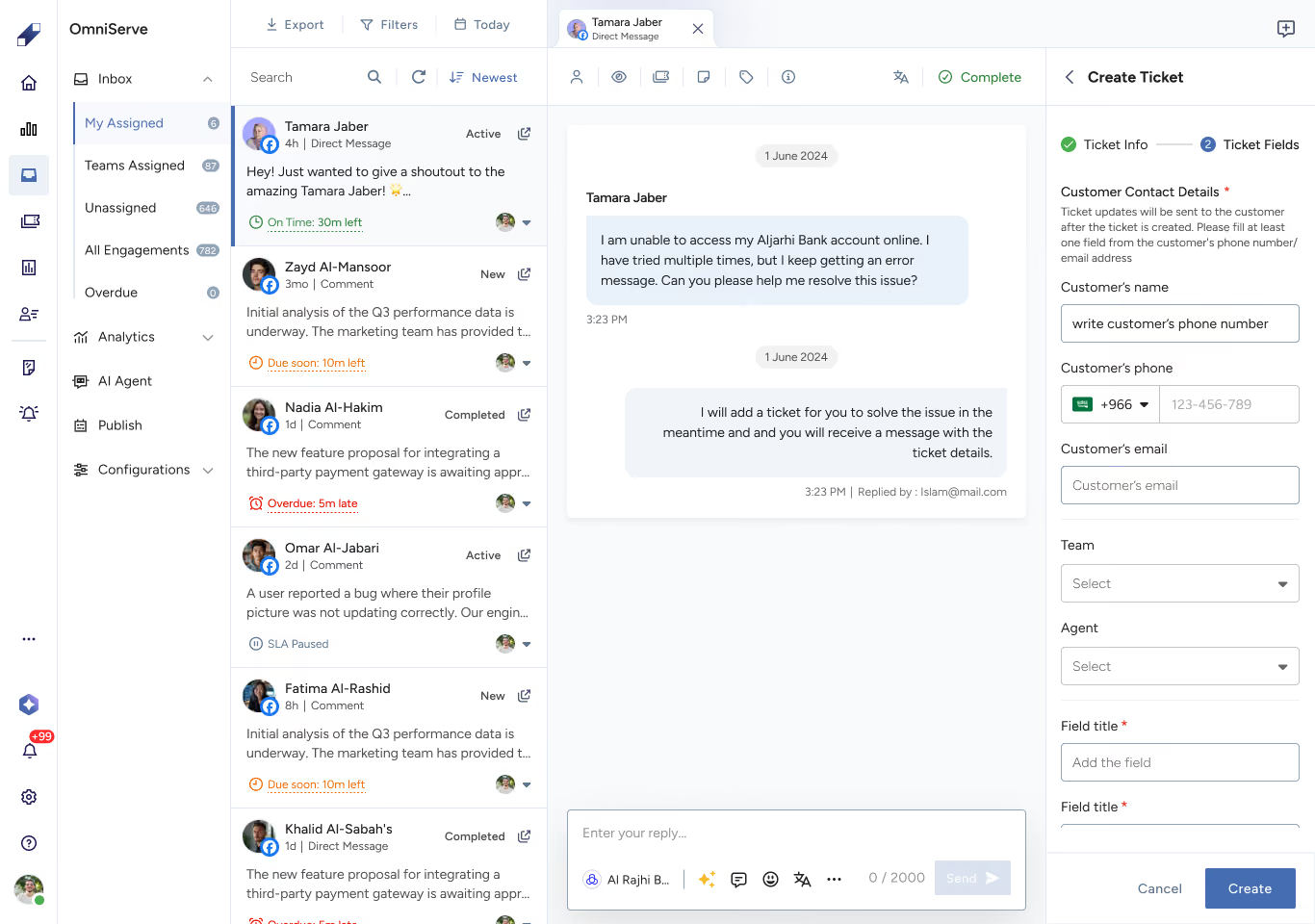
Once created, the ticket appears at the top of the linked tickets list in the sidebar. The customer immediately receives an SMS or email with a link to their Customer Portal. Multiple tickets can be linked to the same engagement.
Customer-facing tickets must be linked to an engagement. For tickets not tied to a customer interaction, use the internal ticket flow.
Creating an Internal Ticket
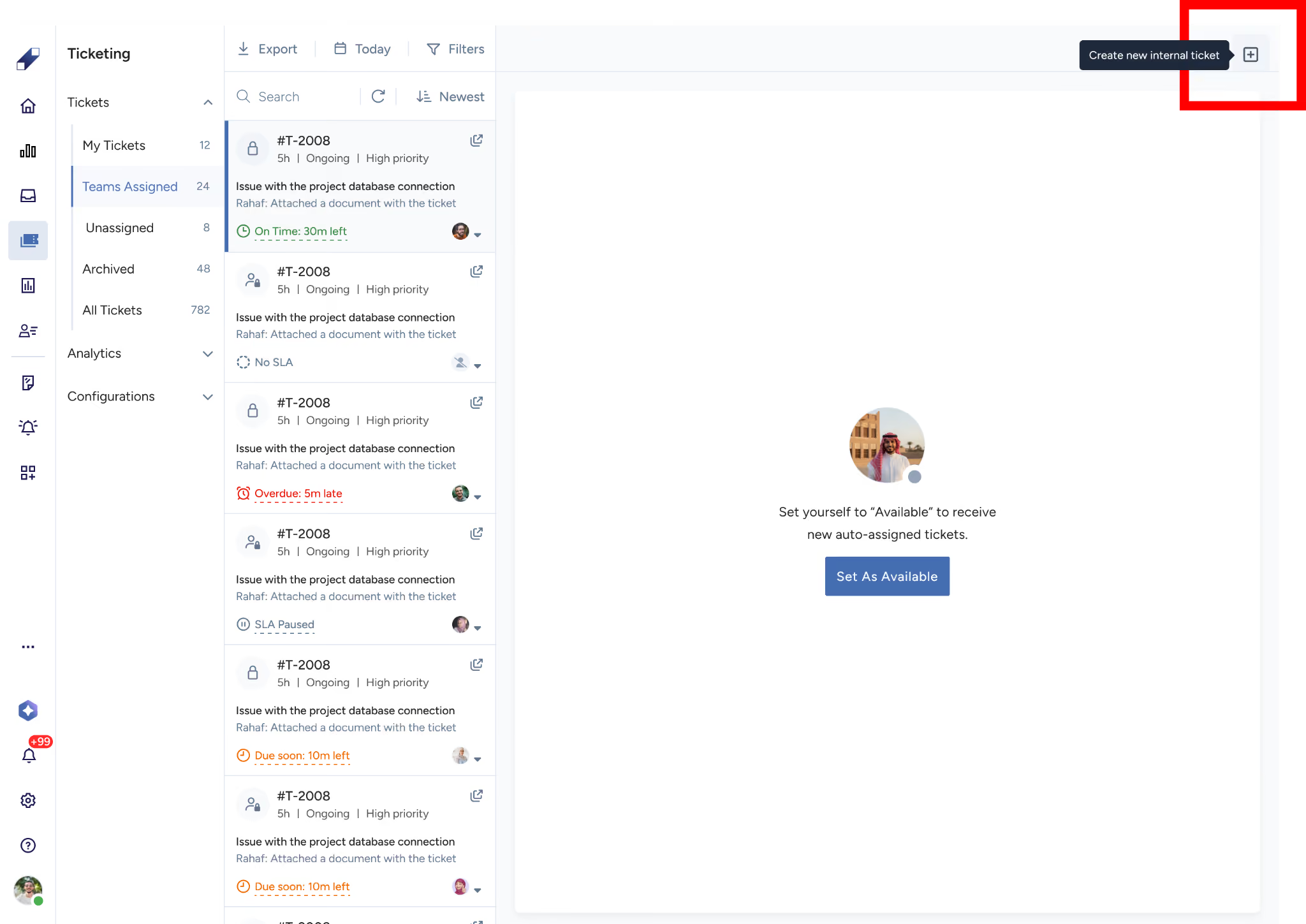
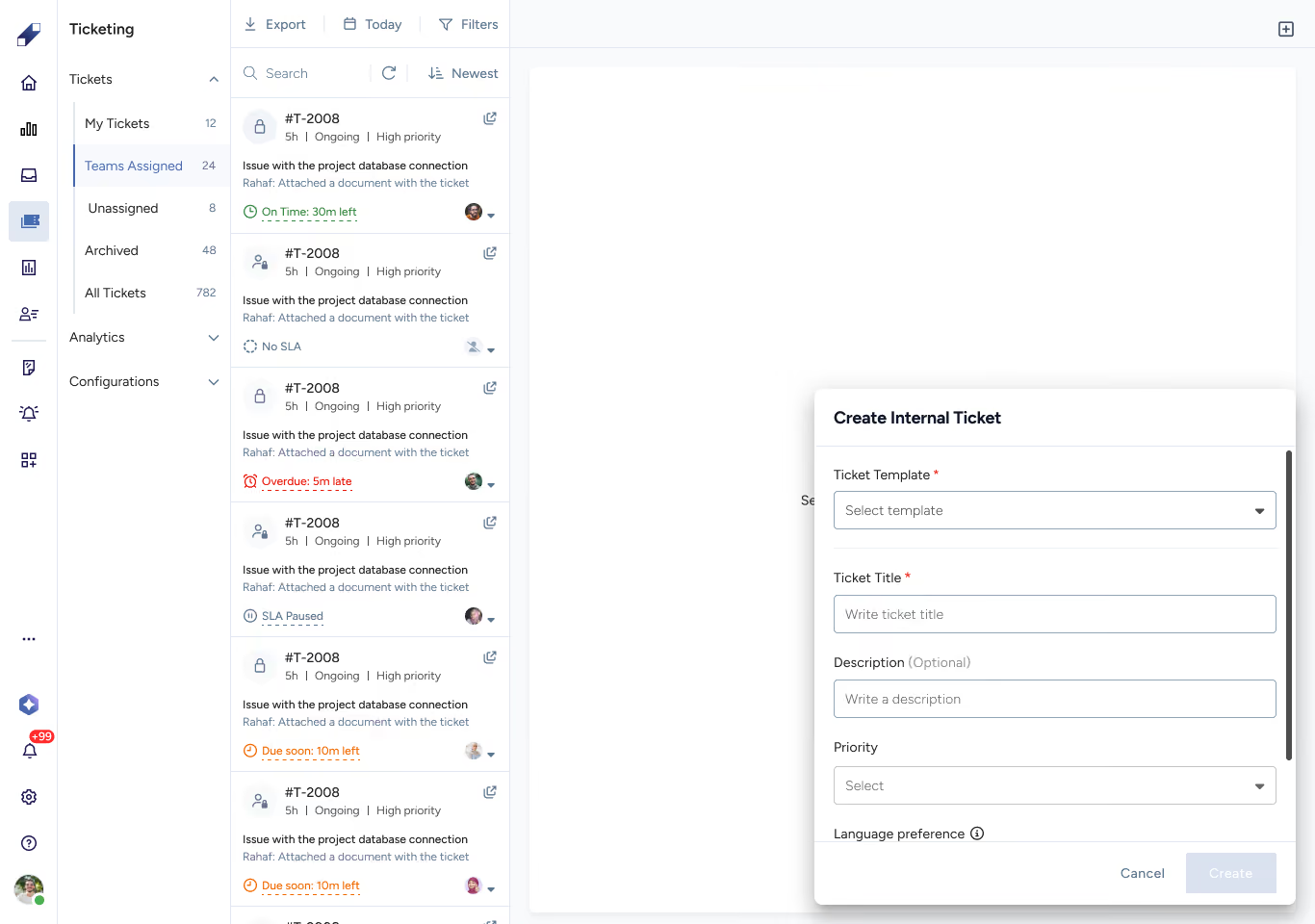
Internal tickets can be created from any ticket tab using the + icon in the top bar. They follow the same template-based flow but without customer information fields since they are not linked to an engagement. Only internal ticket templates appear in the dropdown. Team leaders can access the template creation page directly from the dropdown if a new template is needed.
Updating Ticket Status
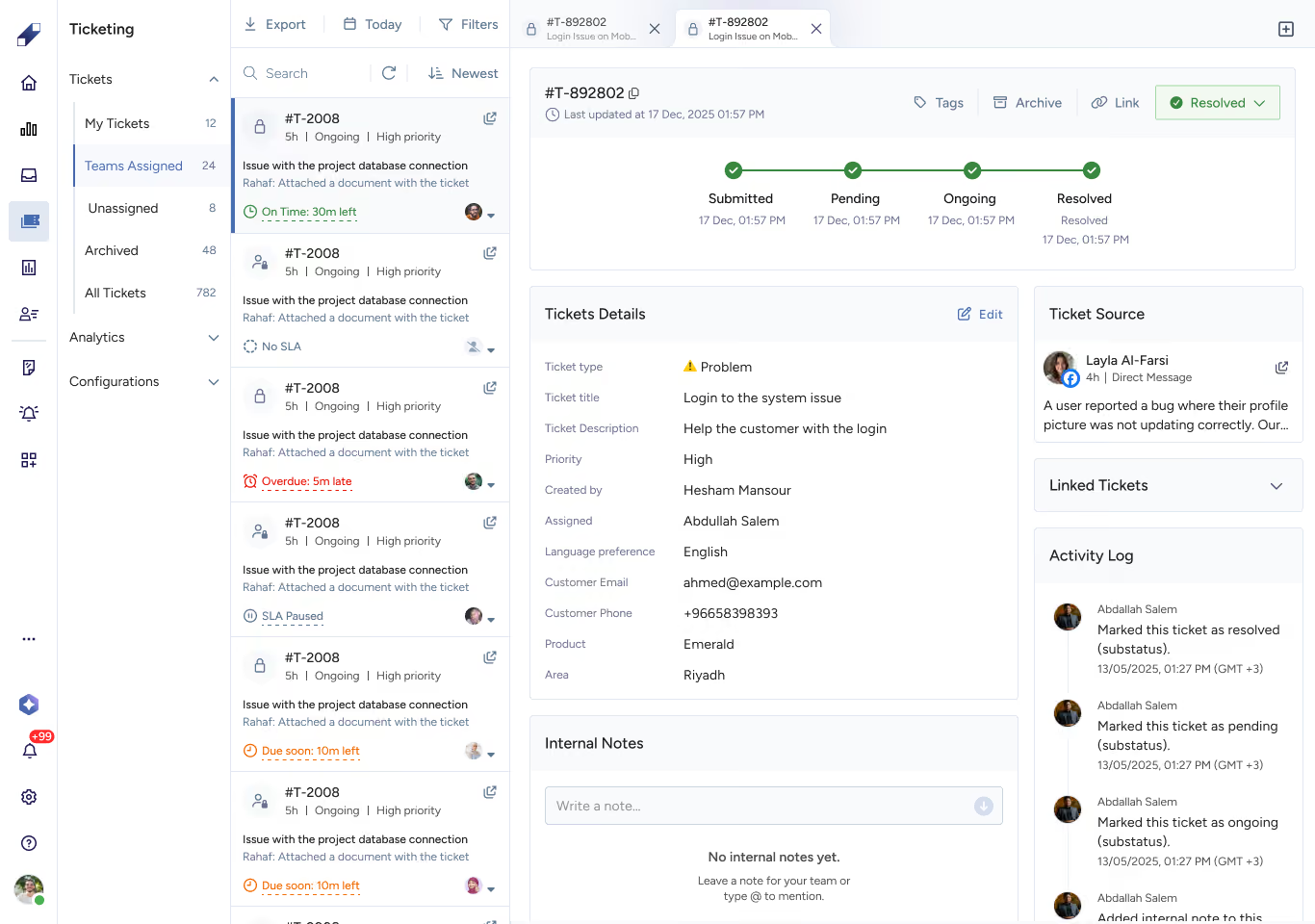
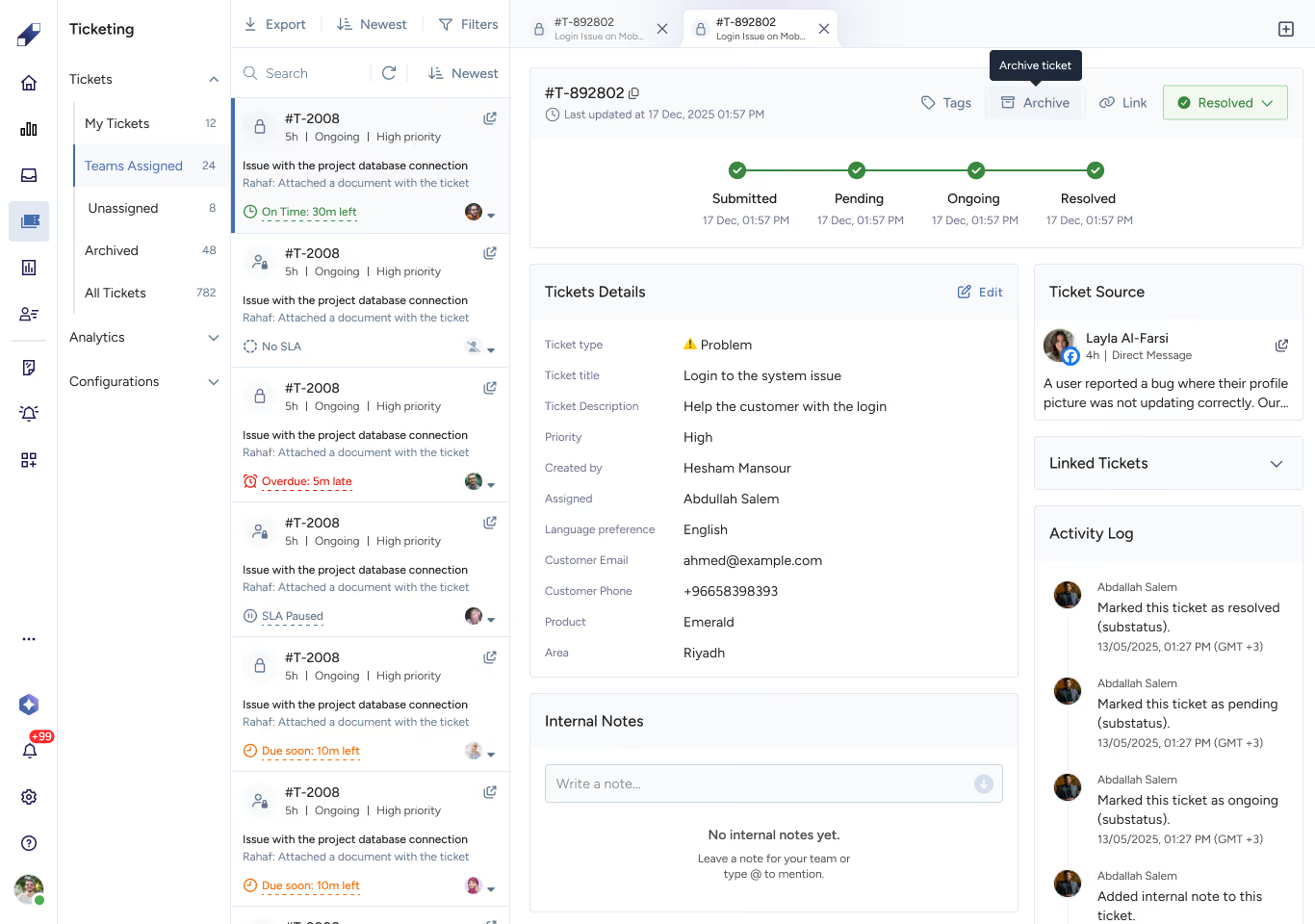
Tickets move through four main statuses — Submitted, Pending, Ongoing, and Resolved — each with configurable sub-statuses. There are no restrictions on navigation: move forward, go backward, or skip statuses based on the situation.
Selecting a new sub-status triggers an immediate confirmation. The customer notification waits one minute before sending — if you adjust the sub-status within that window, only the final selection gets sent. Skipped sub-statuses do not trigger notifications.
Linking Tickets
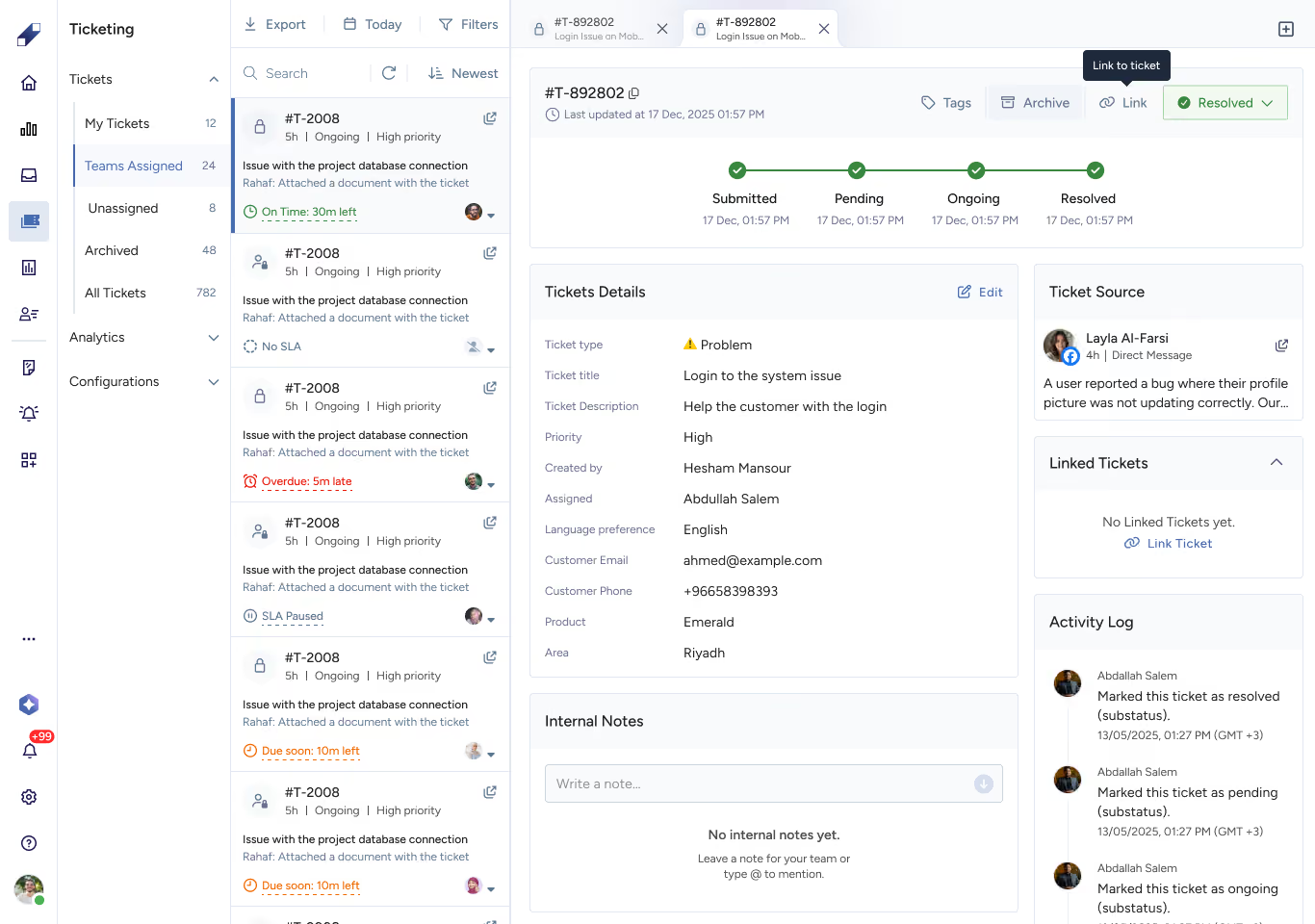
Tickets can be linked to other tickets regardless of type or status, including archived tickets. Open the link panel from within a ticket, search by ticket ID or title, and select the tickets to link.
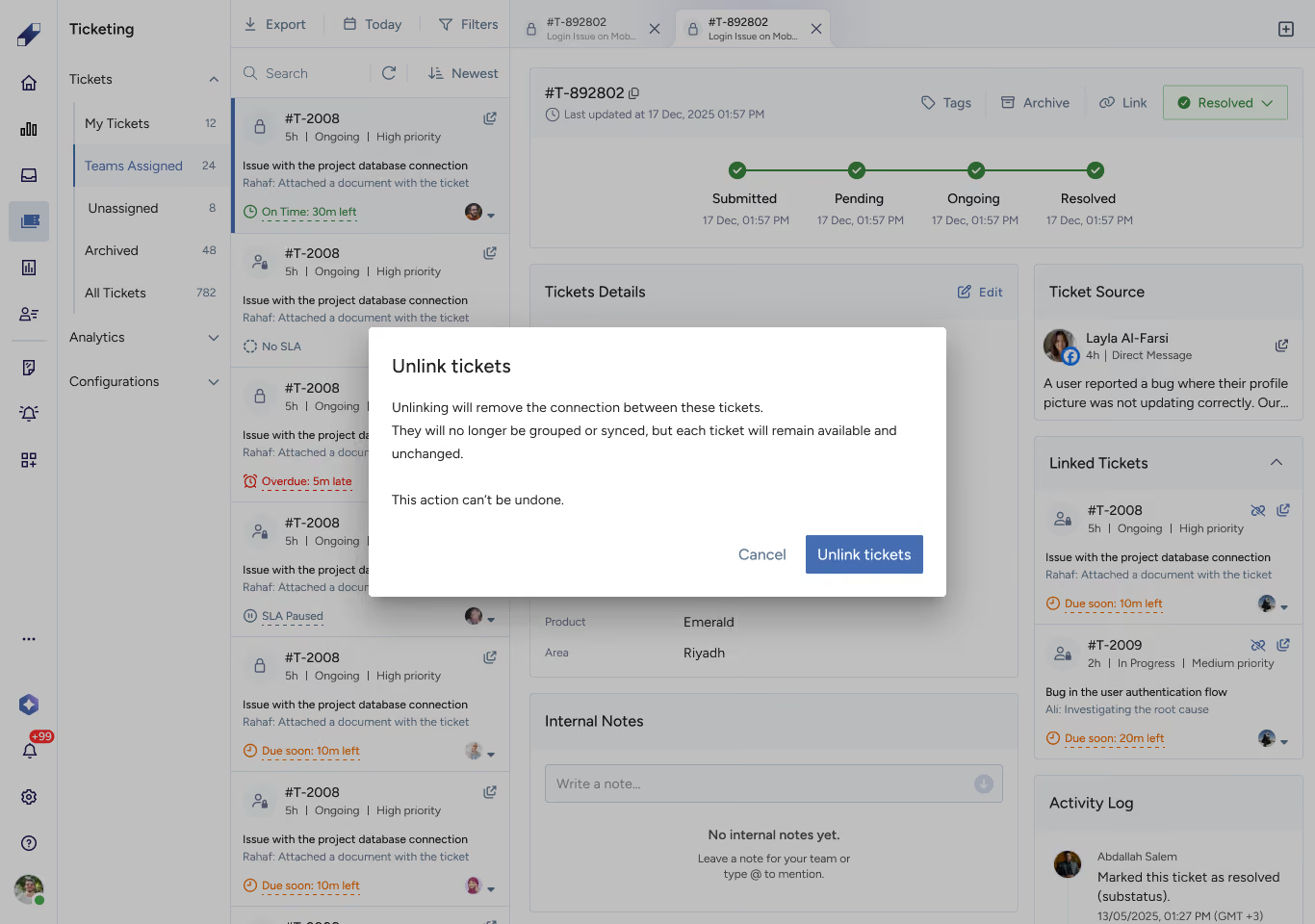
To unlink, hover over the linked ticket and use the unlink option. A confirmation prompt appears before the link is removed. Unlinking does not affect the tickets themselves, only the connection between them.
Adding Internal Notes
Notes are private and visible only to your team. Click the notes field, type your note, and send. You can mention teammates using @ (they receive an email notification), add emoji, and write up to 500 characters per note.
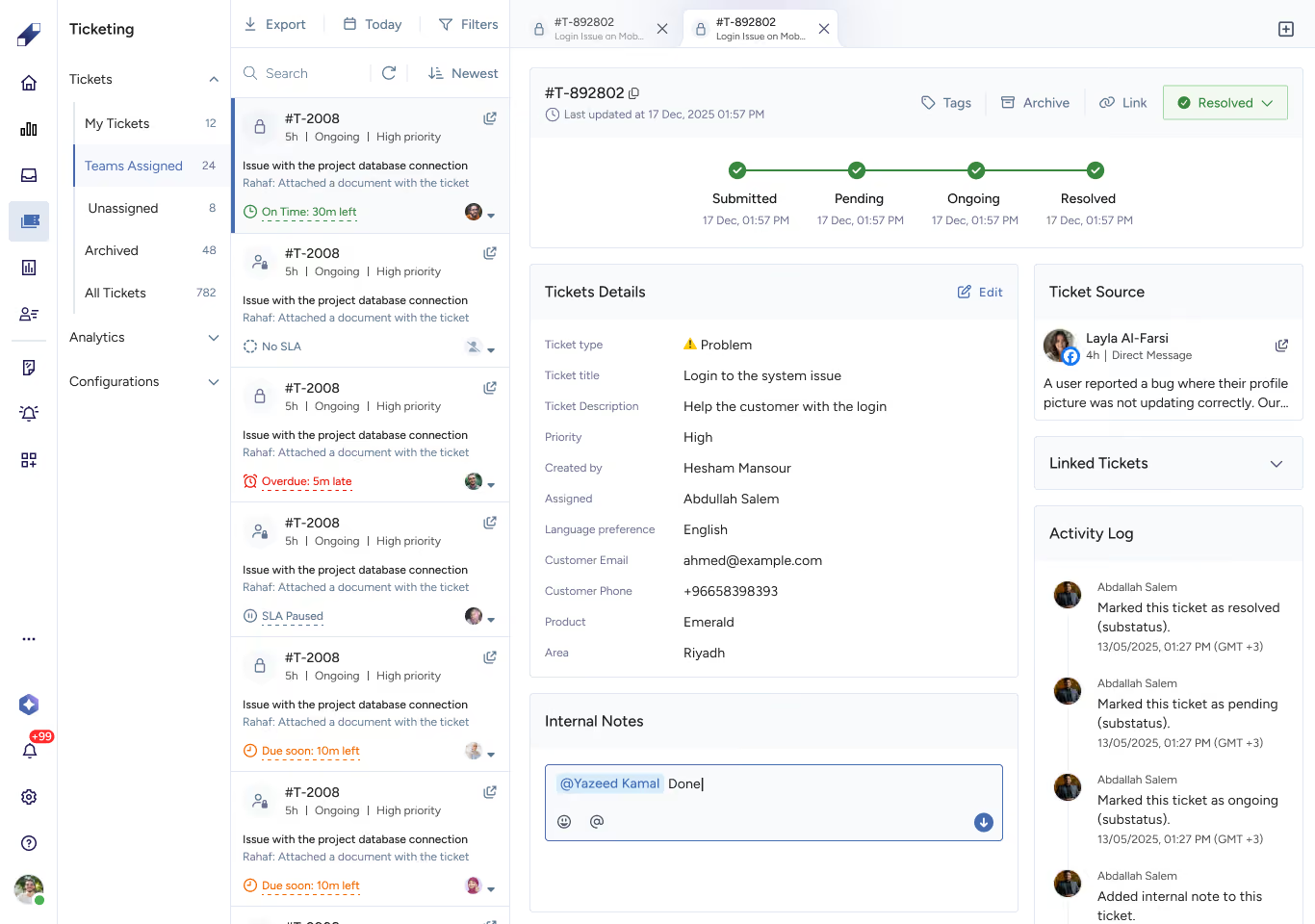
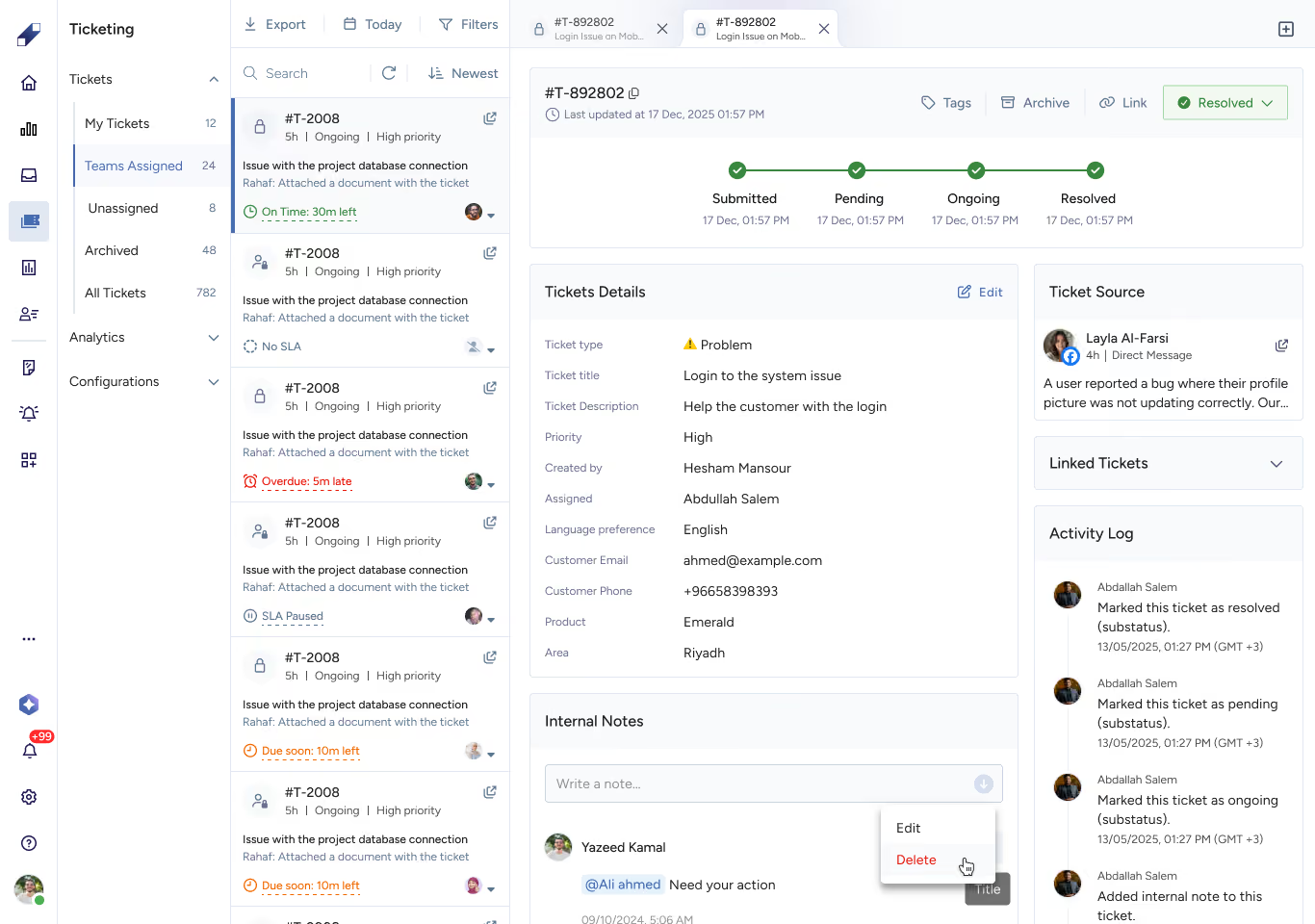
Notes can be edited or deleted after creation. If you edit a note and mention new people, only the newly mentioned users get notified. The original timestamp is preserved when a note is edited.
Managing Tags
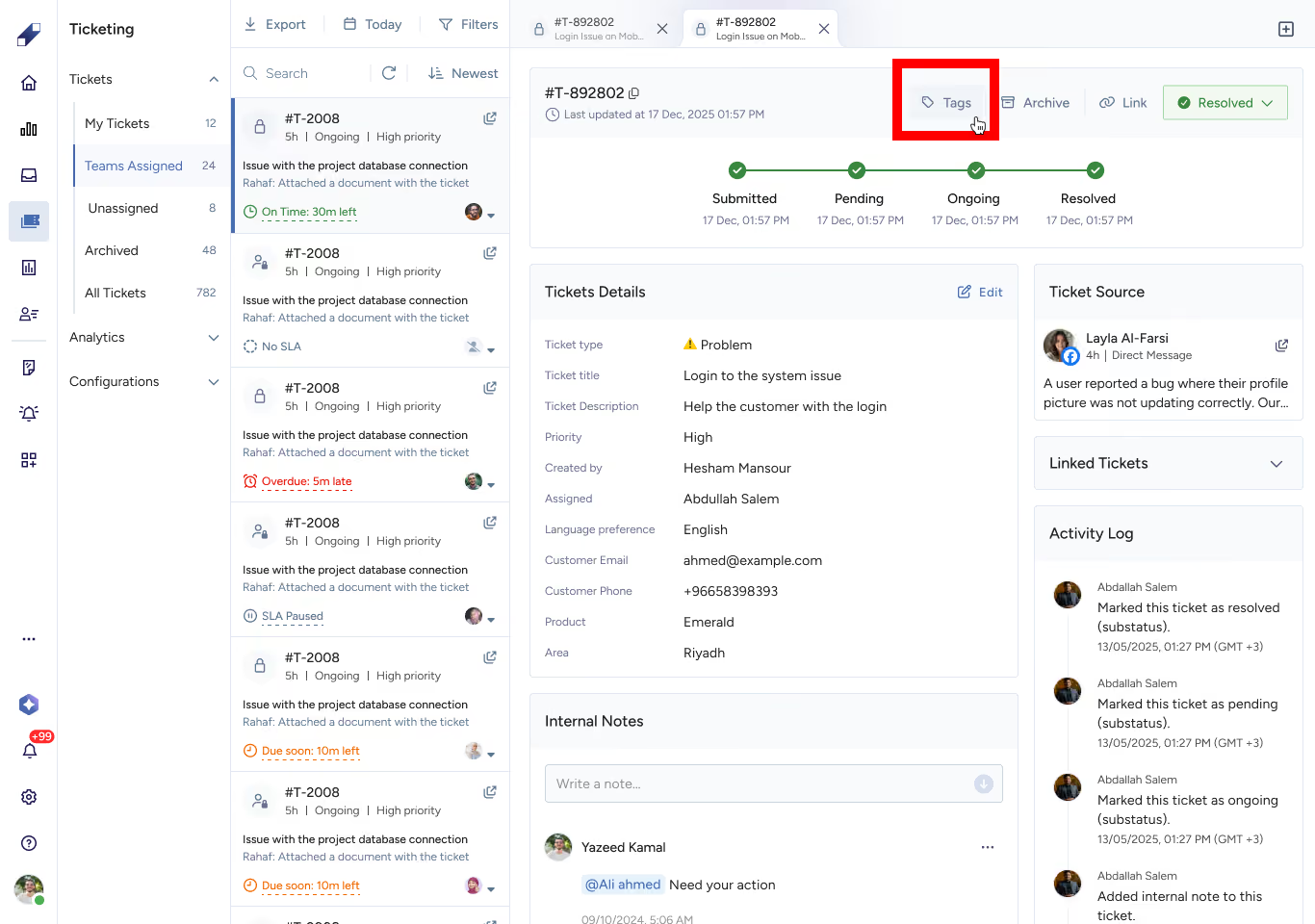
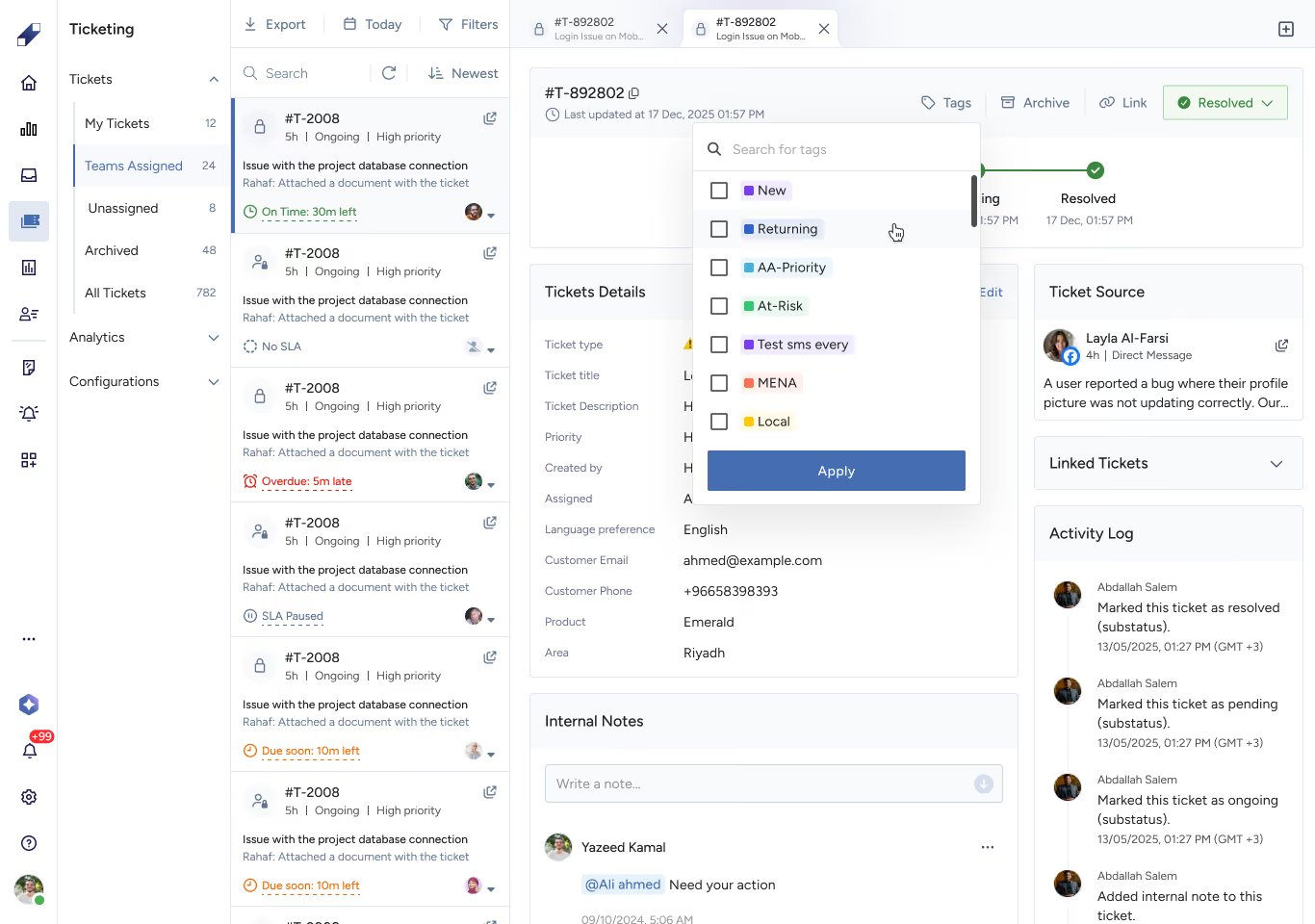
Up to 10 tags can be added per ticket. If the company's 350-tag limit has been reached, existing tags must be deleted before new ones can be created. Tags are managed in Configurations by team leaders but can be applied to tickets by any user.
Archiving a Ticket
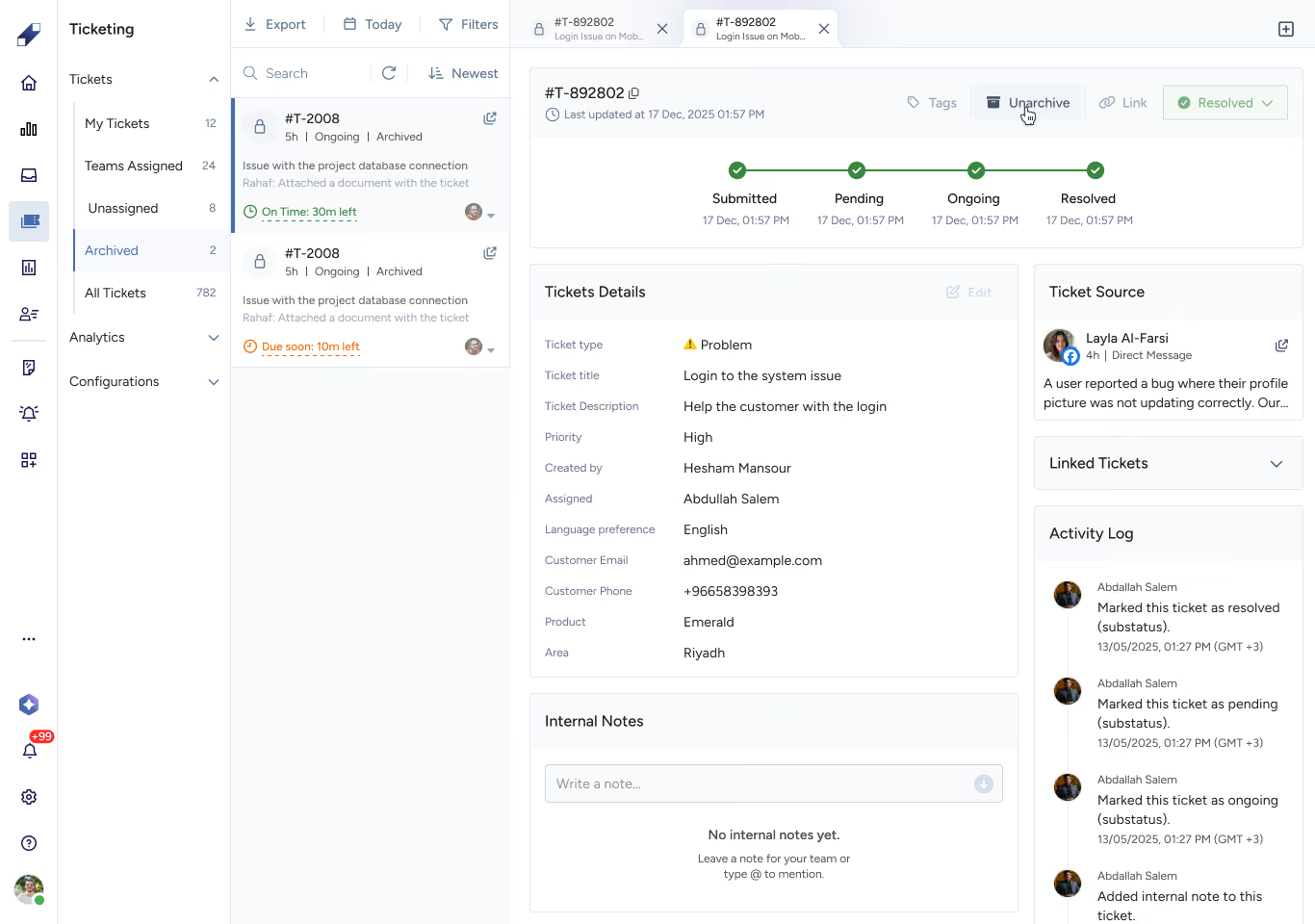
Any ticket can be archived regardless of its current status. Once archived it moves to the Archived tab, disappears from all other tabs, and can no longer be edited, tagged, linked, or have notes added. Existing notes, tags, and linked tickets remain visible. The customer portal is not affected.
To restore a ticket, use the Unarchive option. The ticket returns to its previous status and position.
For further assistance contact Lucidya Support.
Frequently asked questions
Open the Tickets sidebar from the action bar while handling a customer engagement. Select a template, enter ticket details, then enter customer details and assign a team.
Customer-facing tickets must be linked to an OmniServe engagement and include customer information. Internal tickets are created from any ticket tab, are not tied to an engagement, and do not include customer fields.
Yes. Tickets can be linked regardless of type or status, including archived tickets.
No. Internal notes are visible only to your team and are never shown to customers.
No. Customers who have the portal link can still view their ticket's status after it has been archived.