
.svg)


How to Create Conditional Paths in Lucidya Surveys
Learn how to create conditional paths in Lucidya Surveys at the question and section level to direct participants to relevant sections based on their answers.
Conditional paths let you control the flow of your survey based on how participants respond. You can direct participants to specific sections or end the survey early based on their answers, ensuring they only see questions relevant to them. Conditional paths can be set at both the question level and the section level.
Before You Start
Section-level conditional paths are only available if your survey has multiple sections. For question-level conditional paths, the feature is only available on supported question types: Yes or No, Multiple Choice, Dropdown, Net Promoter Score, Customer Satisfaction Score, and Rating Scale.
We recommend marking any question with a conditional path as required to ensure participants answer it before the survey proceeds.
Creating Conditional Paths for Sections
Step 1 - Select a Section
Select the first section in your survey to start creating a conditional path.
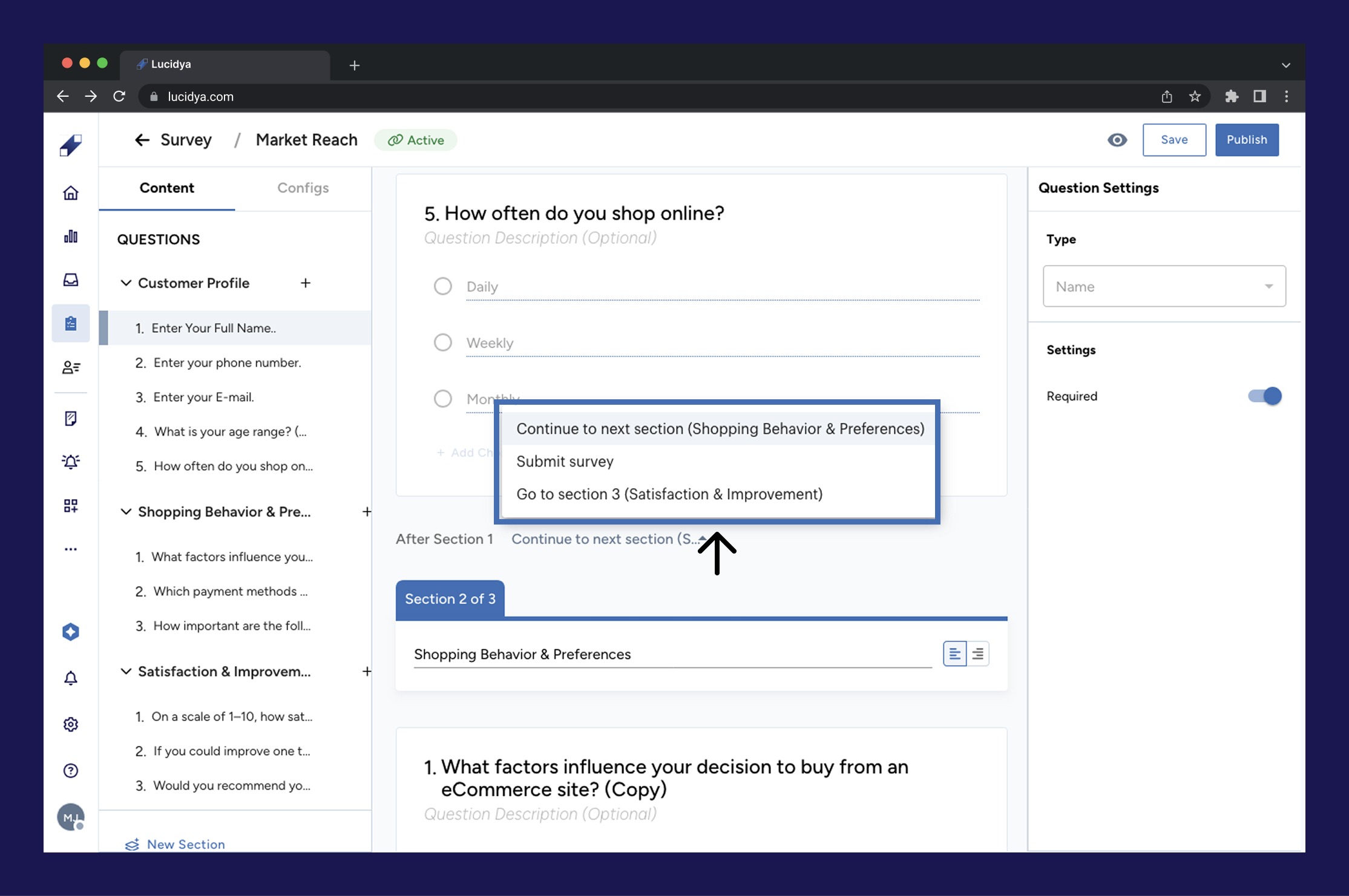
Step 2 - Set the Next Section
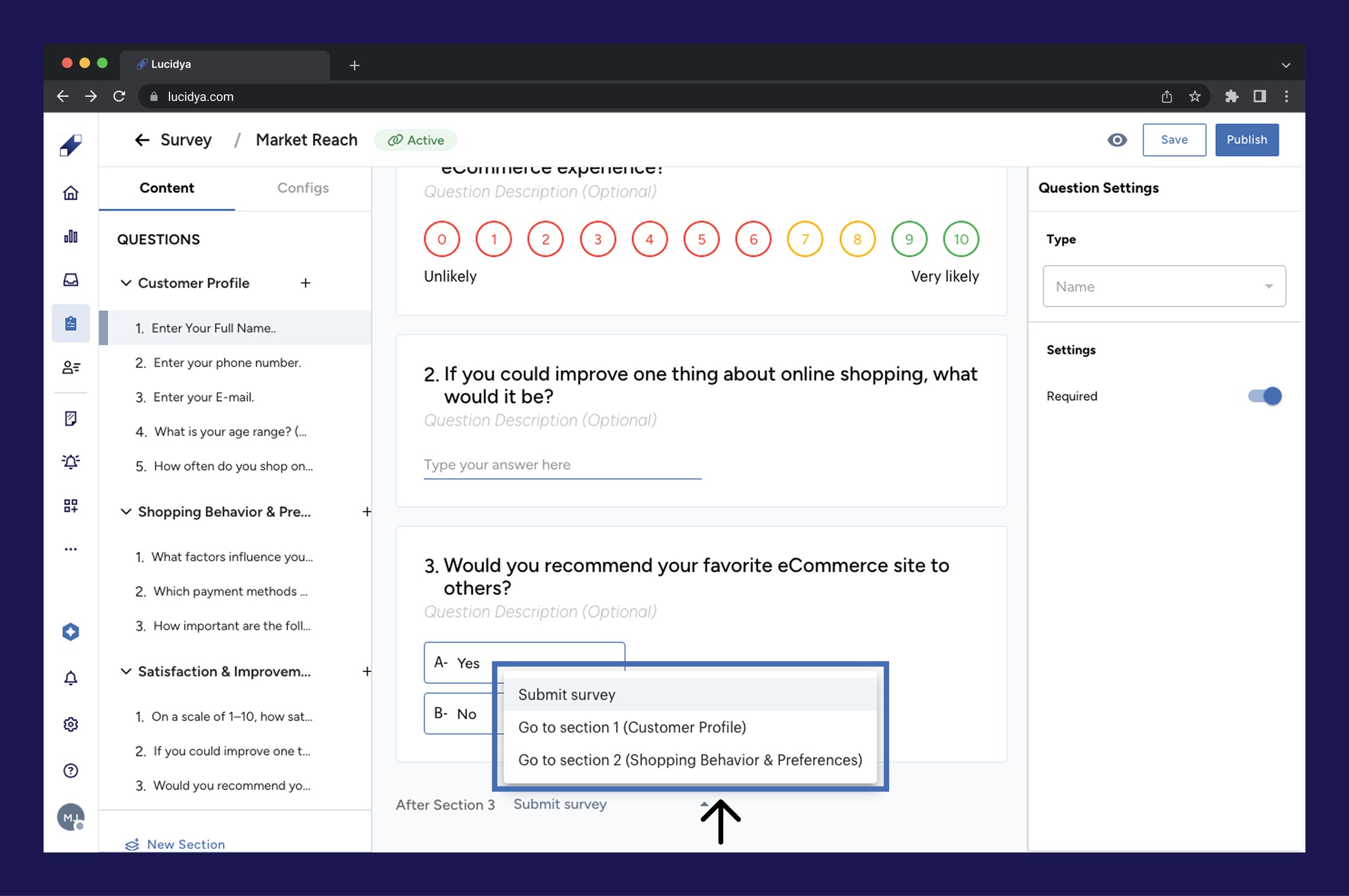
Click the dropdown menu to select which section participants will be directed to after completing the current section. All available sections are listed along with a Submit Survey action.
Step 3 - Repeat for Each Section
Repeat this process for each subsequent section in your survey. For the final section, the conditional path must be set to Submit Survey. If you do not set Submit Survey as the final action, participants will not be able to submit their responses.
By default Lucidya sets up a sequential path from the first section through to the last, ending with Submit Survey.
Creating Conditional Paths for Questions
Conditional paths at the question level are supported for the following question types:
- Yes or No – Two conditions, one for Yes and one for No.
- Multiple Choice – Conditions based on the number of answer options.
- Dropdown – Conditions based on the number of answer options.
- Net Promoter Score – Three conditions based on score ranges: Detractors (0 to 6), Passives (7 to 8), and Promoters (9 to 10).
- Customer Satisfaction Score – Three conditions based on rating: Not Satisfied (1 to 2), Neutral (3), and Satisfied (4 to 5).
- Rating Scale – Conditions set by selecting scale values from checkboxes based on the number of scale options available.
Step 1 - Enable Proceed Based on Answer
Select the question you want to add a conditional path to. In the Question Settings panel, toggle the Proceed Based on Answer switch.
Step 2 - Set Conditions
For Yes or No, Multiple Choice, and Dropdown questions, each answer option will show a routing option next to it. Choose whether that answer directs the participant to a specific section or ends the survey.
For NPS, CSAT, and Rating Scale questions, a conditions popup will appear. Set the destination section or Submit Survey action for each score range or value. For any answer values without a condition set, participants follow the default path and proceed to the next sequential section. Click Apply to save.
For example, with a Net Promoter Score question, you can set different paths for Detractors (0 to 6), Passives (7 to 8), and Promoters (9 to 10). Mark the question as Required to ensure respondents answer it before the survey proceeds.
Step 3 - Remove a Condition
To remove a condition, click the X icon next to it in the conditions popup.
Best Practices
- Mark questions with conditional paths as required to ensure participants answer them before the survey moves on.
- Only one question per section can have Proceed Based on Answer enabled.
- Keep your conditional logic as simple as possible. Complex paths can make analysis more challenging.
- Always preview your survey before publishing to test that conditional paths work as expected.

For further assistance contact Lucidya Support.
Frequently asked questions
Any answer without a specified condition will follow the default path, which means proceeding to the next sequential section.
It is not recommended. Editing conditional paths after publishing may affect data consistency. If changes are necessary, consider creating a new survey version instead.
No. Conditional paths can only be created within a single survey. Each survey operates as an independent entity.
Yes. Use the preview feature to test your survey and see how different responses trigger your conditional paths before it goes live.