
.svg)


Custom Variables for Surveys
Learn how to use Custom Variables to tag survey links with hidden respondent data, and get results that arrive pre-segmented and ready to analyze.
Custom Variables let you embed hidden, respondent-specific data into your survey links before sending them out. Instead of asking "What's your plan?" or "Which region are you from?" inside the survey, you pass that information silently through the link itself, and it lands in your exported results automatically, as a separate column for each variable.
Before You Start
Custom variables must be configured before the survey is published. Once a survey is published, variable keys and names are locked and cannot be added or edited.
Step 1. Open Survey Settings
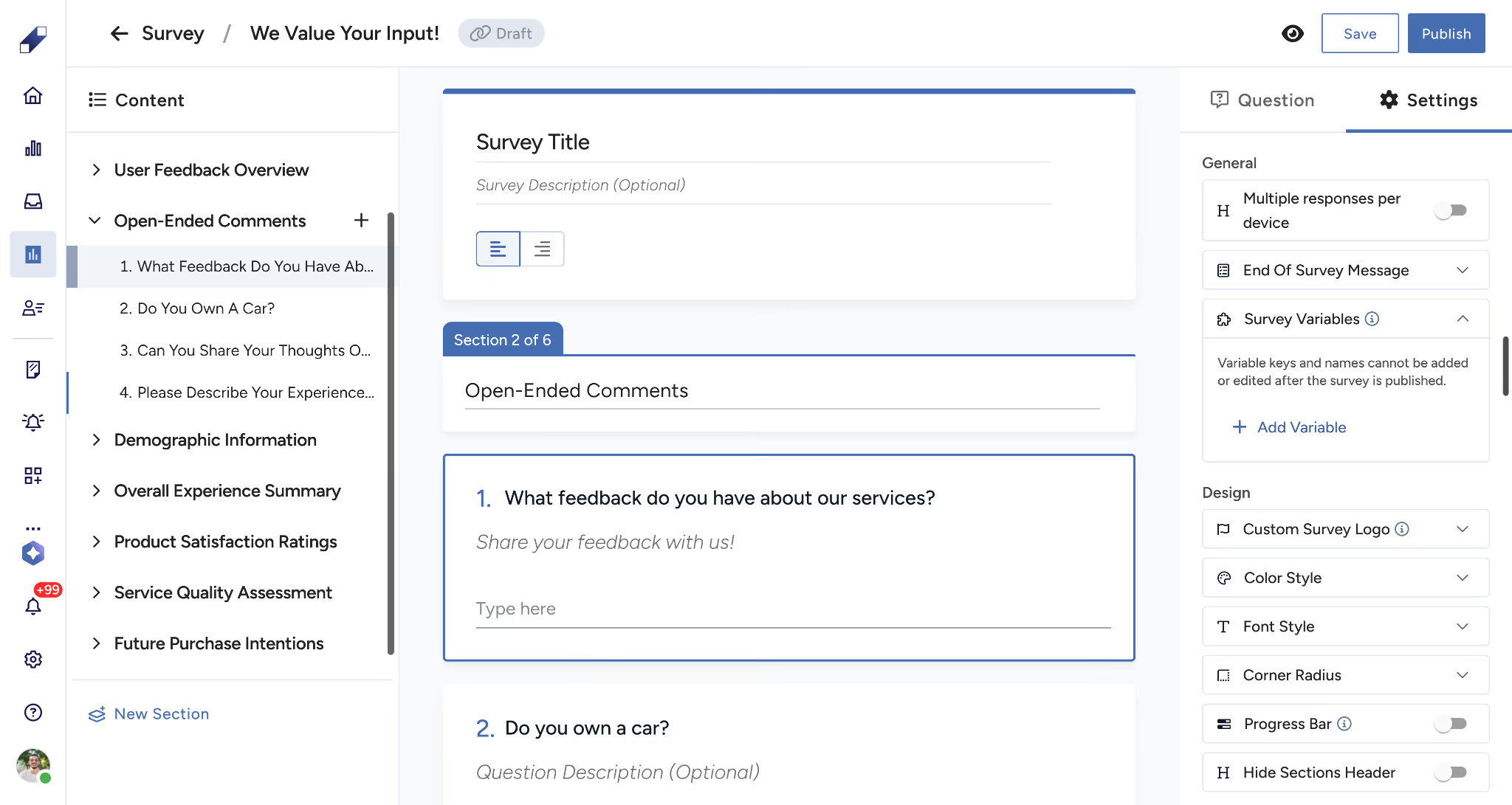
From within your survey, click the Settings tab in the top-right panel.
Step 2. Expand Survey Variables
Scroll to the Survey Variables section and expand it. If no variables have been added yet, you'll see a + Add Variable button.
Step 3. Define Your Variables
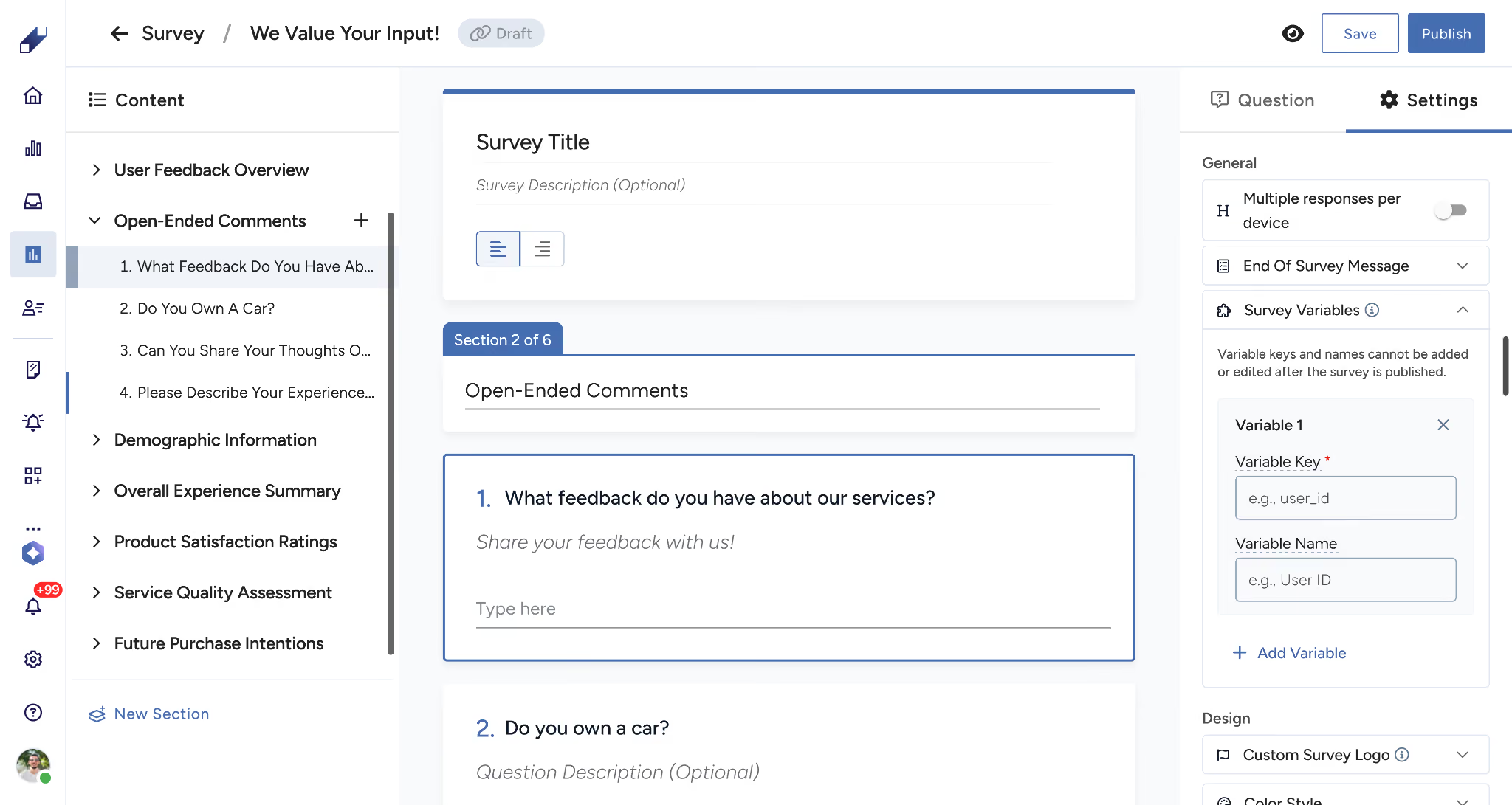
Click + Add Variable. Each variable has two fields:
- Variable Key — the parameter name used in the URL (e.g.
customer_name,customer_id). This is what appears in the link and in your exported data columns. Use lowercase with underscores, no spaces. - Variable Name — a human-readable label for the variable (e.g. Customer Name, Customer ID). This is for your reference only.
Click + Add Variable again to add more variables to the same survey.
Variable keys and names cannot be added or edited after the survey is published. Define all variables before publishing.
Step 4. Save and Publish
Once your variables are defined, save your survey. When you publish, the variable keys are embedded into the share link automatically.
Sending Personalized Links
After publishing, open the Publish dialog and go to the Share Link tab. Your survey link will include the variable keys as URL parameters with placeholder values, for example:
<https://survey.lucidya.com/s/abc123?customer_name=[customer_name]&customer_id=[customer_id]>Before sending the link to each respondent, replace the placeholder values with their actual data:
<https://survey.lucidya.com/s/abc123?customer_name=Sara+Ahmed&customer_id=98765>Each respondent receives a unique link with their specific data embedded. The parameters are completely hidden from the respondent during the survey experience.
Viewing Results with Custom Variables
When you export survey results to Excel, each variable you defined appears as a dedicated column alongside the respondent's answers. Results arrive pre-labeled, so your team can filter, segment, and analyze immediately, no manual data joining required.
For further assistance, contact Lucidya Support.
Frequently asked questions
Variable keys must follow URL encoding conventions. Use lowercase letters and underscores only, no spaces or special characters.
No. Variable keys and names are locked once the survey is published. Plan your variable structure before publishing.
No. Variable parameters are completely hidden from the respondent during the survey experience.
No. Variable values are visible in exported results only, they don't appear in the Survey Panel response view.
There's no enforced limit, but it's best to keep the number of variables concise for clean, manageable exports.