
.svg)


How to Create and Manage Accounts Lists in Lucidya
Create, edit, and use Accounts Lists to filter your monitor's data by specific groups of usernames.
Accounts Lists let you group social media usernames into reusable lists, such as influencers or political figures, and use them to filter your monitor's data. Team members with Manager or Moderator roles can create and manage lists, while Viewers can view them. This helps you focus your analytics on the accounts that matter most to you.
What you can do
- Create up to 100 lists, each with up to 200 usernames
- Import usernames from a CSV or Excel file
- Filter any monitor to include or exclude data from selected lists
- Add or remove an account from your lists directly from the post card
- Edit, duplicate, or delete lists at any time
Before you start
- Manager or Moderator role in General Settings to create, edit, duplicate, or delete lists (Viewers can only view lists)
- Manager or Moderator role in Social Listening to manage lists from the post card
Step by step
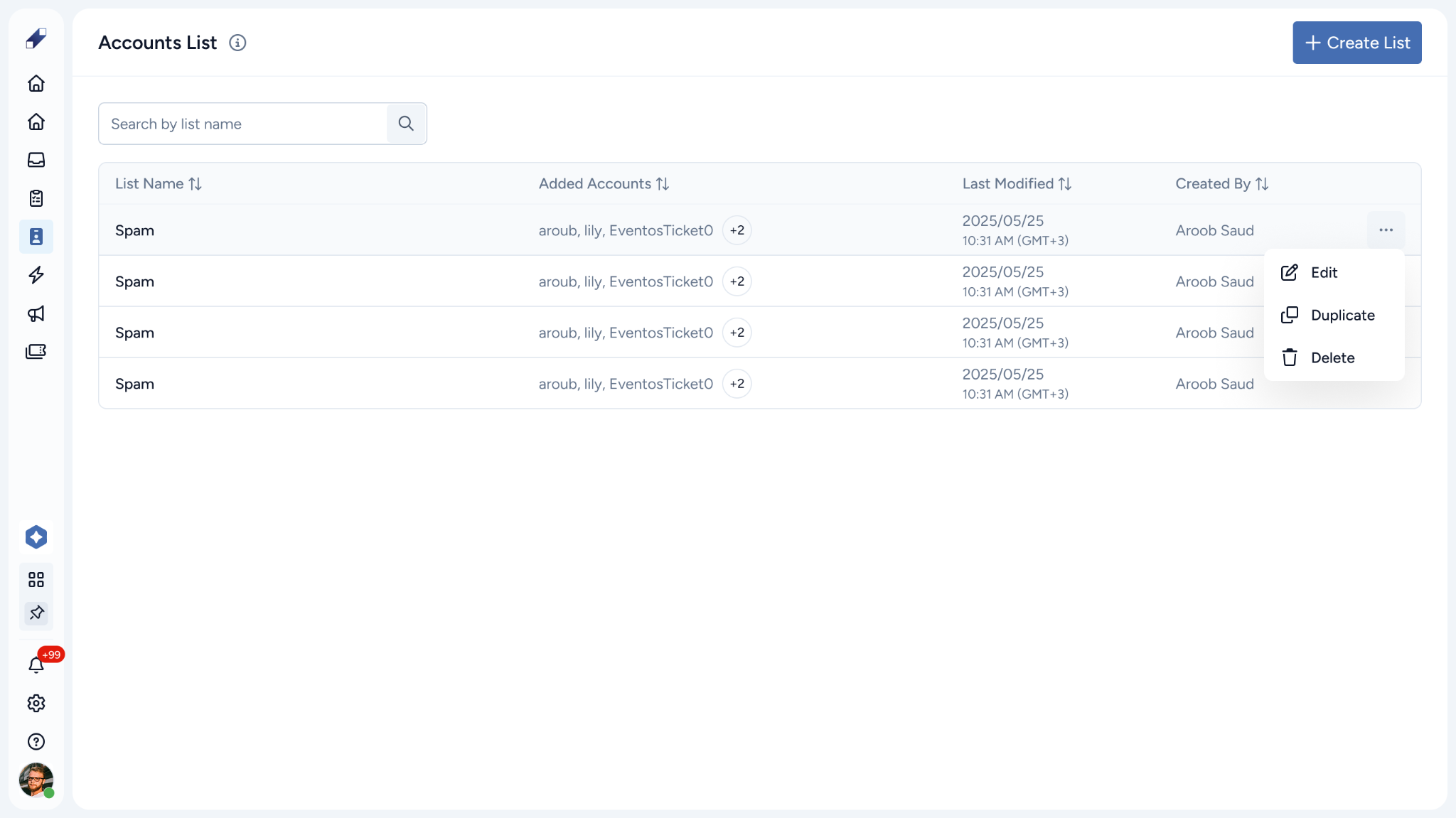
Step 1 – Navigate to Accounts Lists Go to Utilities → Accounts Lists.
Step 2 – Click (+ Create List) You can create up to 100 lists.
Step 3 – Fill in the list details
- List Name (required): choose a unique name, 1 to 50 characters
- Description (optional): up to 100 characters
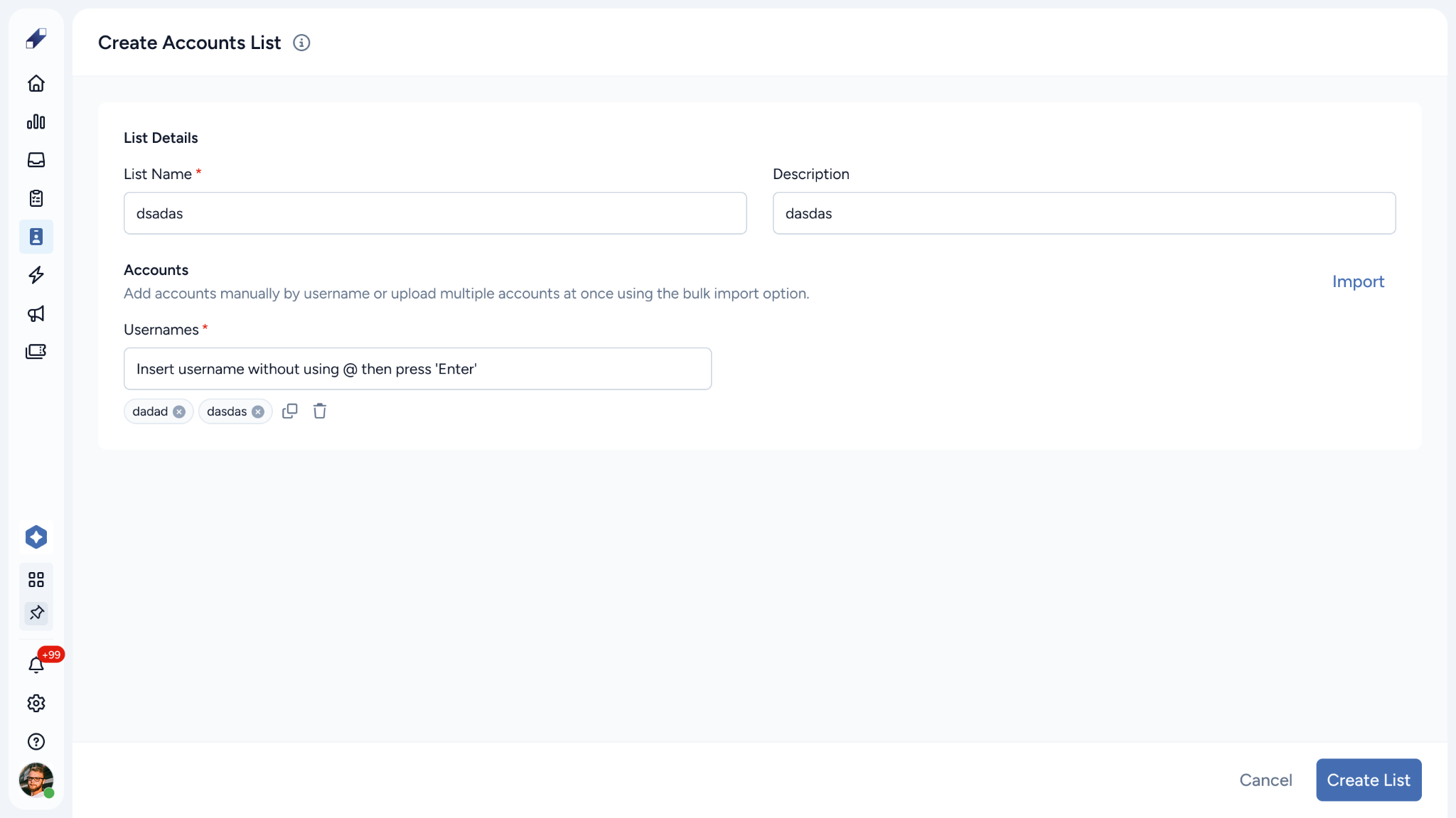
Step 4 – Add usernames Type the username without the @ symbol, then press Enter or click Add. You can also add several usernames at once by separating them with commas. Each username appears as its own entry in the list.
- Use letters, numbers, underscores, and periods only. Avoid spaces
- If a username is already in the list, you cannot add it again
- You can add up to 200 usernames per list
You can also click Copy All to copy all usernames with comma separation, or Delete All to clear the list.
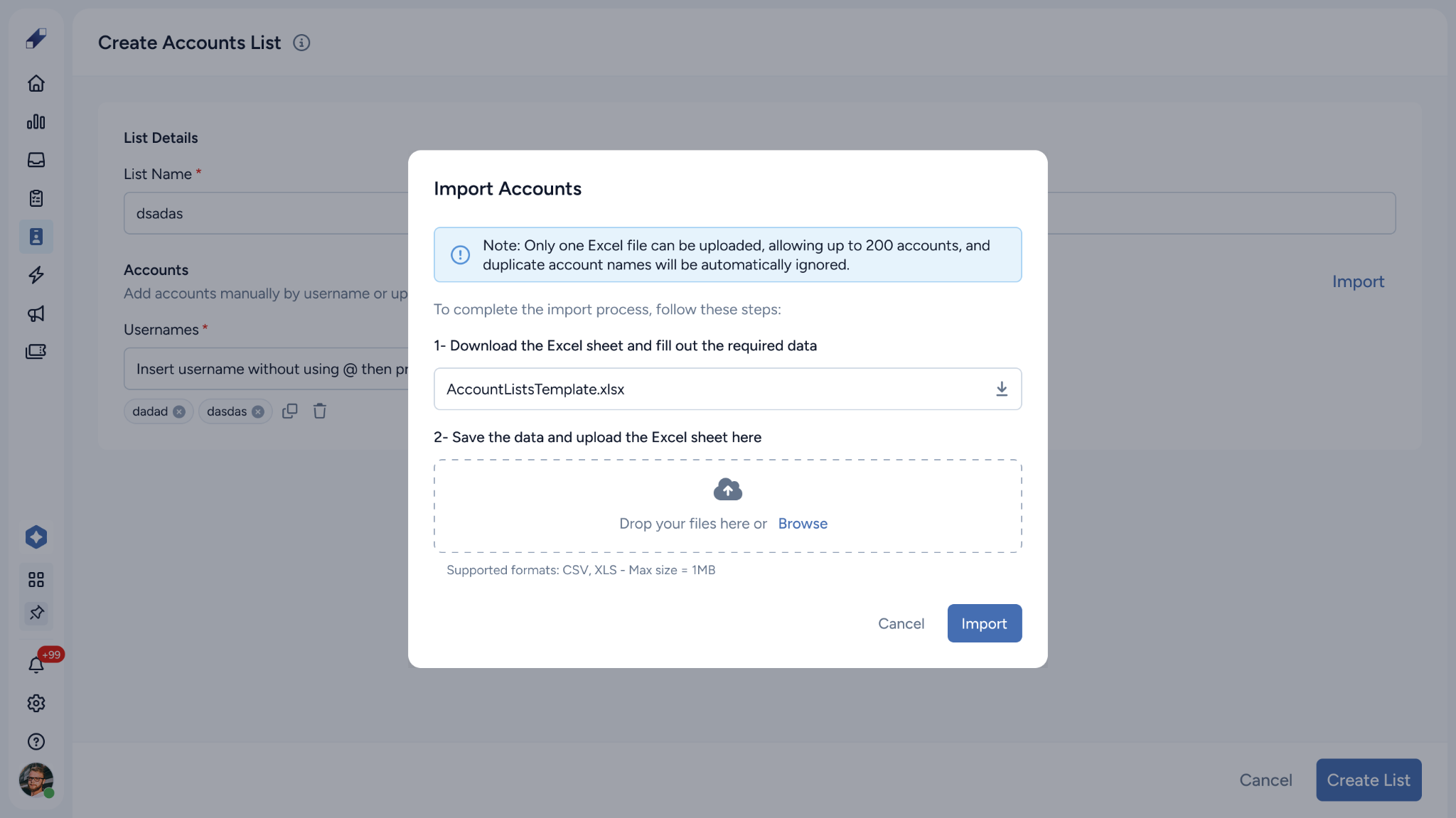
Step 5 – Import usernames from a file (optional) Download the template, fill in the usernames, and upload the file.
Step 6 – Click Create List A confirmation message tells you whether the list was created successfully. You can click Cancel at any time to go back without saving your changes.
Managing your Accounts Lists
Edit a List
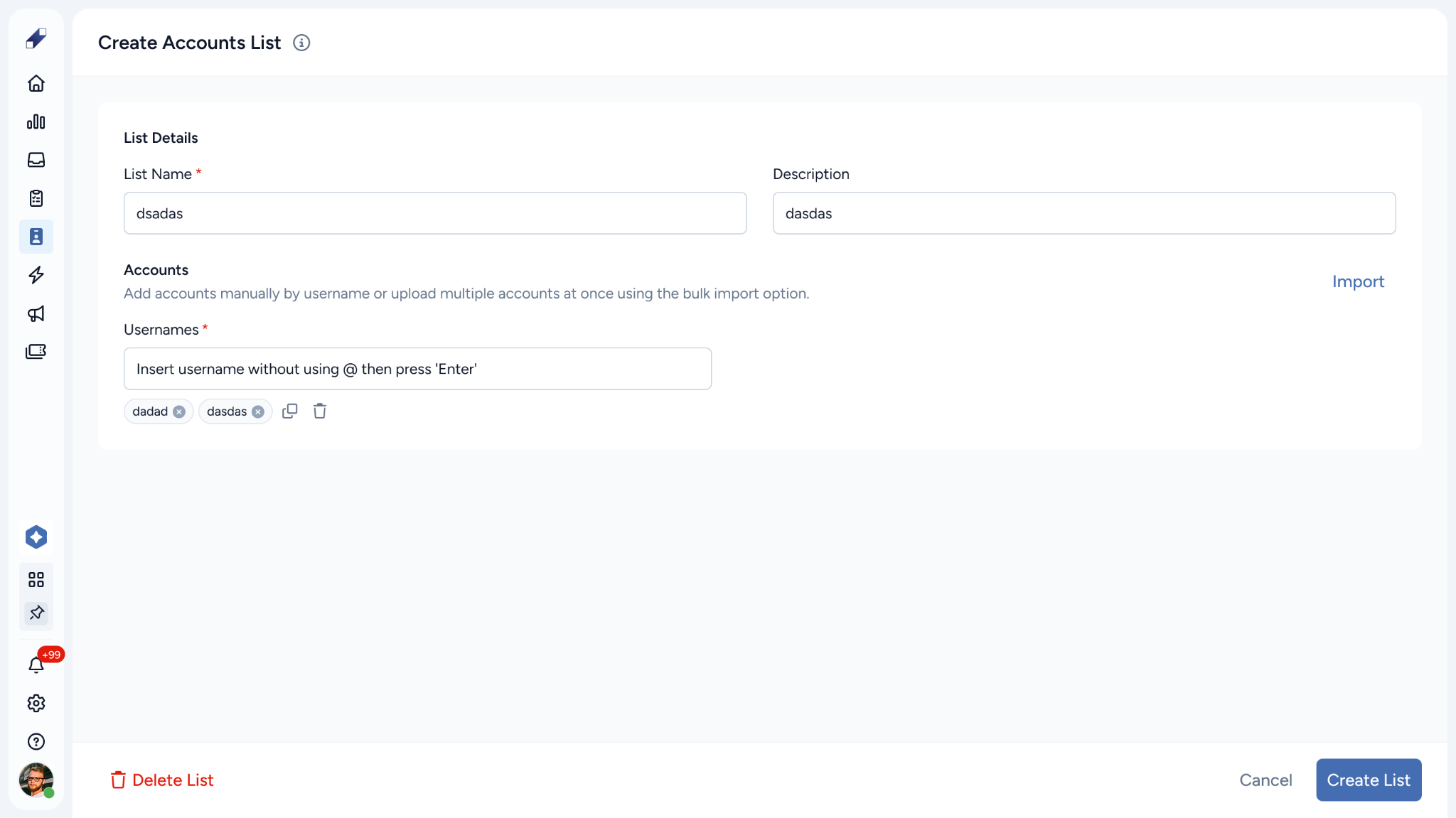
Open the list from Utilities → Accounts Lists and use the row actions to edit. You can update all fields, then click Save Changes to apply them or Cancel to discard them.
Duplicate a List
Use the row actions to duplicate a list. A copy named Copy (1) of [list name] appears in your lists, and the number increases with each additional copy you make.
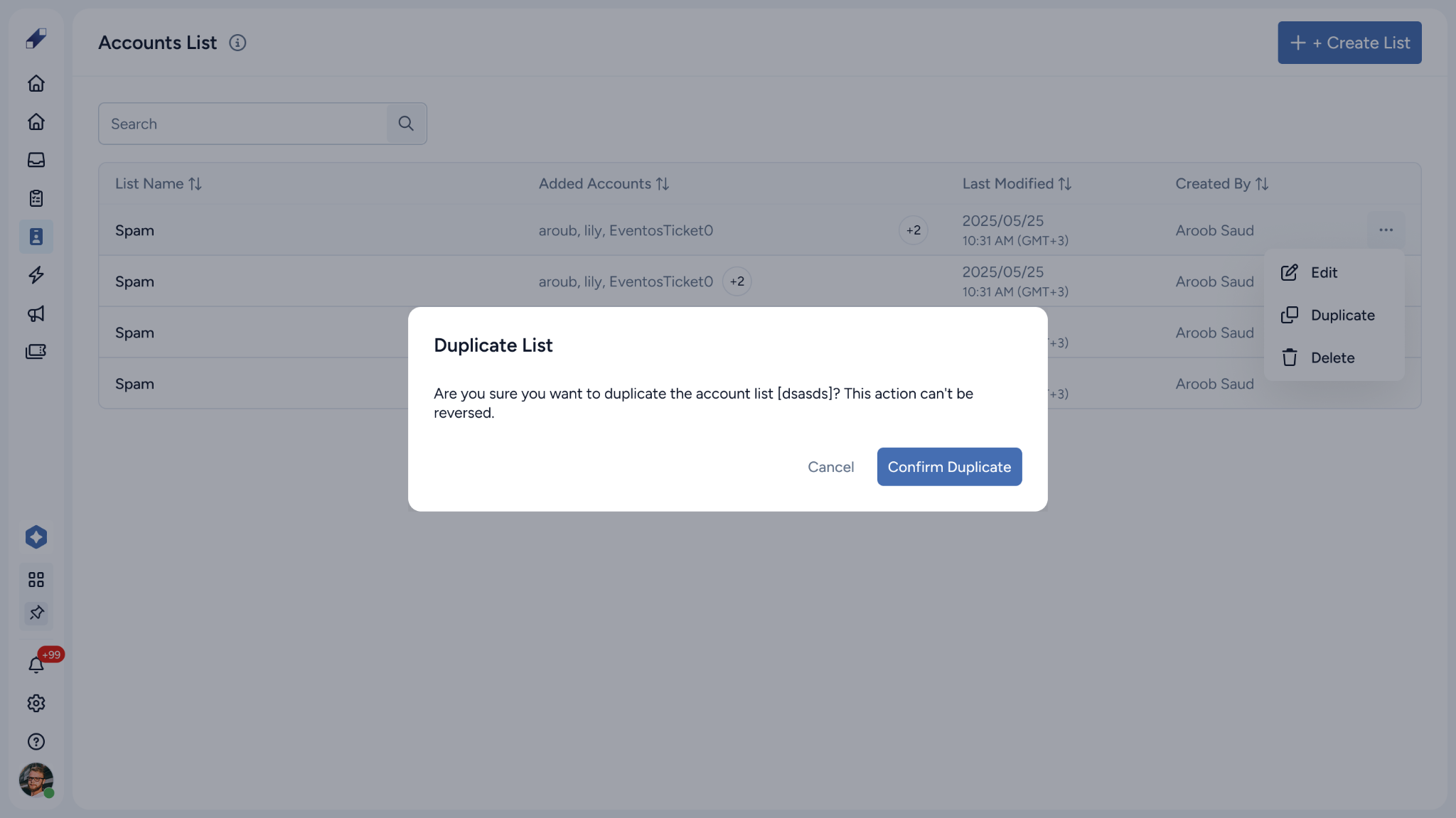
Delete a List
Use the row actions to delete a list, then confirm the action in the pop-up. Deleting a list is permanent and also deletes any saved filter that uses it. The confirmation pop-up warns you before this happens.
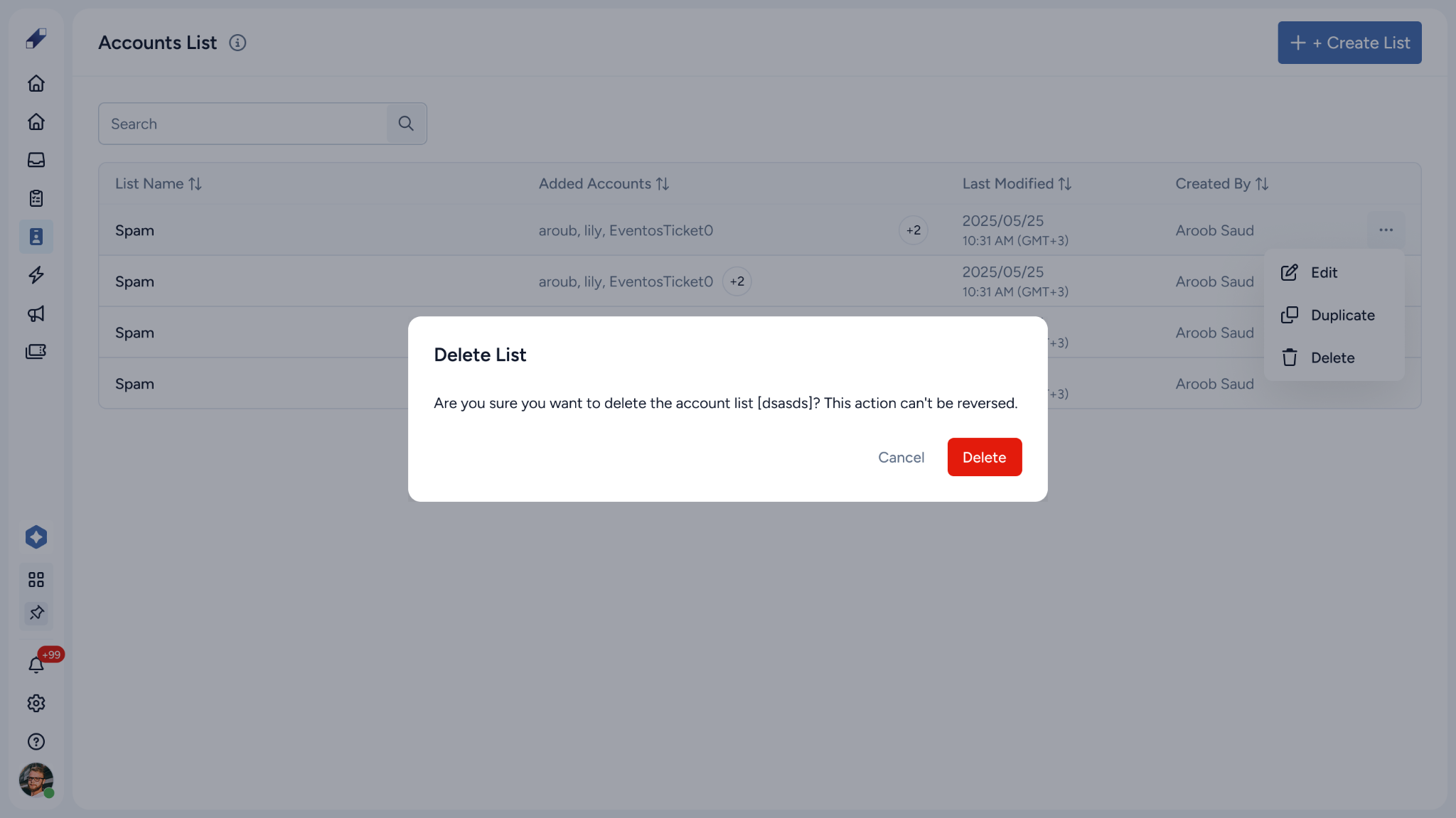
Using Accounts Lists in the monitor
Filter by Accounts Lists
Open the monitor filters and select up to 5 lists. You can filter in two ways:
- Include: shows only the data from the usernames in your selected lists across all monitor pages and widgets
- Exclude: hides the data from the usernames in your selected lists across all monitor pages and widgets
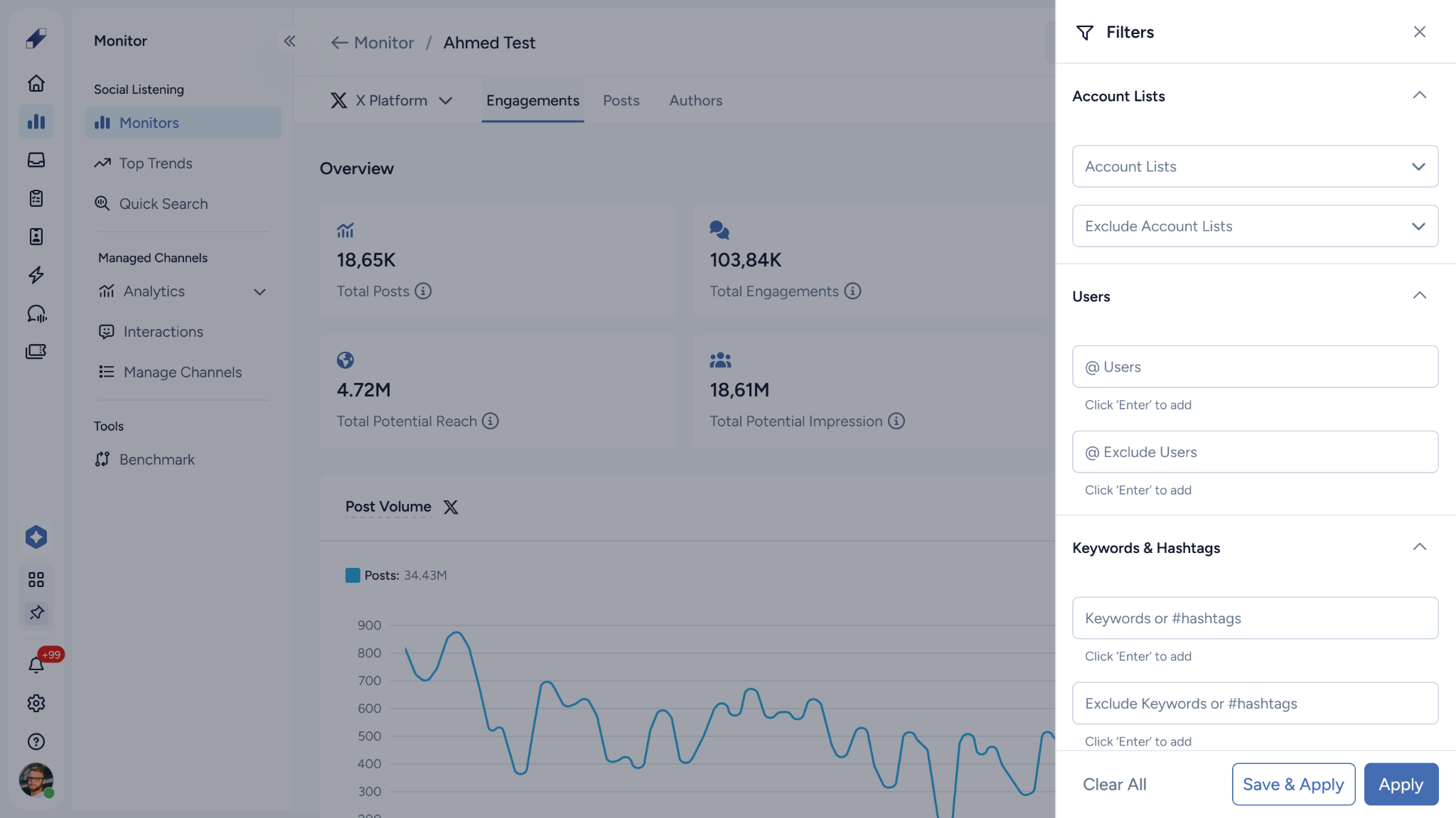
You can apply one filter type at a time. To switch between Include and Exclude, or to use the Include Users and Exclude Users filters, clear the active Accounts Lists filter first.
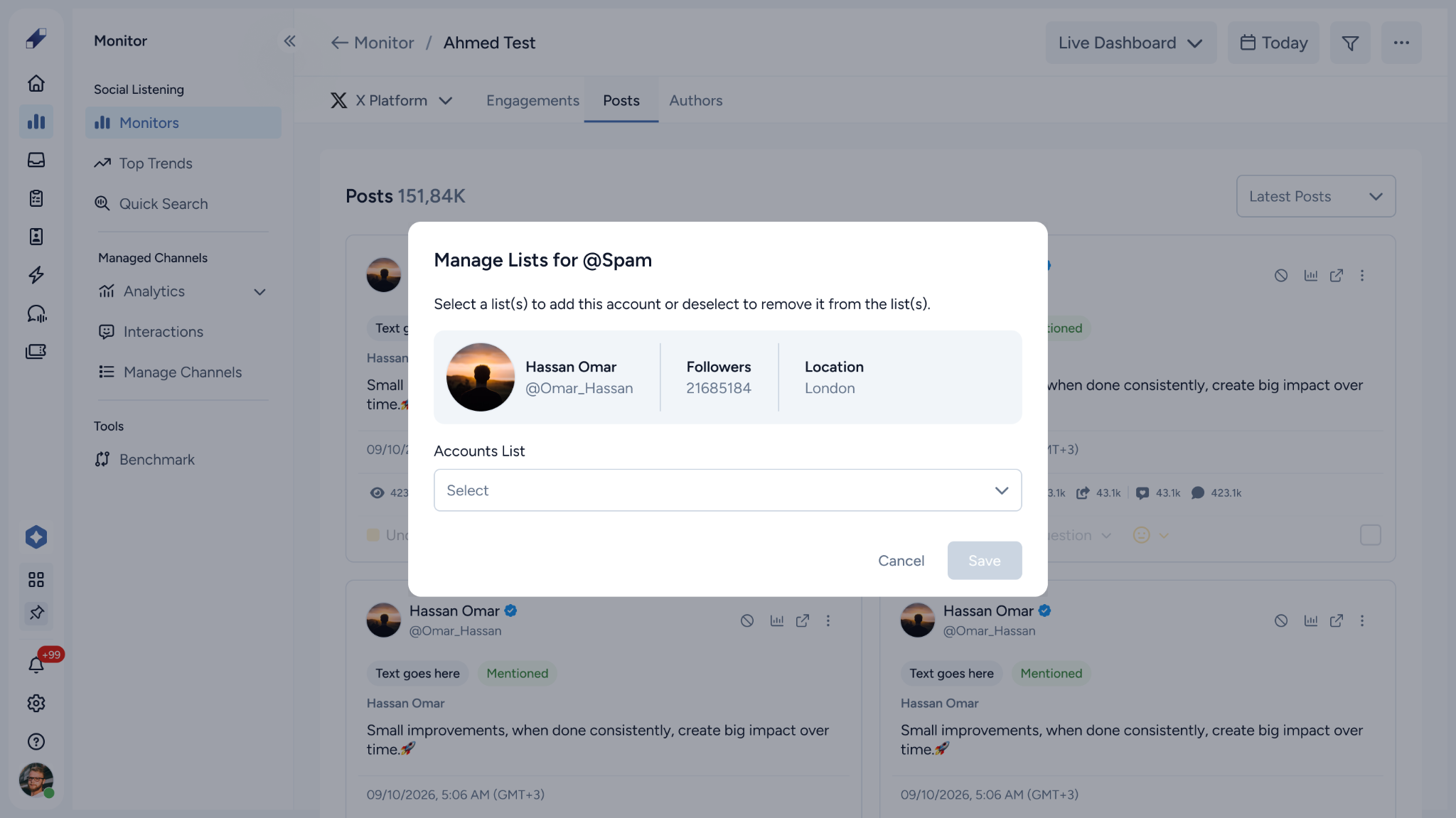
Manage Lists from the Post Card
Click Manage Lists on any post card to add or remove that account from your lists.
- Lists with a check mark already contain the account
- If a list is full (200 usernames), you cannot select it. Remove a username from that list first, or add the account to a different list
- If the account's personal information is not available, you will see N/A instead
For further assistance contact Lucidya Support.
Frequently asked questions
No. When one Accounts Lists filter is active, the other is disabled, along with the Include Users and Exclude Users filters. Clear the active filter to switch.
Any saved filter that uses the deleted list is deleted with it. The confirmation pop-up warns you before this happens.
The list has reached its maximum of 200 usernames. Remove a username from the list or add the account to a different list.
Your role is set to Viewer, which allows viewing lists only. Ask a Manager to update your permissions in General Settings.