
.svg)


How to Customize Link Survey Display Settings
Learn how to customize Link survey display settings in Lucidya, including logo, colors, fonts, border radius, progress bar, completion message, and redirect on submission.
Link surveys now support display settings that let you customize the visual appearance beyond logo and title. You can control colors, fonts, border radius, progress bar, section headers, completion message, and redirect behavior, all from the Display Settings tab in the survey builder.
How to Access Display Settings
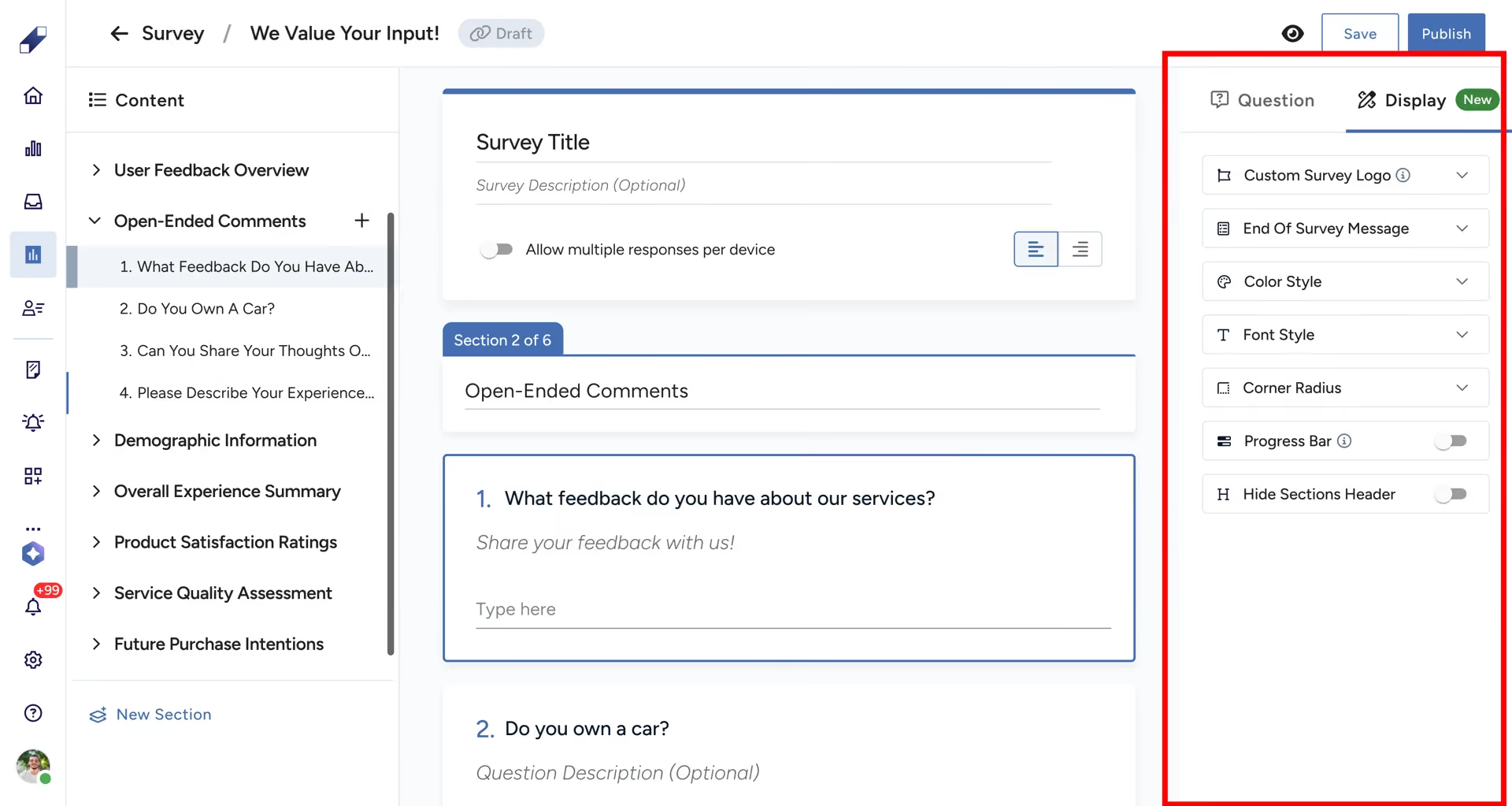
Open your Link/QR Code survey. Go to the right panel and select the Display Settings tab. This tab is separate from the default Questions tab and is specific to Link surveys.
Logo
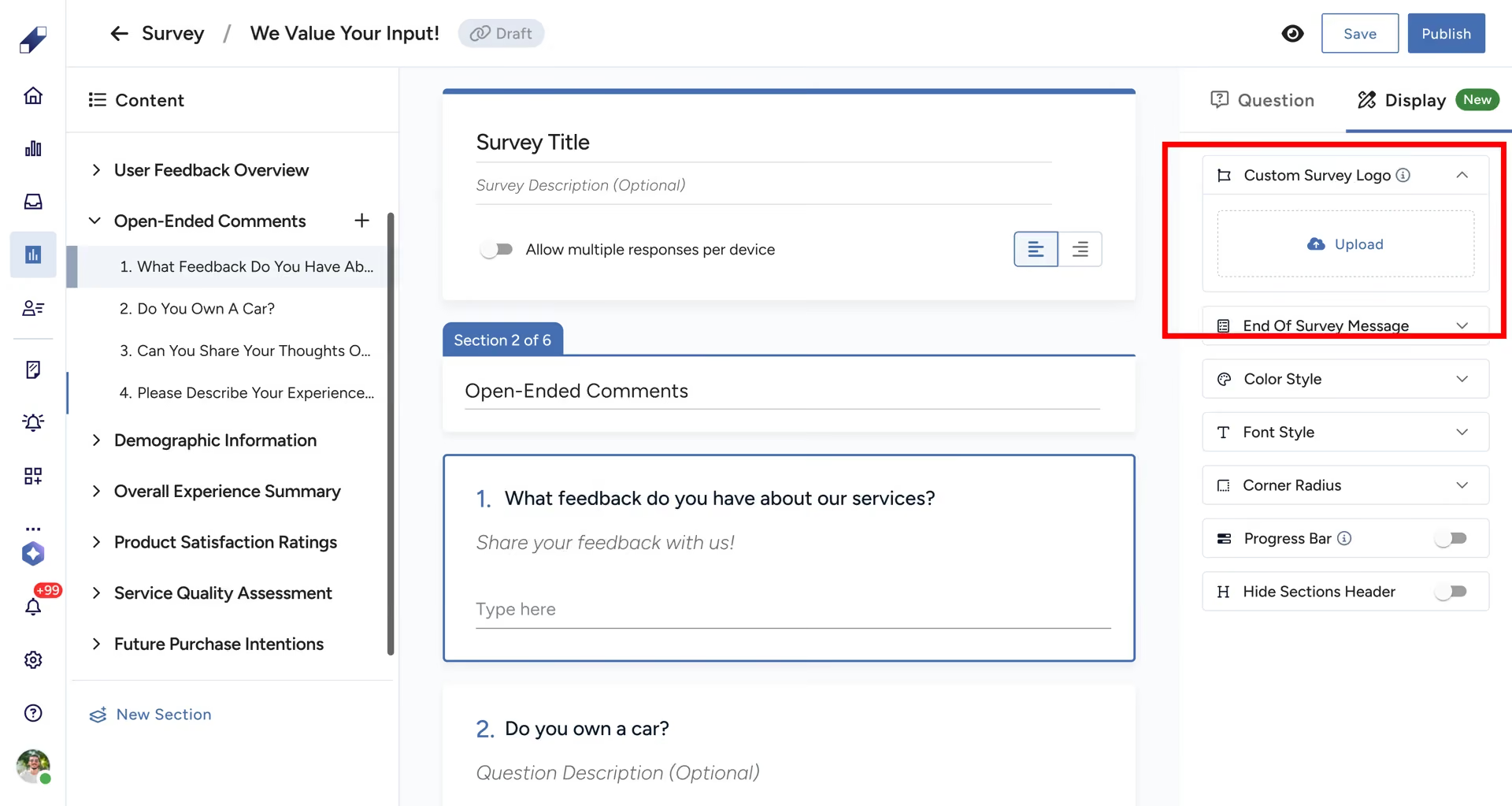
Click Custom Survey Logo to upload your brand logo. It appears at the top of the survey. Supported formats: PNG, JPG, JFIF, PJP, PJPEG, JPEG. Once uploaded you can adjust the logo size, replace it, or remove it at any time.
/
Completion Message
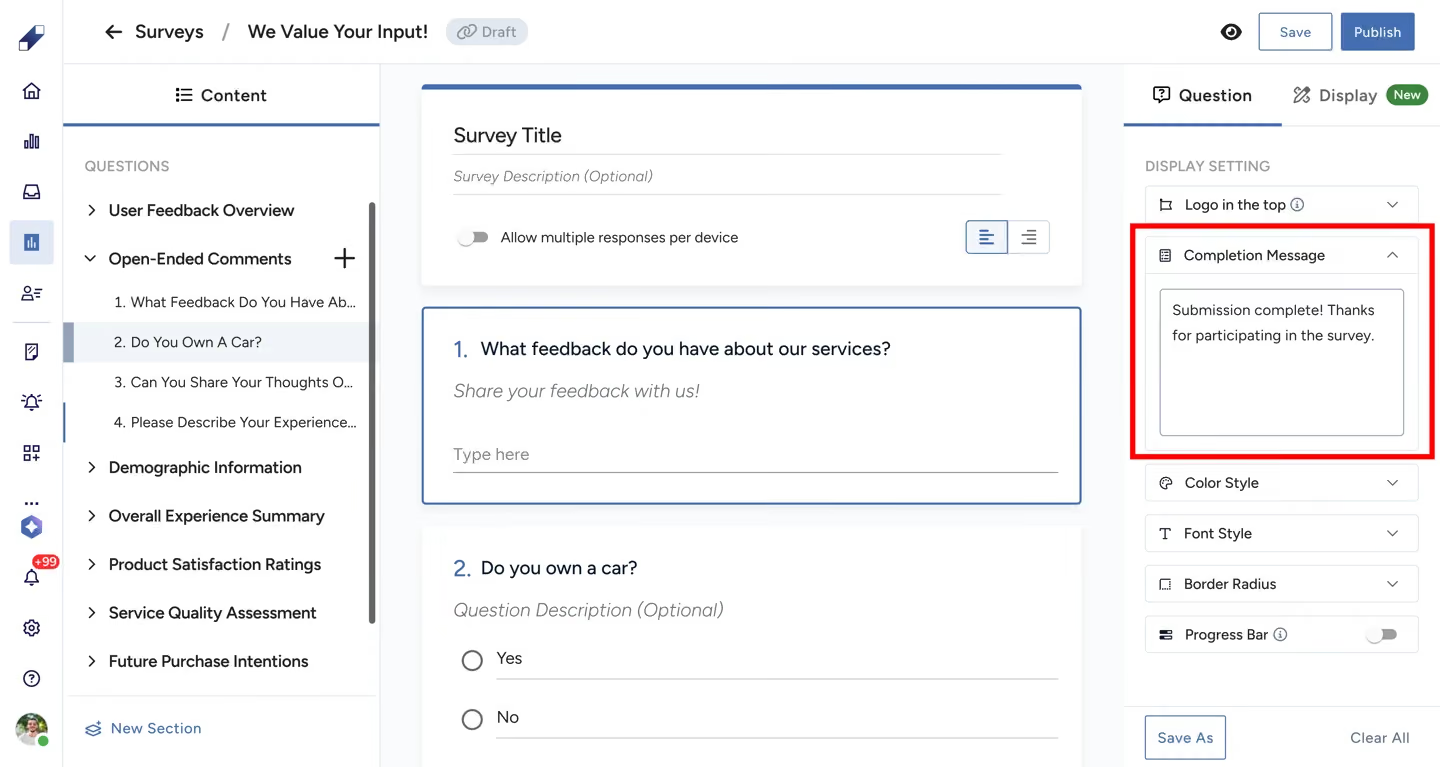
This is the message participants see after submitting the survey. The default message is "Submission complete! Thanks for participating in the survey." You can customize it with letters, numbers, links, emojis, and special characters. Maximum 300 characters.
Color Style
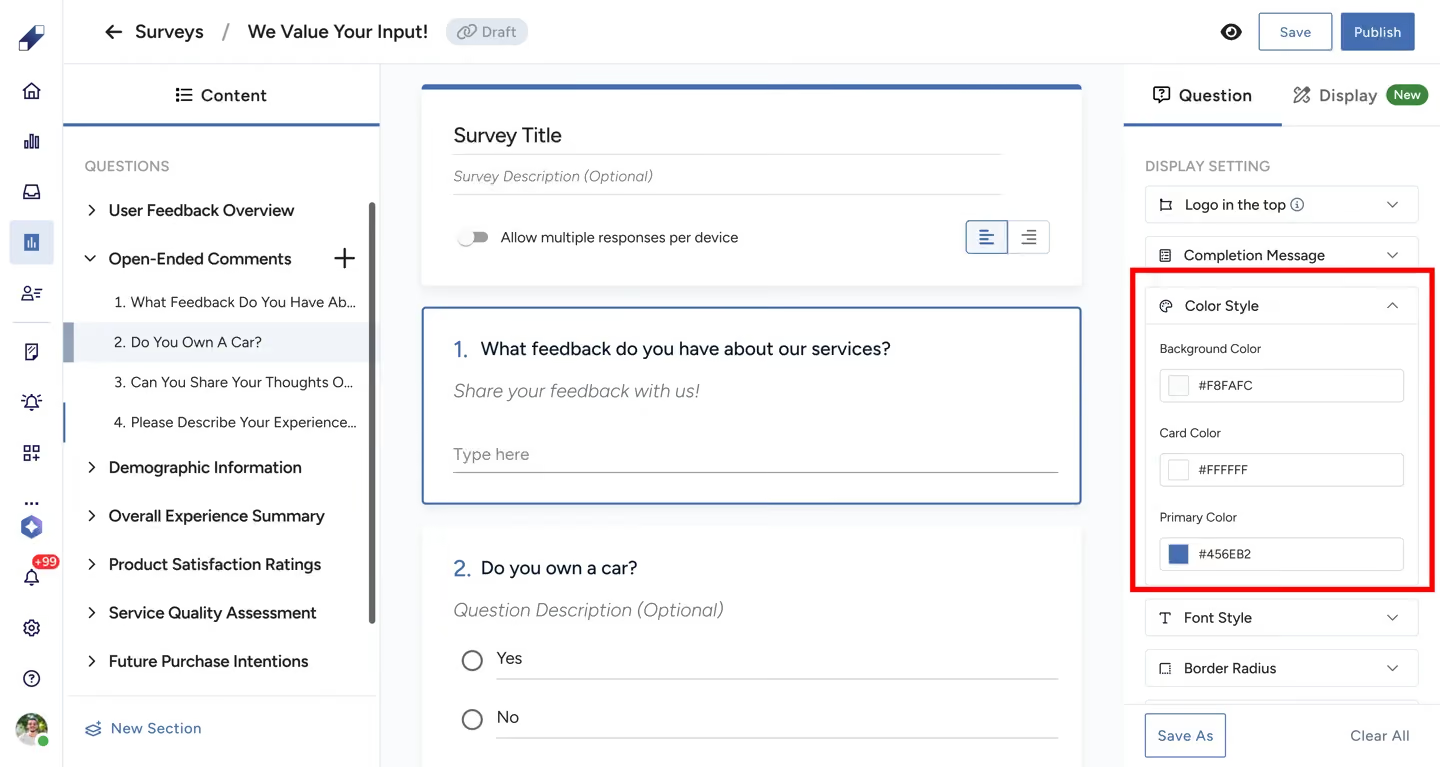
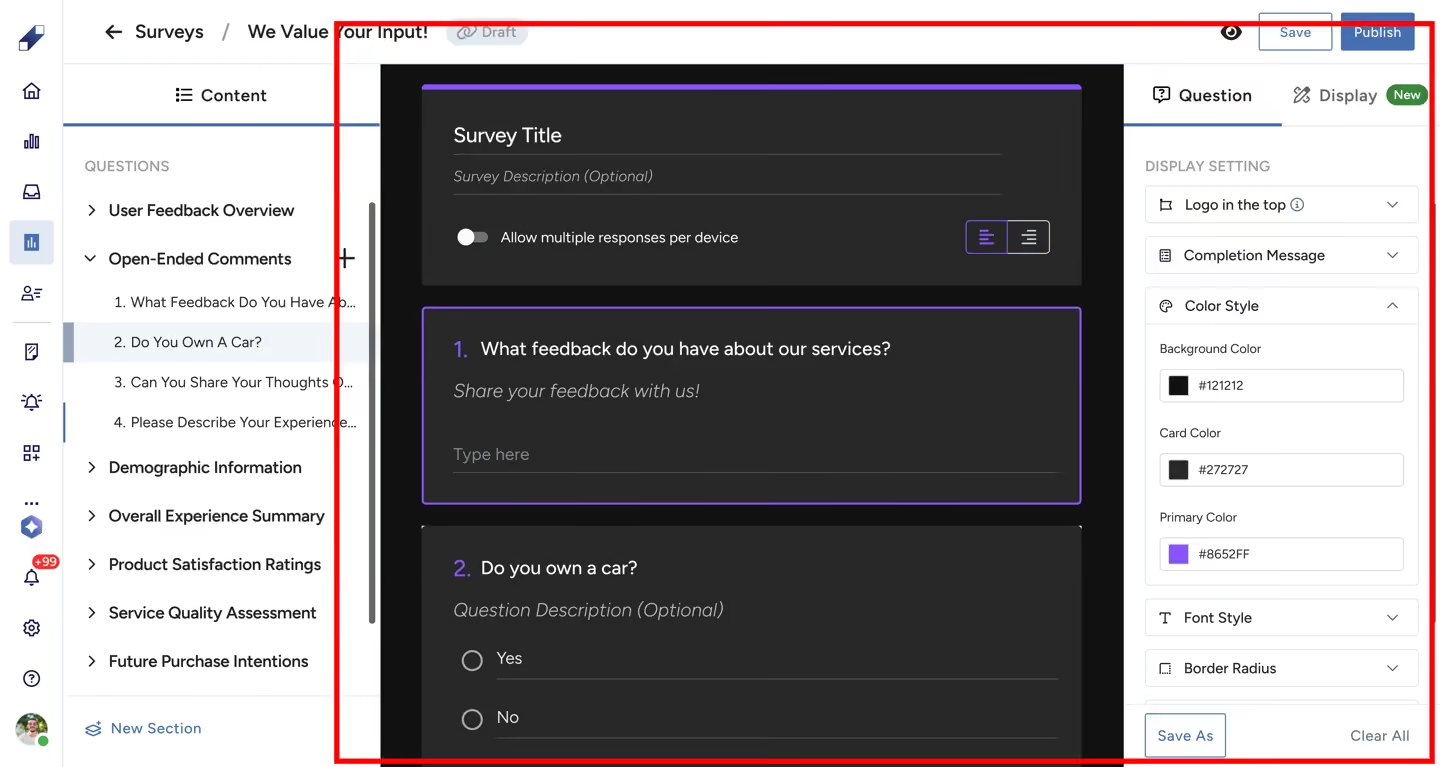
Three color settings are available.
If you choose a dark background color, the text color inverts automatically to maintain readability.
Font Style
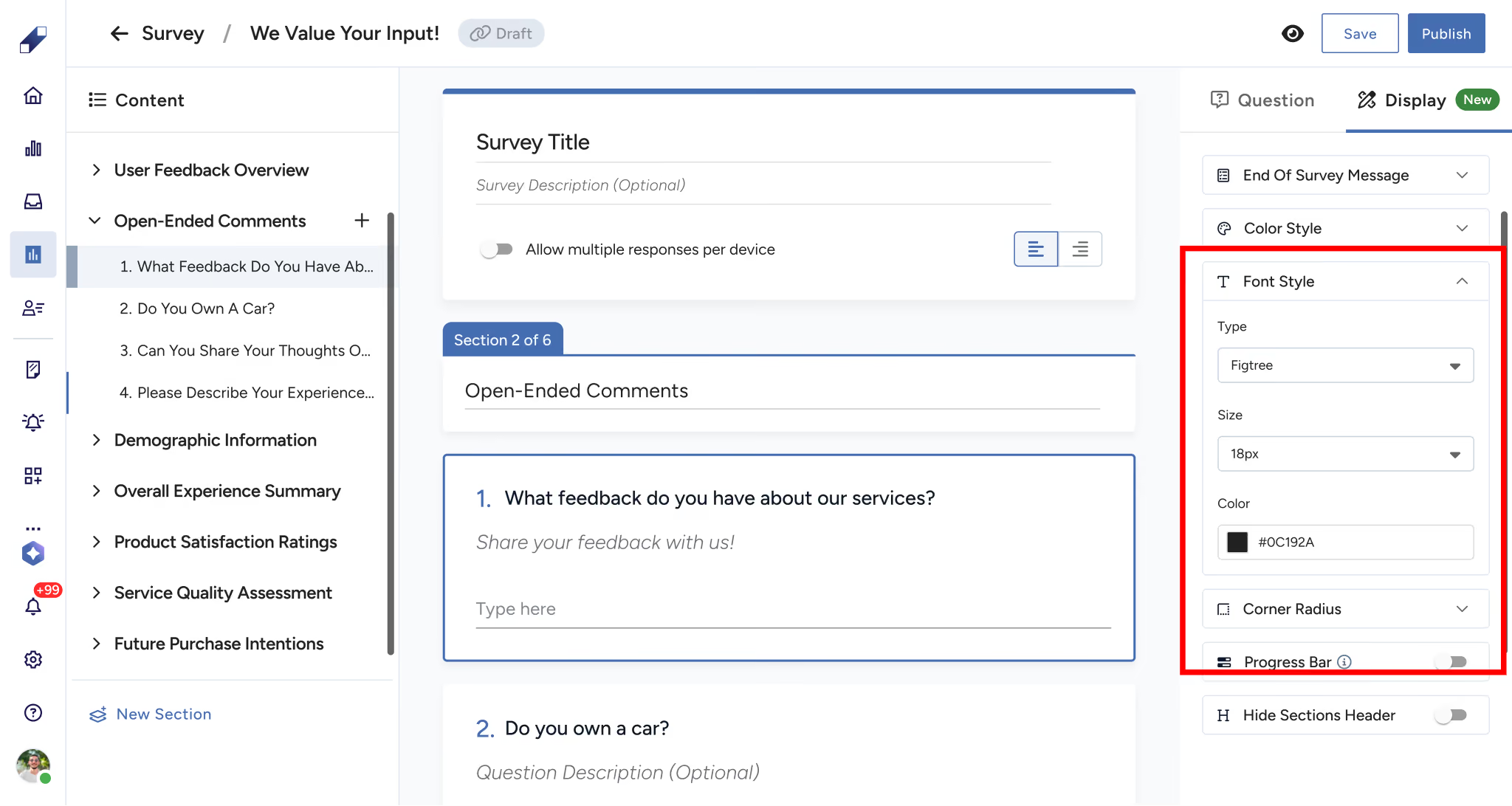
Control the font size used across the survey. The default fonts are Figtree (Regular) for English and IBM Plex Sans Arabic for Arabic. Font size can be set between 16px and 22px.
Question titles, question descriptions, and section titles display at the chosen font size. The survey title always displays 2px larger than the chosen size. Font sizes for tablet and mobile are adjusted automatically by the platform based on screen size.
Border Radius
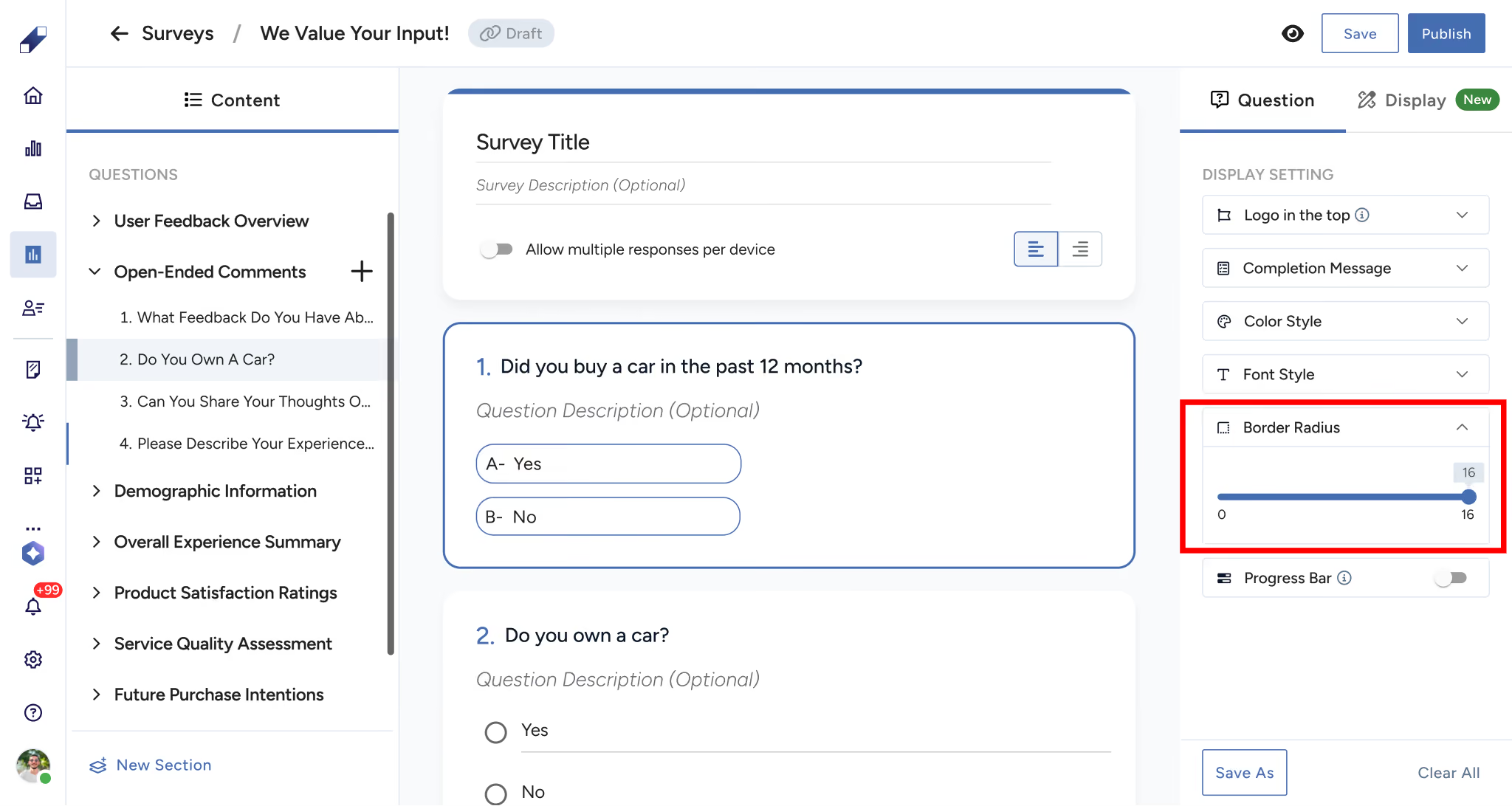
Controls how rounded the survey card corners and answer options appear. Range is 0px (sharp square corners) to 16px (fully rounded). Default is 4px. The radius applies to both the survey container and answer option cards and will not distort the layout or cut off content.
Progress Bar
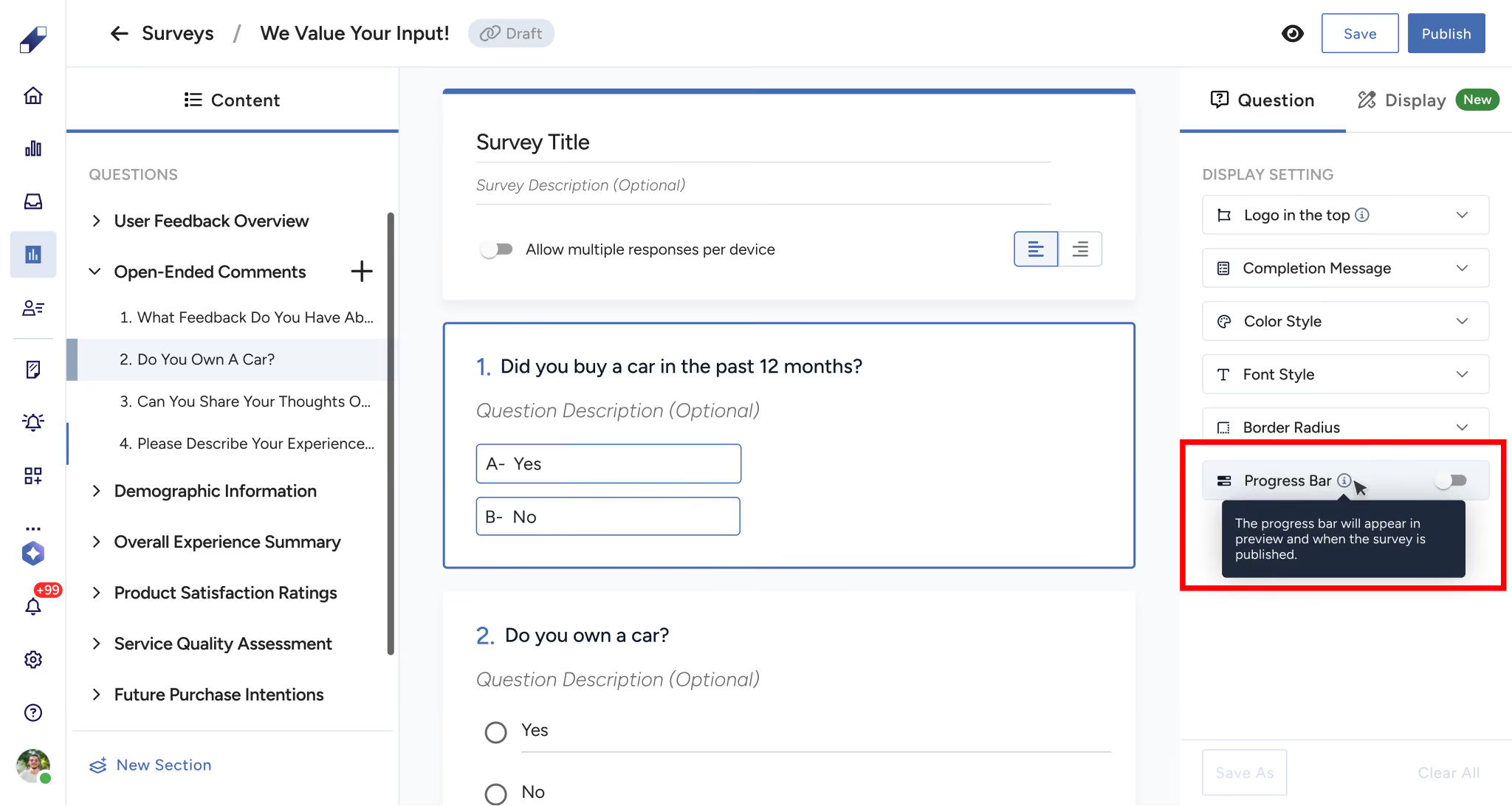
Toggle the progress bar on or off to show participants how far along they are in the survey. The progress bar is disabled by default and only becomes available when the survey has at least two sections. If the survey has only one section the toggle is greyed out.
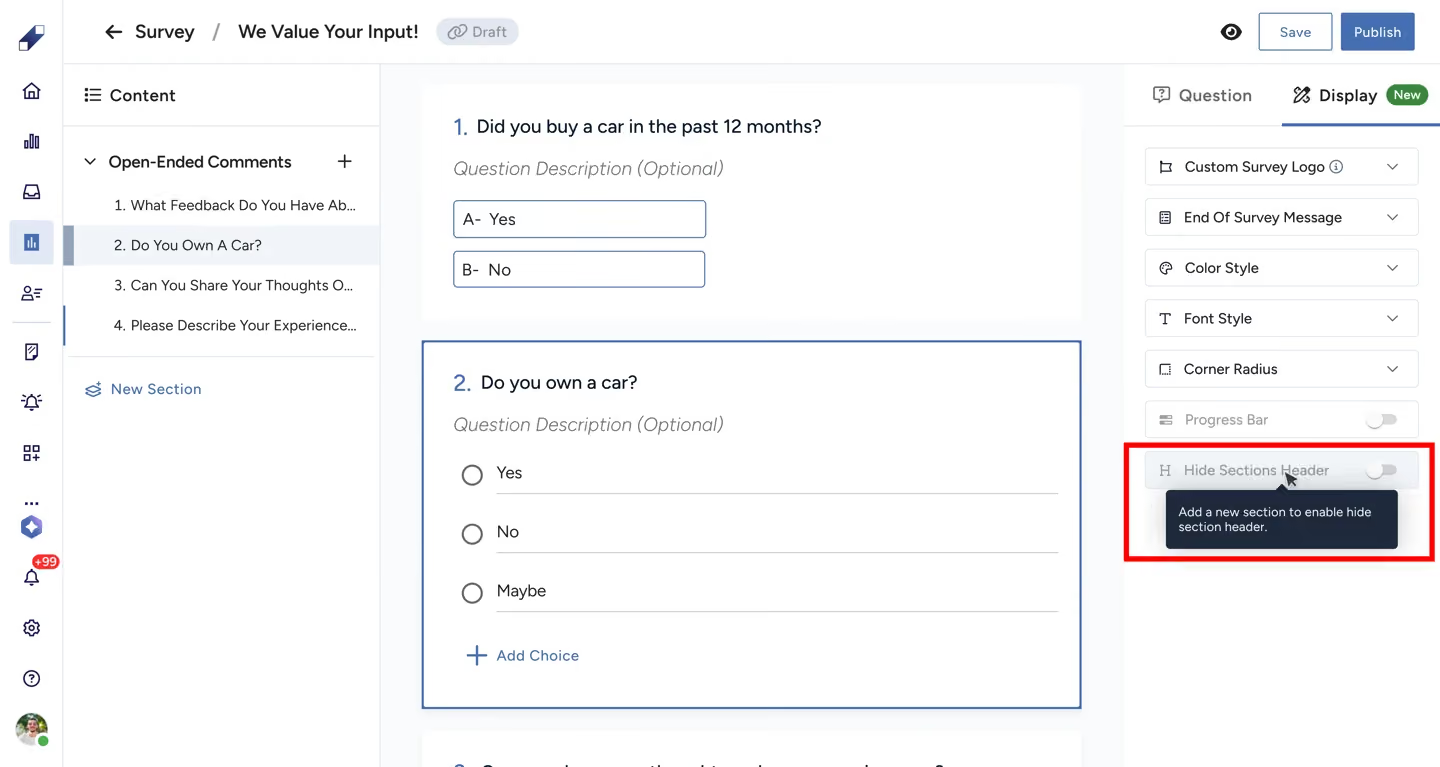
Hide Section Headers
When your survey has multiple sections, you can choose to hide section titles from participants for a cleaner look. This setting is disabled until at least two sections exist.
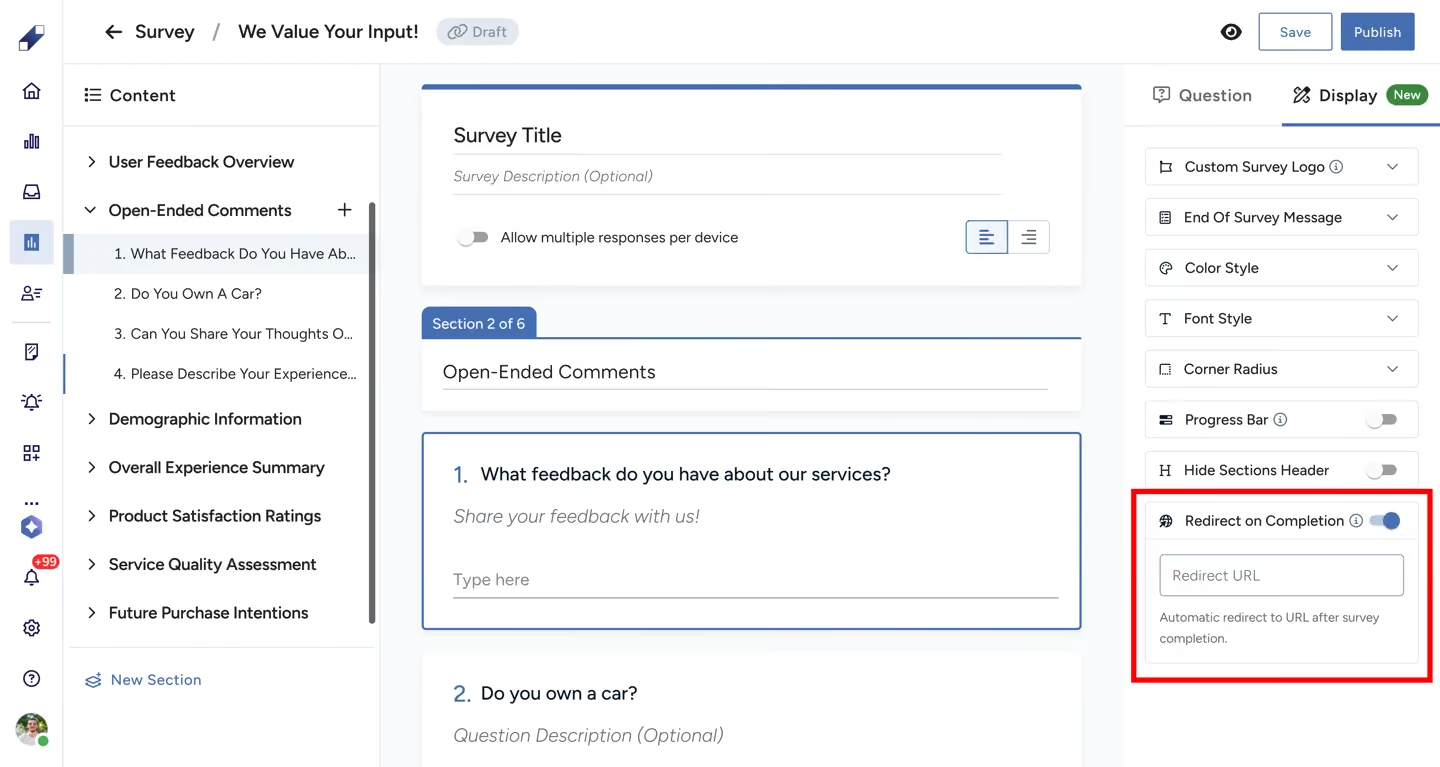
Redirect on Completion
You can redirect participants to a URL after they submit the survey. This setting is off by default and can be toggled on in the Display Settings tab.
Previewing Changes
All display changes are reflected in the live preview panel on the right side of the screen. Preview across breakpoints before publishing to confirm the layout looks correct on desktop, tablet, and mobile.

For further assistance contact Lucidya Support.
Frequently asked questions
PNG, JPG, JFIF, PJP, PJPEG, and JPEG. Once uploaded you can adjust the size, replace, or remove it.
The text color inverts automatically to maintain readability. No manual adjustment is needed.
The progress bar becomes available only when the survey has at least two sections.
Yes. Enable Redirect on Completion in the Display Settings tab and enter the destination URL.
300 characters. You can use letters, numbers, links, emojis, and special characters.
No. Display settings only affect the visual appearance of the survey for participants. Data collection and insights work the same regardless of display settings.