
.svg)


Managing Company Settings
Learn how to configure organization-wide settings in Lucidya including your company name, time zone, custom survey domain, and Customer Success Manager details.
Company Settings is where administrators configure organization-wide settings that apply to all users in Lucidya.
Before You Start
You need Manager permission for the General Settings module to access and modify company settings.
Step 1. Access Company Settings
- Log in to your Lucidya account.
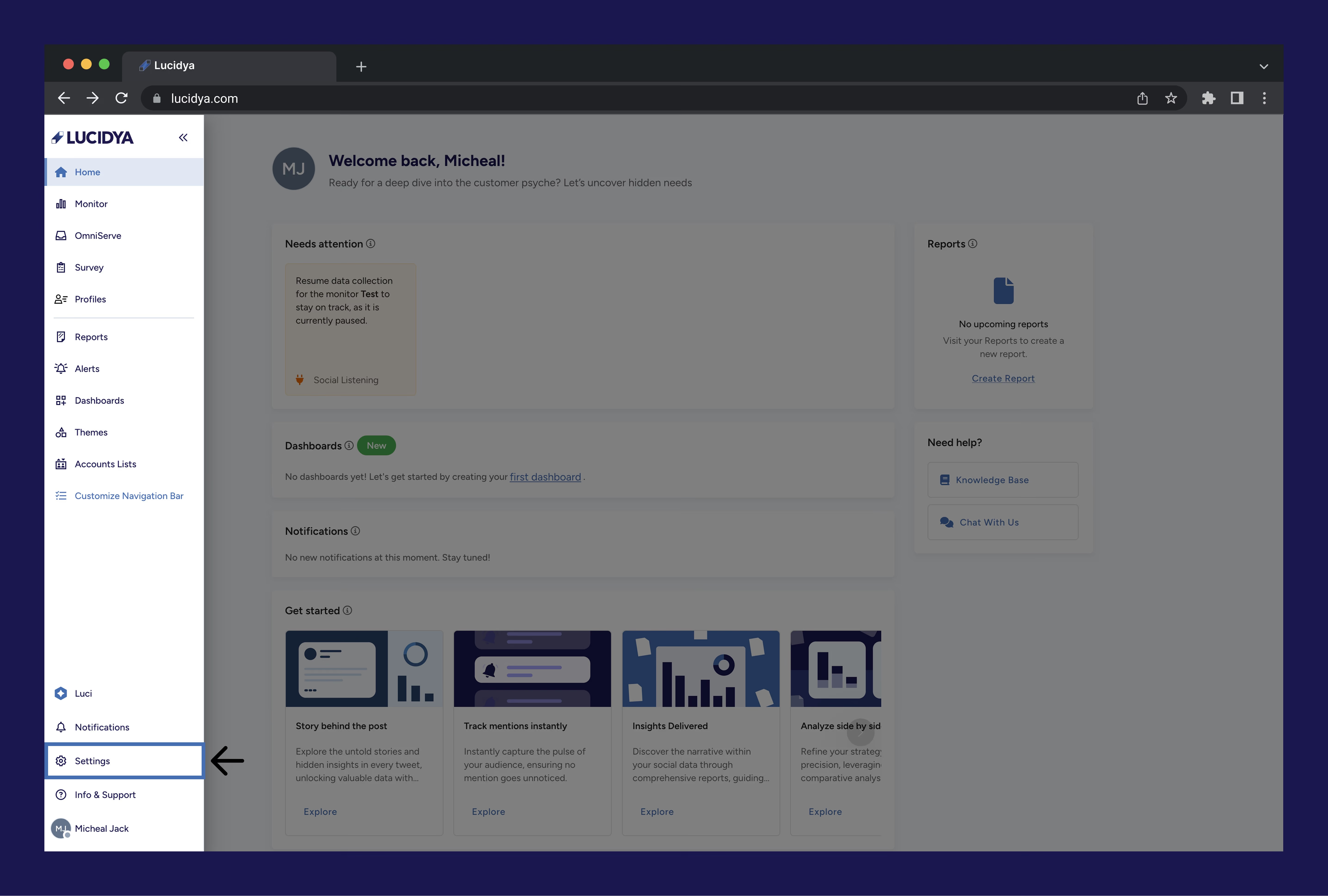
- Click the Settings icon at the bottom of the left sidebar.
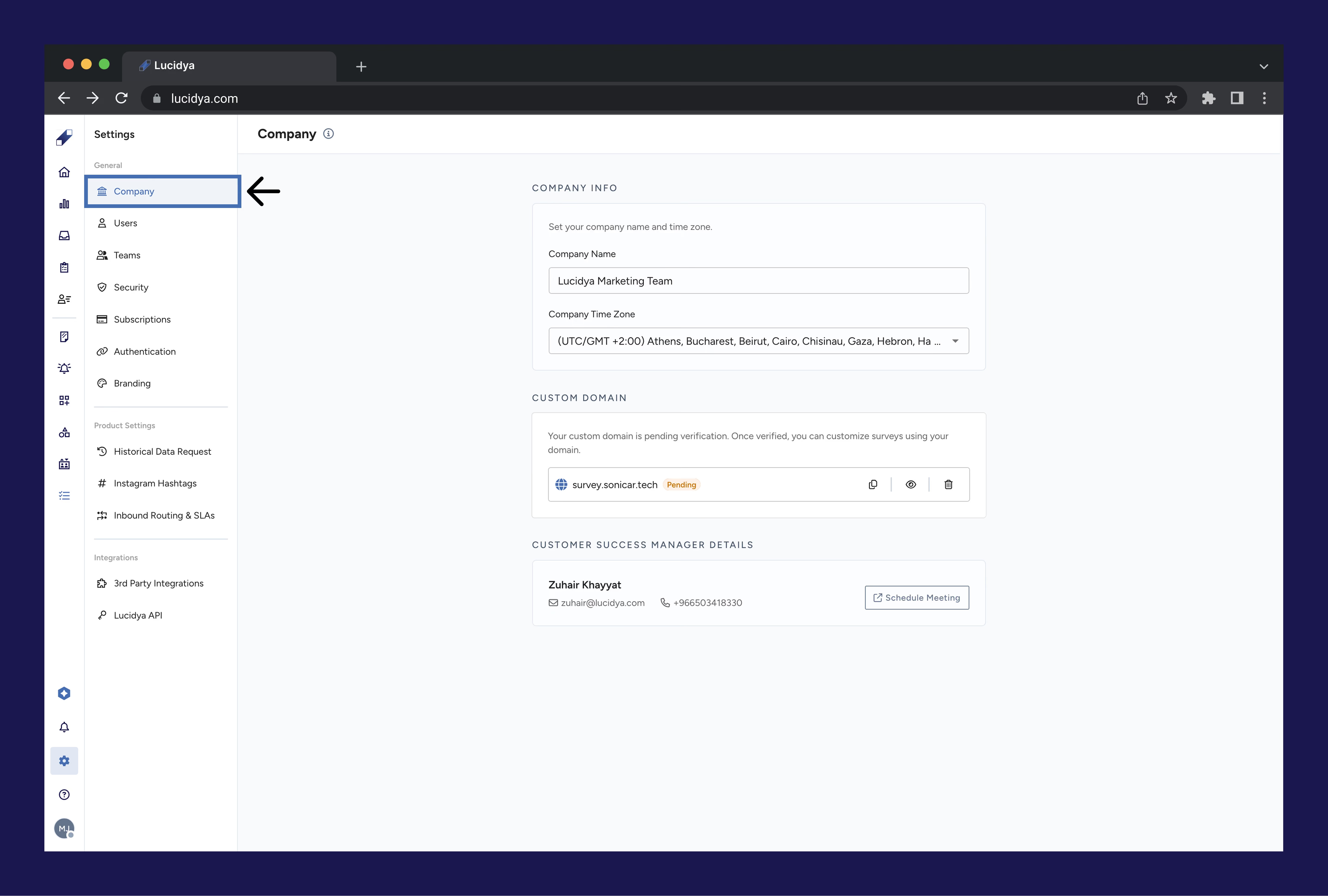
- Click Company under the General section on the Settings page.
Step 2. Configure Company Information
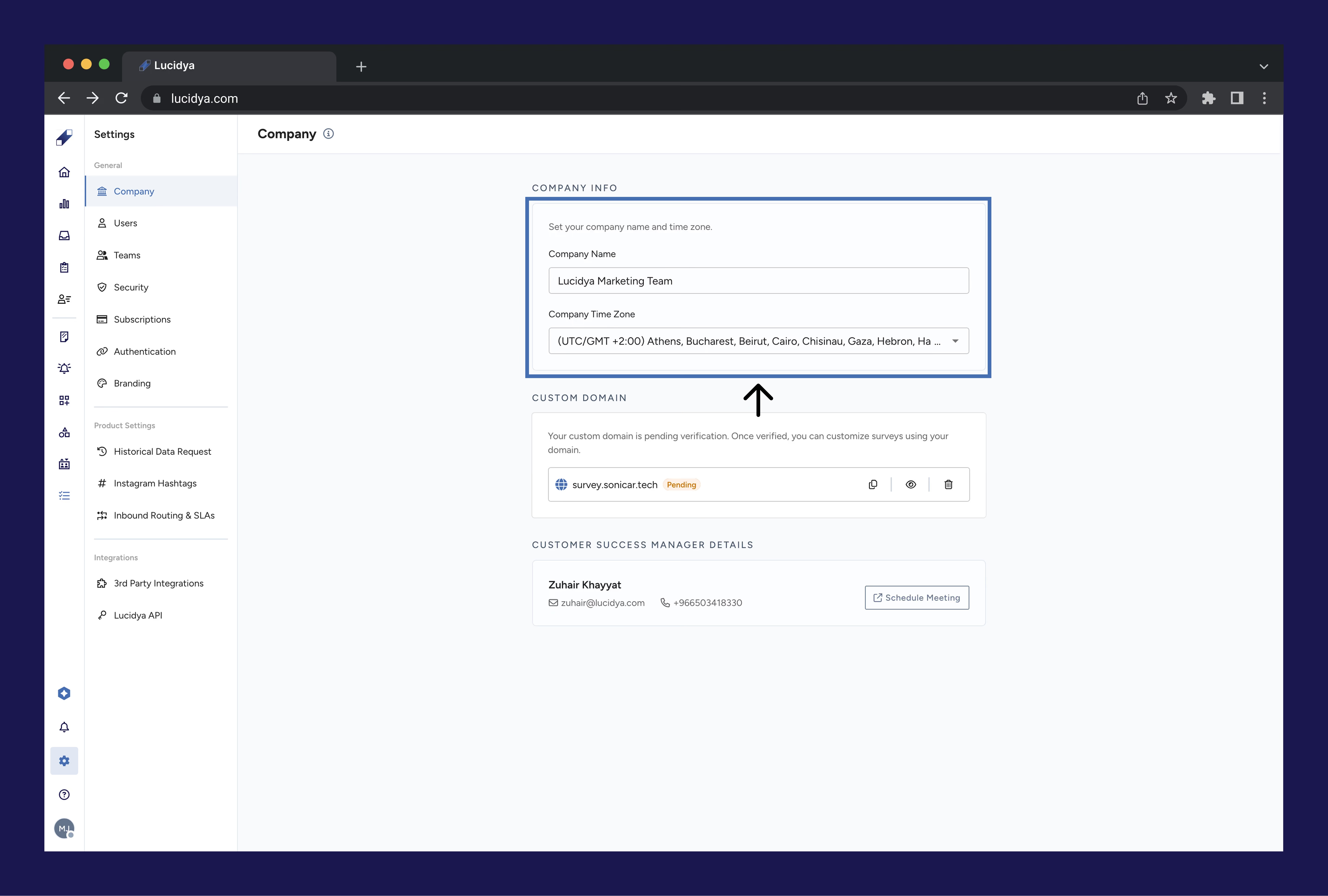
In the Company Info section, enter or update the following:
- Company Name. enter your company name as it should appear for all users in the organization.
- Company Time Zone. select your time zone to ensure accurate timestamps across reports and all date and time data in the platform.
Note: Changing the time zone updates how dates and times are displayed going forward. Historical data is preserved, but its timestamps will be shown relative to the new time zone.
Step 3. Set Up a Custom Domain for Surveys (Optional)
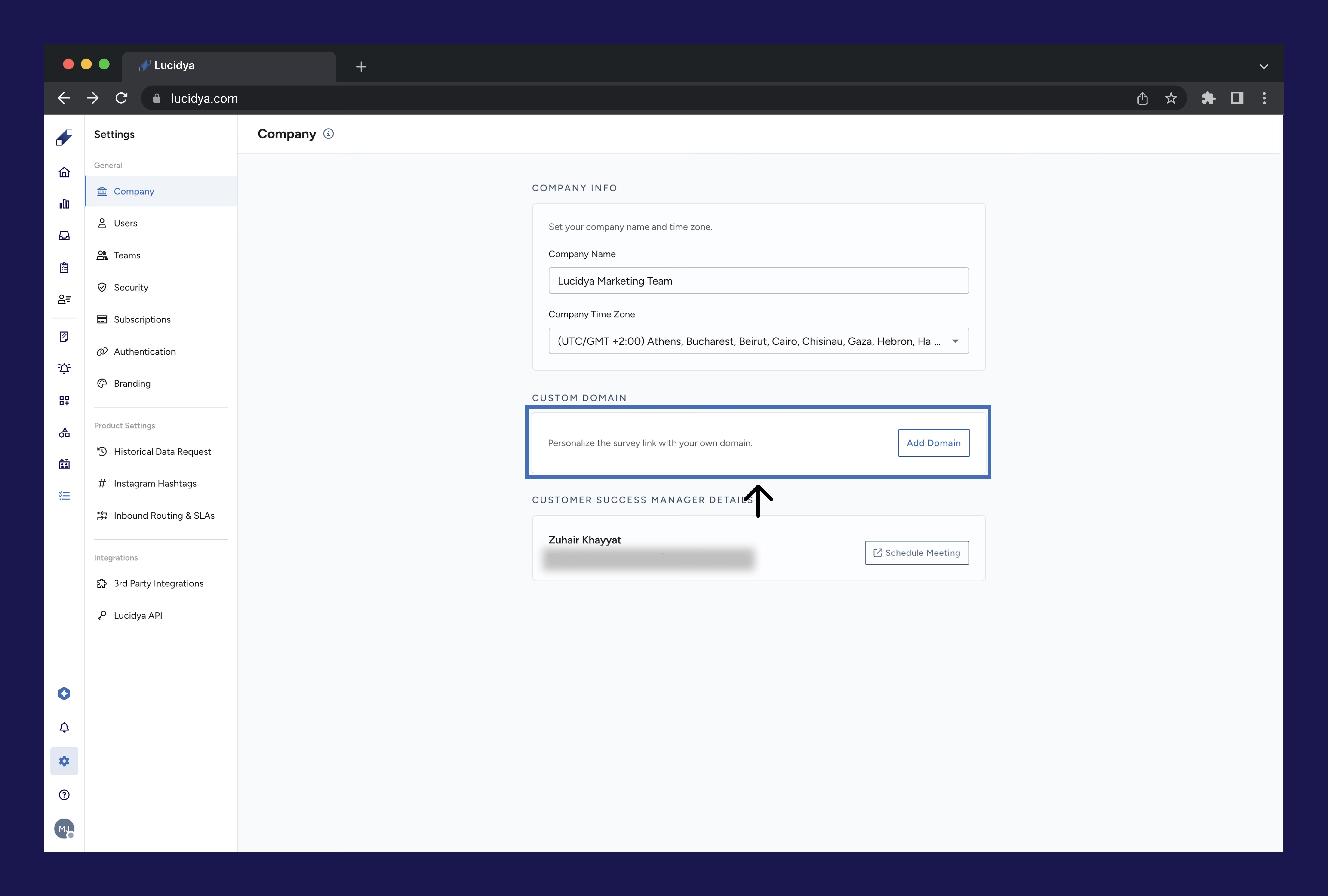
This feature lets you publish Lucidya surveys under your own company domain so respondents see the survey as part of your official website.
To add and activate your domain:
- Click Add Domain.
- Enter your company's custom domain in the Domain Name field and click Add.
- An activation popup will appear with TXT and CNAME records to add to your DNS settings.
- In your hosting provider's DNS settings, add the following records:
- TXT Record: copy the Hostname pre-validation TXT name and paste it as a TXT name in your DNS settings. Copy the Hostname pre-validation TXT value and paste it as a TXT value.
- CNAME Record: copy the CNAME key and paste it as a CNAME key in your DNS settings. Copy the CNAME value and paste it as a CNAME value.
- Return to Lucidya and refresh the page to check your domain status.
DNS activation can take anywhere from a few minutes to 24–48 hours, depending on your provider.
How to add TXT and CNAME records:
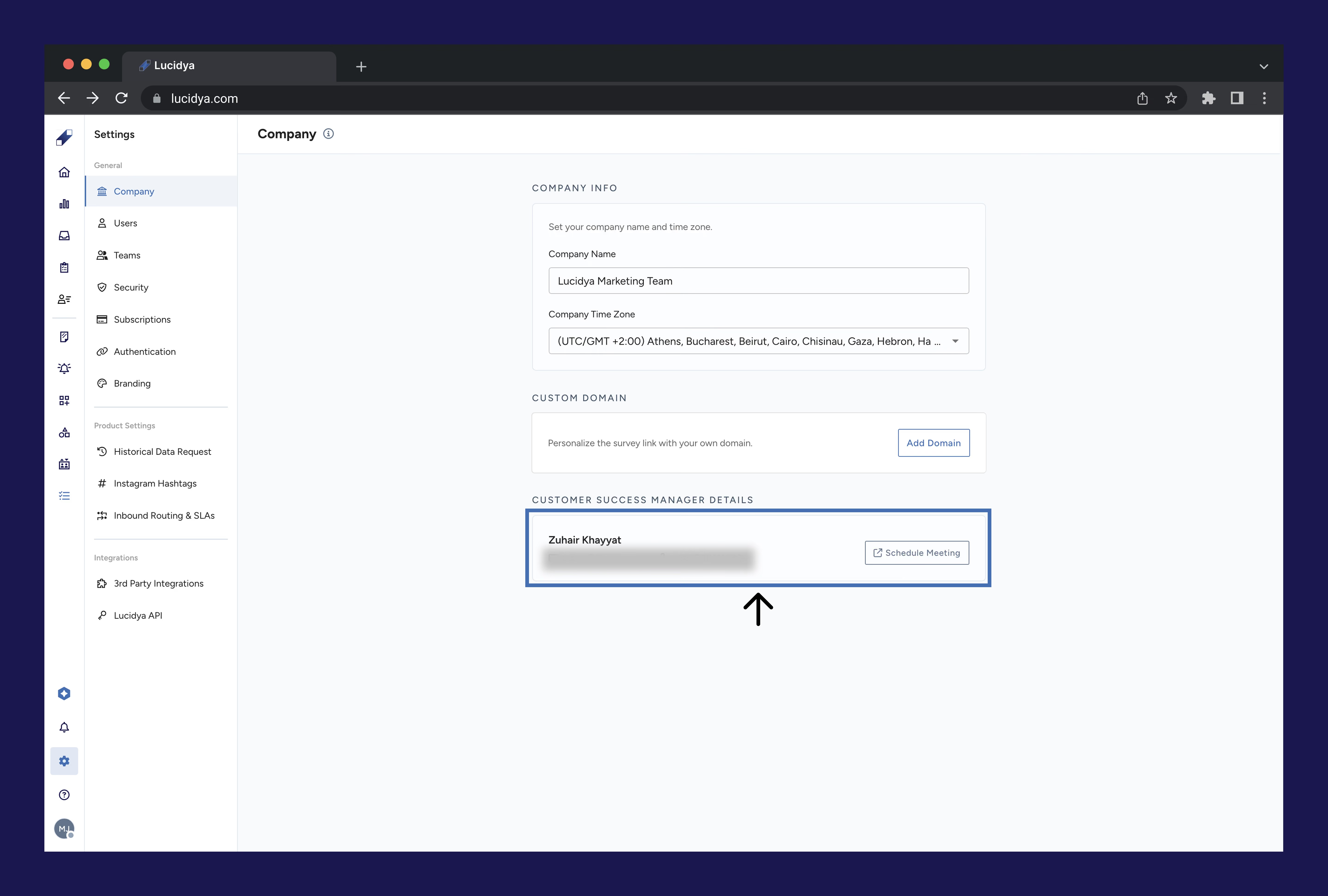
Step 4. View Your Customer Success Manager Details
Your assigned Customer Success Manager's contact details are available in Company Settings. From here you can:
- Schedule a meeting
- Contact them directly by phone or email
For further assistance, contact Lucidya Support.
Frequently asked questions
The new time zone updates how dates and times are displayed in reports and across Lucidya. Historical data is preserved, but timestamps will be shown relative to the new time zone going forward.
After adding the DNS TXT and CNAME records, activation can take anywhere from a few minutes to 24–48 hours due to DNS propagation. Refresh the page in Lucidya to check your domain status.
Depending on your plan, you may be able to configure multiple domains or subdomains. Contact your Customer Success Manager to confirm what's supported in your subscription.
Yes. You can remove your custom domain at any time from Company Settings. A confirmation window will appear before the deletion is completed.