
.svg)


How to Navigate the OmniServe Inbox
Learn how to navigate the OmniServe Inbox, including default and saved views, replying to engagements, conversation statuses, and the four SLA metrics tracked across every conversation.
The OmniServe Inbox is a central interface where customer interactions from all your connected channels are collected and displayed in one place. Support agents can manage and respond to direct messages, public comments, and other engagements without switching between tools.
Inbox Views
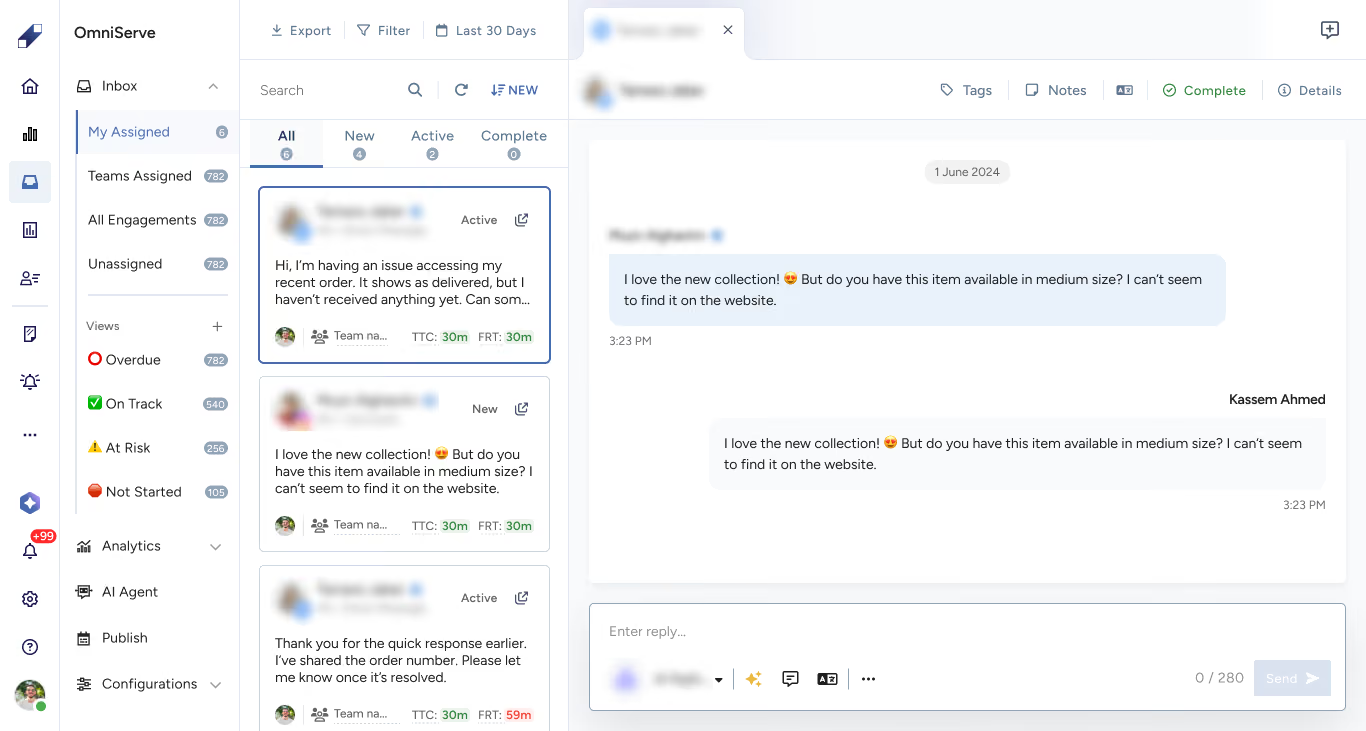
The inbox is organized into four default tabs at the top of the screen.
My Assigned shows all conversations currently assigned to the logged-in agent. Team's Assigned shows conversations assigned to the agent's team, with visibility based on user permissions. Unassigned shows conversations that have not yet been assigned — either because they did not meet any routing criteria or were manually unassigned. All Engagements shows a full view of all inbox activity, with visibility based on permissions.
Below the default tabs, agents can create and manage custom saved views tailored to their workflow. Saved views can be pinned, edited, or deleted. One special view called Overdue is also available here, it highlights conversations that may have exceeded response expectations. The Overdue view can be pinned or unpinned but cannot be edited or deleted.

Replying to Engagements
You can interact directly with any engagement in OmniServe without leaving the inbox. Click on the engagement to open the interaction details page. A reply box at the bottom of the page lets you respond directly from there.
Conversation Statuses and Engagement Lifecycle
Every engagement in OmniServe follows a clear lifecycle from the moment it is received to the moment it is resolved.
When a message arrives from any connected channel, OmniServe checks routing conditions and either assigns the conversation automatically to a human agent or the AI Agent, or leaves it unassigned for manual handling. If routing is active, SLA tracking begins at this point.
Each conversation moves through three statuses as it progresses.
New: the engagement has been received but not yet handled. A greeting message may be triggered automatically at this stage.
Active: an agent has responded and the conversation is ongoing.
Complete: the issue has been resolved and the engagement is closed. A farewell message is sent automatically, and a survey can be sent either automatically or manually.
If an agent manually reopens a completed engagement its status returns to Active. If a customer replies after an engagement is marked Complete, a new engagement will open rather than reopening the original.
Inbox Configurations
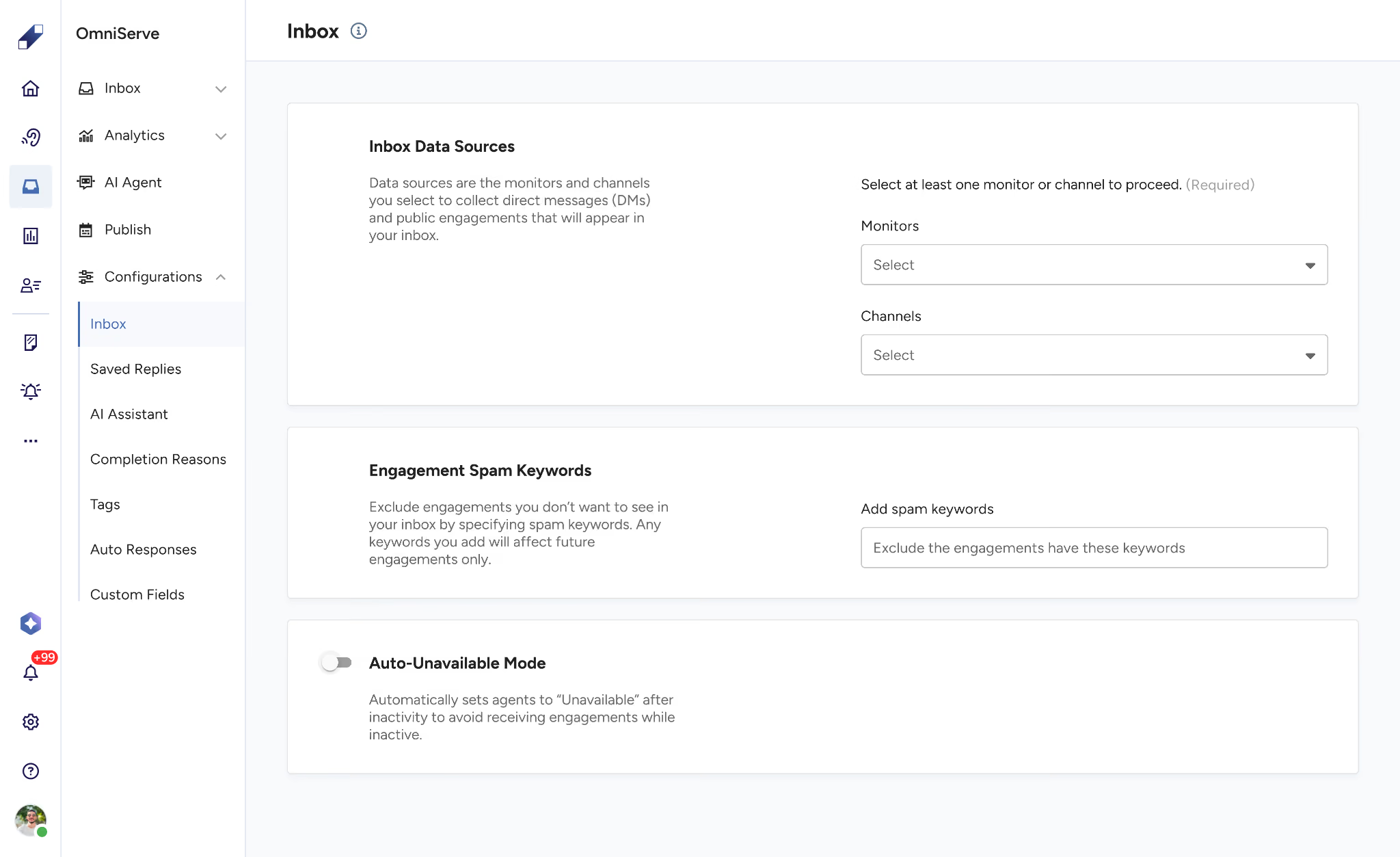
OmniServe Inbox Configurations gives team leaders control over how the inbox behaves and how agents interact with conversations. These settings help standardize workflows while keeping the experience flexible and tailored to each team's needs.
Within this panel, admins can:
- Define what to display in the inbox by configuring Inbox Data Sources and Engagements Spam Keywords. These settings control which channels OmniServe collects data from, and which messages are excluded based on specified keywords to keep the inbox relevant.
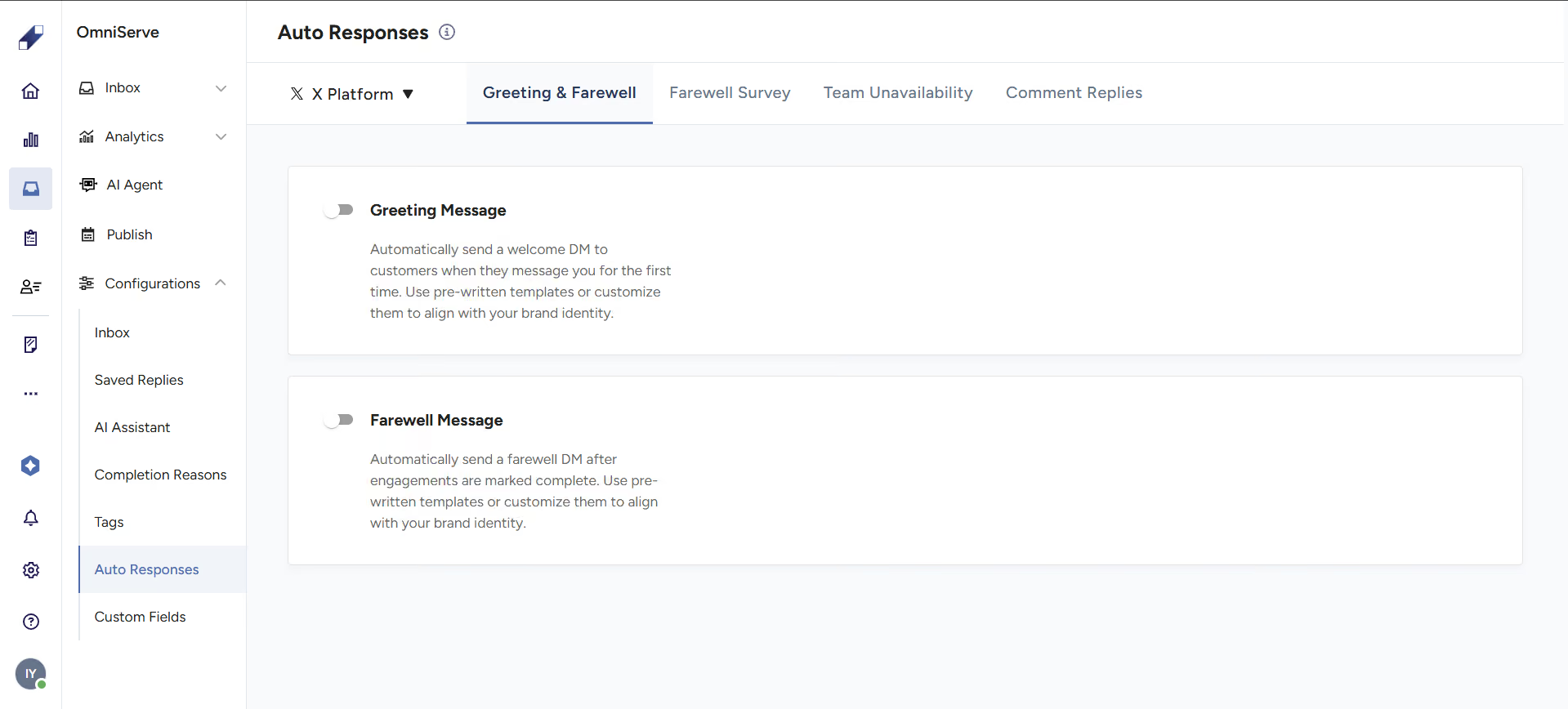
- Configure automated responses, including:
- Greeting messages sent when a conversation starts.
- Farewell messages and surveys triggered at the end of an engagement.
- Unavailability replies used outside of working hours.
- Automated comment replies, sent automatically to public comments.
- Define a list of completion reasons agents must select from when marking an engagement as Complete.

SLA Metrics
Throughout the conversation OmniServe tracks four key SLA timings.
First Response Time (FRT): the time from when the engagement is received to the first agent reply.
Next Response Time (NRT): the time between replies in direct message threads.
Total Unassigned Time (TUT): the total time the engagement spent without an assigned agent.
Time to Completion (TTC): the total time from the first message to final resolution.
For further assistance contact Lucidya Support.
Frequently asked questions
My Assigned shows only conversations assigned directly to you. Team's Assigned shows all conversations assigned to your team, with visibility depending on your permission level.
They appear in the Unassigned tab and can be manually assigned to an agent or team from there.
Yes. Click on any engagement to open the interaction details page and use the reply box at the bottom to respond without navigating away from OmniServe.