
.svg)


How to Use Tags, Notes, and Custom Fields in OmniServe
Learn how to use tags, internal notes, and custom fields in OmniServe to classify engagements, share context with teammates, and collect structured data across conversations.
When managing high volumes of customer conversations, keeping interactions organized is essential. Tags, notes, and custom fields in OmniServe give teams a shared structure to classify engagements, capture context, and collect consistent data across every conversation.
Tags
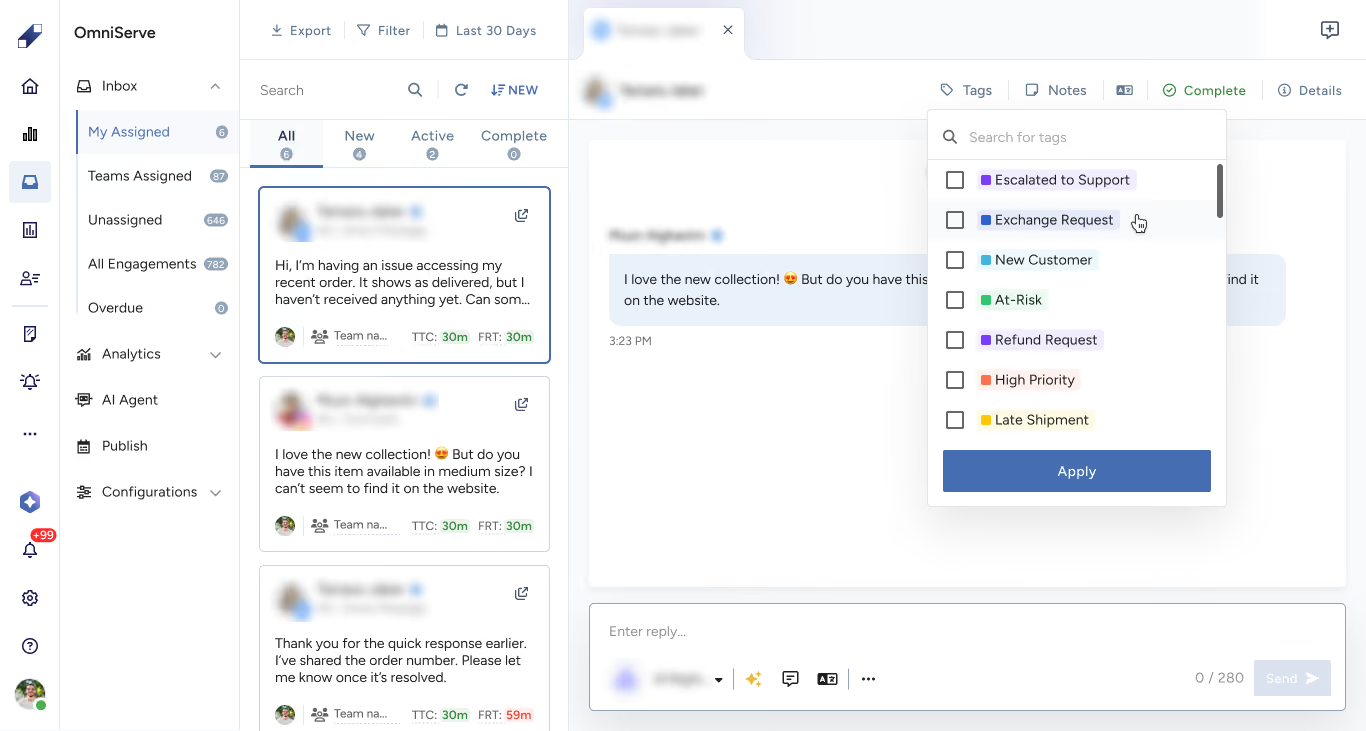
Tags are labels applied to conversations to classify an engagement by topic, type, or priority. They make it easier to organize, filter, and analyze conversations across the inbox.
Tags are created and managed centrally by team leaders in OmniServe Configurations. Agents apply tags during conversations as part of their daily workflow and can apply up to 10 tags per engagement. Active tags are available for selection directly within the engagement header.
Notes
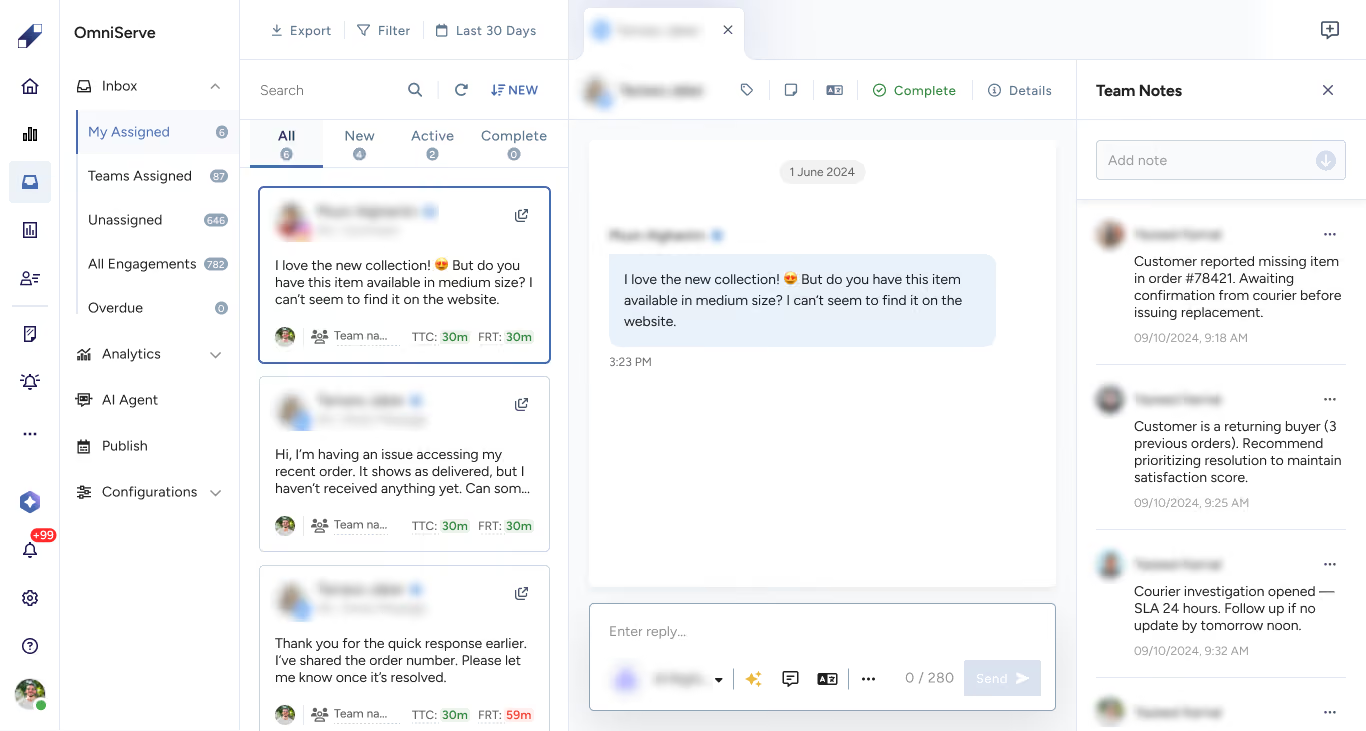
Notes are internal comments added to engagements to share context, updates, or instructions with teammates. They are not visible to customers, making them suitable for capturing background information or next steps during a conversation.
Notes appear directly inside the engagement view. Agents can @mention colleagues to notify them of an update, this triggers an email alert to make sure the relevant person sees it. Each agent can only edit or delete their own notes.
Custom Fields
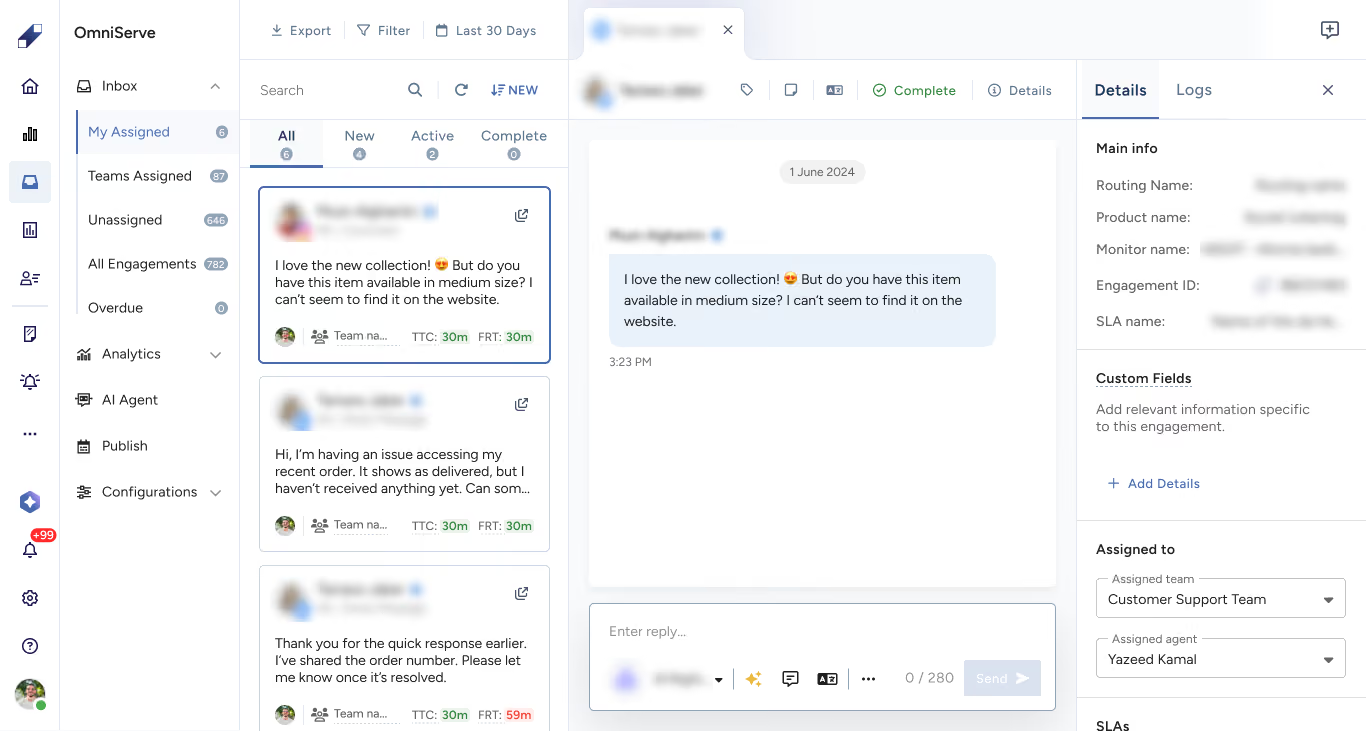
Custom fields are structured input fields used to collect specific data during engagements. They ensure critical information is captured consistently rather than being buried in message threads or notes, which improves classification, trend analysis, and reporting accuracy.
Custom fields are managed through the Configurations panel by team leaders, who can create, edit, activate, or deactivate field panels. Each panel defines which fields appear inside the agent's inbox. Panels can be set up in two ways: Basic for standard always-visible fields, or Advanced for fields that appear conditionally based on engagement context.
There are five types of custom fields: single select, multi-select, date selection, number fields, and text fields.
Once a panel is activated, agents see its fields directly within their engagements and fill them in as part of their workflow. All collected data is included in Excel exports for reporting and analysis.
For further assistance contact Lucidya Support.
Frequently asked questions
Agents can apply up to 10 tags per engagement. Tags must be created and activated by a team leader in OmniServe Configurations before they are available to agents.
No. Notes are visible only to agents and team members inside OmniServe. They are never shown to customers.
Each agent can only edit or delete notes they created themselves. Notes left by other agents cannot be modified.
All custom field data is included in Excel exports, making it available for structured reporting and analysis across teams.