
.svg)


How to Create a Monitor in Social Listening
Learn how to create Managed Account, Public Account, and Keyword monitors in Social Listening to track brand health, competitor activity, or topic-based conversations.
Monitors are how Lucidya collects data from social media platforms, news, and blogs. Each monitor tracks a specific account, keyword, or set of accounts and displays the results inside Social Listening. Before creating a monitor, the social media accounts you want to monitor must be authenticated in your Lucidya account.
Types of Monitors
There are three monitor types available.
Managed Accounts lets you monitor and analyze accounts you own on Facebook, Instagram, TikTok, and X. Use this to track brand health, content performance, and customer care metrics.
Public Accounts monitors any public account on X, Facebook, Instagram, YouTube, Snapchat, or Public Reviews, regardless of whether you own it, without requiring any authentication.
Public Account monitors track publicly available activity from a specific account, including published posts, audience comments, and engagement signals like likes and shares.
Use Public Accounts for audience and content analysis, competitive benchmarking, and performance tracking, they're well suited for teams that need a consistent, account-level view of a competitor or any account of interest without connecting it to your workspace.
Keywords lets you monitor all content related to specific keywords across X, Facebook, Instagram, news, and blogs. Use this to track topics, trends, or brand mentions across the web.

Before You Start
Make sure the social media accounts you want to monitor are authenticated in Lucidya before starting setup. If you are creating a TikTok Managed Account Monitor, your TikTok account must be set to Business before it can be connected.
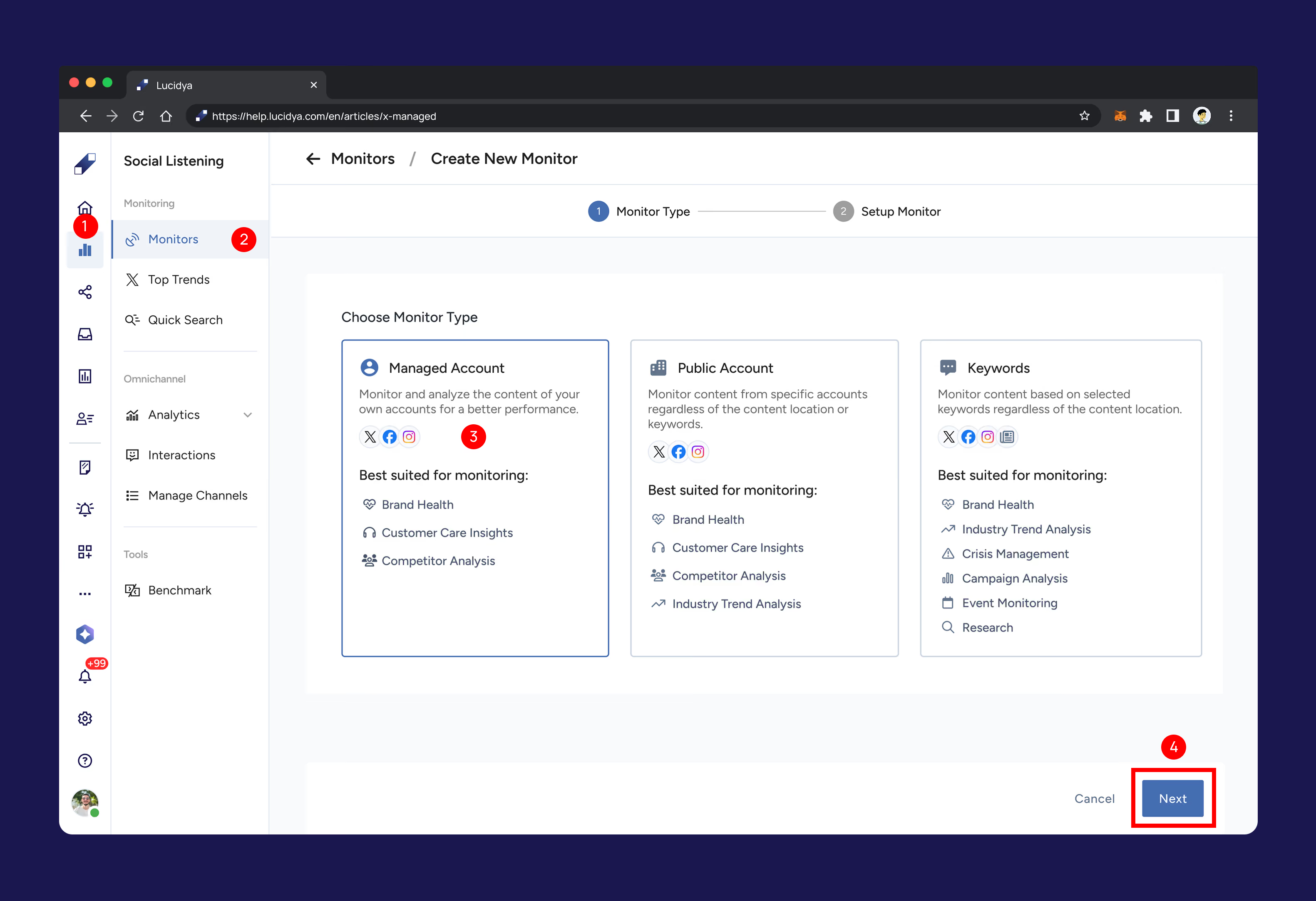
Step 1. Open the Monitor Creation Flow
Go to Social Listening → Monitors and click New Monitor or Create Monitor at the top of the page. Select the monitor type that fits your needs and click Next.
Step 2a. Set Up a Managed Account Monitor
Click on Managed Account.
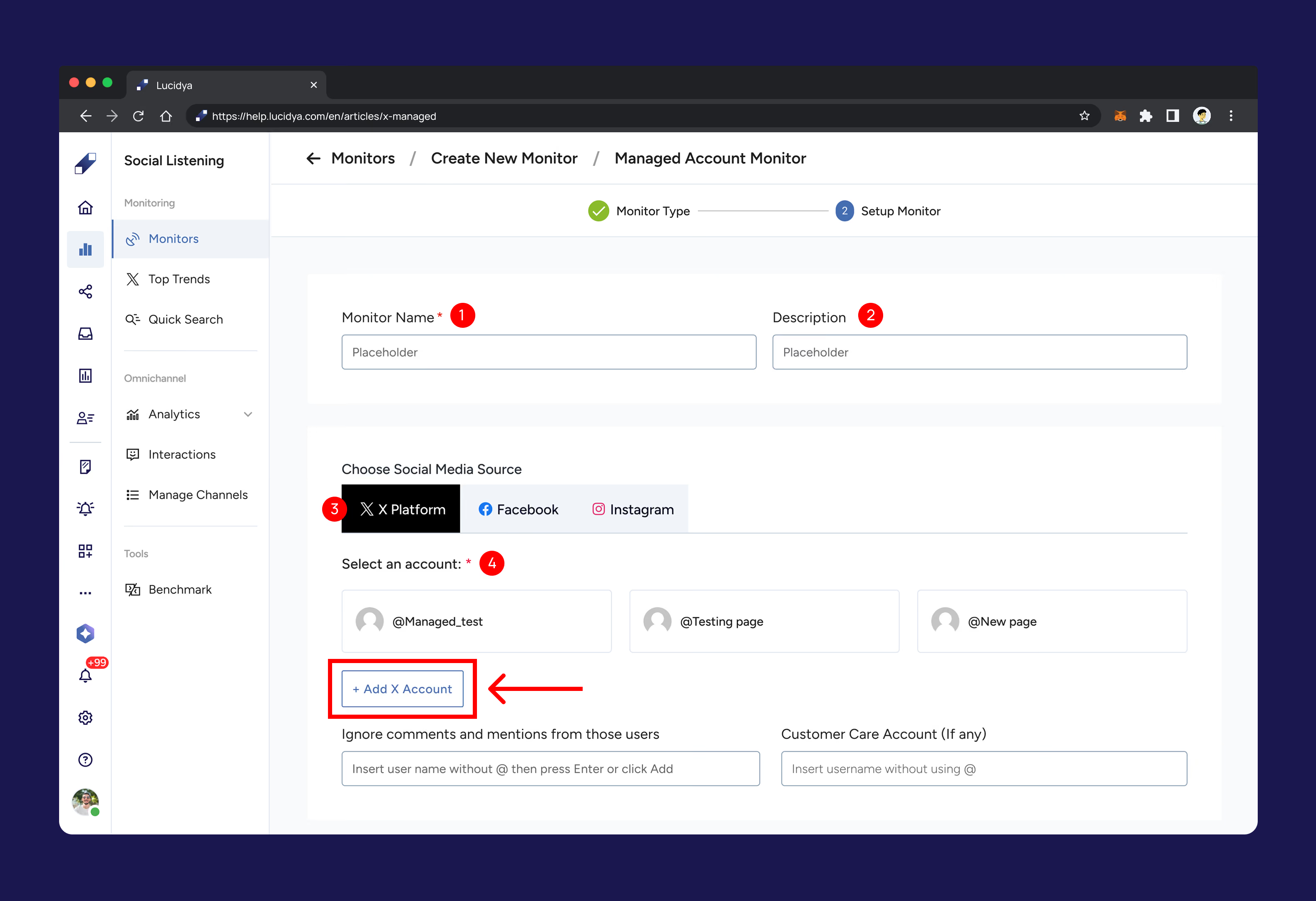
Enter a monitor name and an optional description. Under Choose Data Source and Account, select the platform, Facebook, Instagram, or TikTok. Select the authenticated account you want to monitor. If you haven't yet authenticated an account, click Add Account to do so.
X (twitter)
For X, select the X Platform tab and choose your authenticated X account. If you haven't added an X account yet, click Add X Account to authenticate through X Platform. You can also optionally add a Customer Care Account to track service performance, improve statistical accuracy, and gain insights for future data.
TikTok
For TikTok, select the TikTok tab and choose your authenticated account. If you haven't added a TikTok account yet, click + Add TikTok Account to authenticate through TikTok. Your account must be set to Business before it can be connected to Lucidya.
%20-%201.avif)
%20-%202.avif)
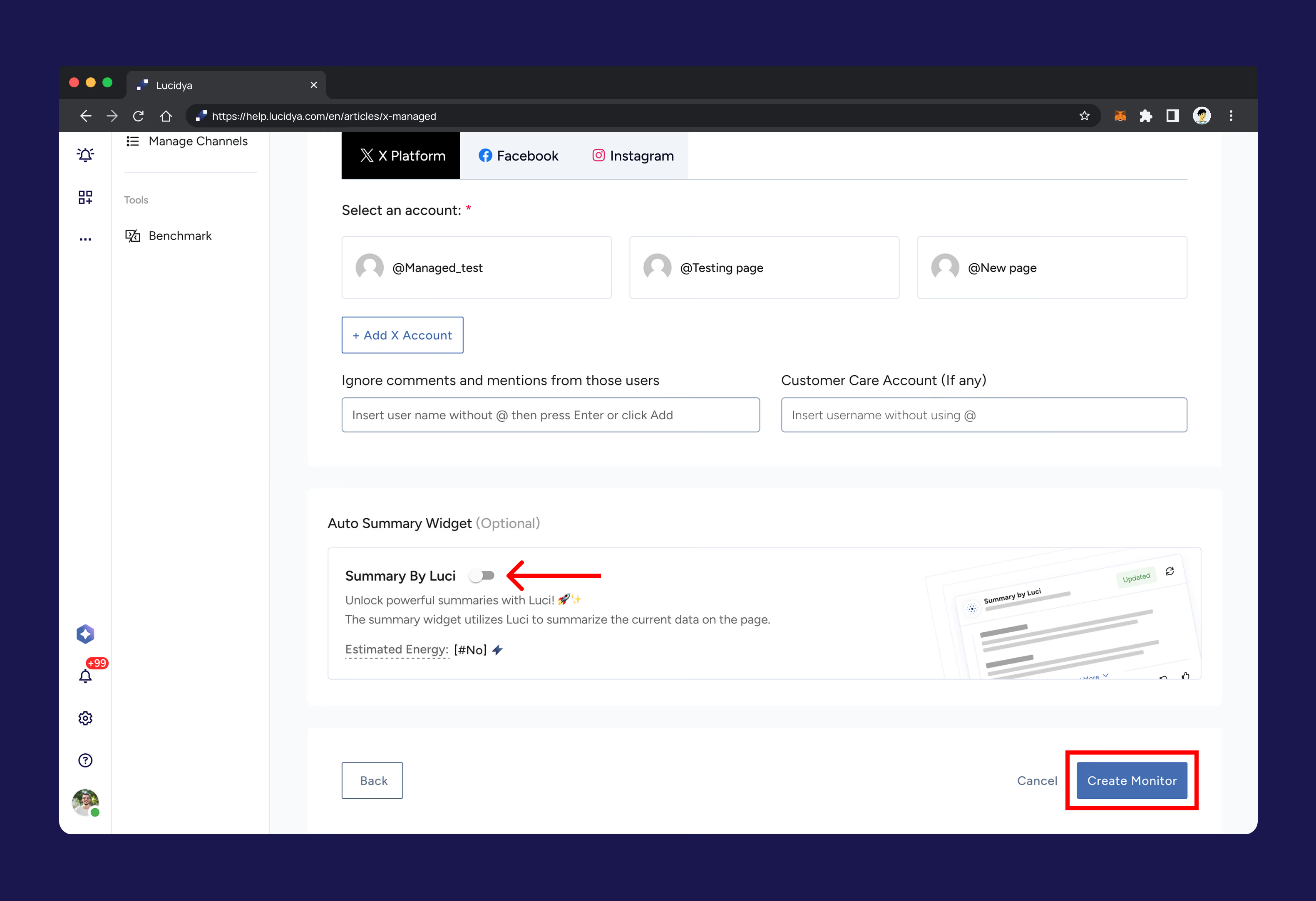
Across all platforms, you can optionally enable the Auto Summary Widget to have Luci automatically summarize your monitor data.
Click Create Monitor to finish.
Step 2b. Set Up a Public Account Monitor
Click on Public Account.
Enter a monitor name and an optional description. Select the platform, X, Facebook, or Instagram, and add the account you want to monitor.
If you select X, additional configuration options become available: keywords to monitor, excluded keywords, specific accounts to include or exclude, countries and languages, and optional toggles to exclude retweets and quotes or display posts from verified users only.
Click Create Monitor to finish.
Step 2c. Set Up a Keyword Monitor
Click on Keywords.
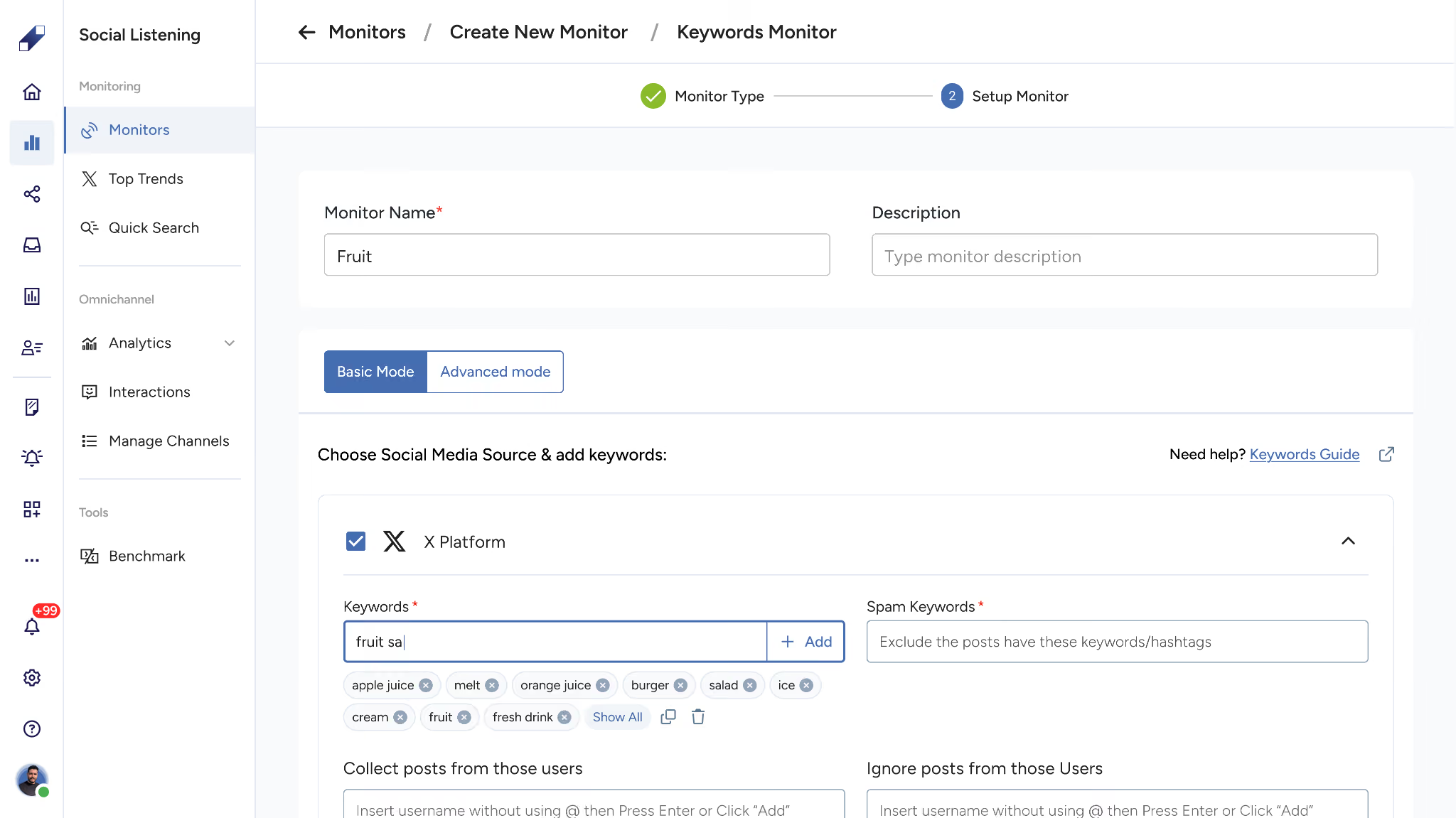
Enter a monitor name and an optional description. Choose your data sources, X, Facebook, Instagram, News, or Blogs.
Choosing Your Query Type
Keyword Monitors collect content based on the search query you define. The structure of your query directly impacts the relevance, accuracy, and quality of the insights generated. You can build your query using Basic or Advanced logic, depending on your monitoring objectives and required precision. This logic applies across all data sources selected for the monitor.
Basic Queries
Basic queries are suited for monitoring scenarios that require broad coverage without complex query logic. Simply enter the keywords you want the monitor to track, and the system collects posts and content containing those terms across your selected sources.
Queries can be refined by including or excluding specific keywords and applying standard conditions such as language, location, or source-based filters. Available configuration options may vary depending on the platform being monitored, some sources allow additional conditions, such as filtering posts by specific users, excluding reposted content, or limiting results to certain languages or countries.
Advanced Queries
Advanced queries give you greater control by letting you build structured search logic using conditional expressions and filtering operators. All configuration options available in Basic queries are also supported in Advanced queries, with expanded capabilities.
A dedicated query field supports logical operators such as AND, OR, and NOT, which can be used to combine or exclude keywords and conditions. These operators allow precise control over how search terms interact, making it possible to capture highly specific conversations while filtering out unrelated content.
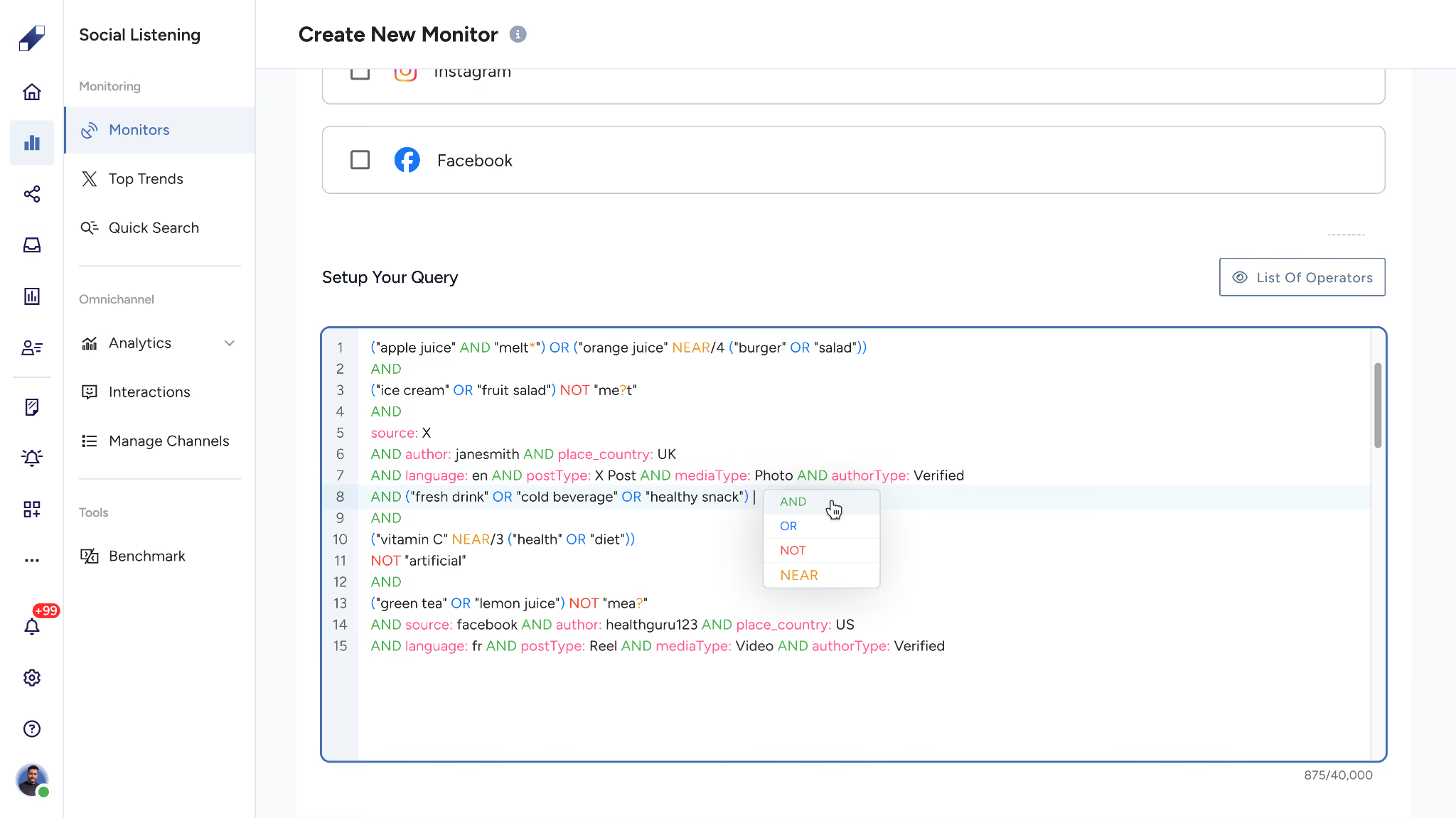
Basic vs. Advanced: When to use each
Use Basic queries when your monitoring objectives are straightforward and broad visibility across platforms is sufficient, commonly used for brand monitoring, campaign hashtag tracking, and general topic exploration.
Use Advanced queries when you need greater precision and control, combining conditions and applying structured filtering to reduce noise in high-volume conversations.
For the full list of supported keyword types (single word, phrase, hashtag, mention, exact match, and more), language considerations, and per-platform keyword limits, see Guide to Keyword Types and Management in Social Listening.
For News and Blogs, add keywords, excluded keywords, and titles for content collection. Add country and language filters if needed, keeping in mind that adding filters may reduce the number of results. Optionally configure topics.
Click Create Monitor to finish.
For further assistance contact Lucidya Support.
Frequently asked questions
Yes. Accounts must be authenticated in Lucidya before they can be added to a monitor. You can authenticate directly from the monitor setup screen by clicking Add Account.
No. TikTok Managed Account Monitors are only available for TikTok Business accounts. Make sure your account is set to Business before connecting it to Lucidya.
Yes. Applying location and language filters narrows the data collected by the monitor, which may reduce the total number of posts returned.
Yes. You can interact directly with posts displayed in Social Listening by clicking the reply button on any post. This lets you engage without leaving the monitor screen.