
.svg)


How to Create a Public Reviews Monitor
Learn how to create a Public Reviews Monitor in Social Listening to track and analyze customer reviews across up to 21 supported platforms for your brand or competitors.
Public Reviews Monitors track and analyze customer reviews from supported platforms for your brand or competitors.
Before You Start
The Public Reviews option only appears in the monitor creation screen if the Reviews package is enabled for your account. If you do not see it, contact your account manager.
Step 1. Open the Monitor Creation Flow
Go to Social Listening → Monitors. Click New Monitor.
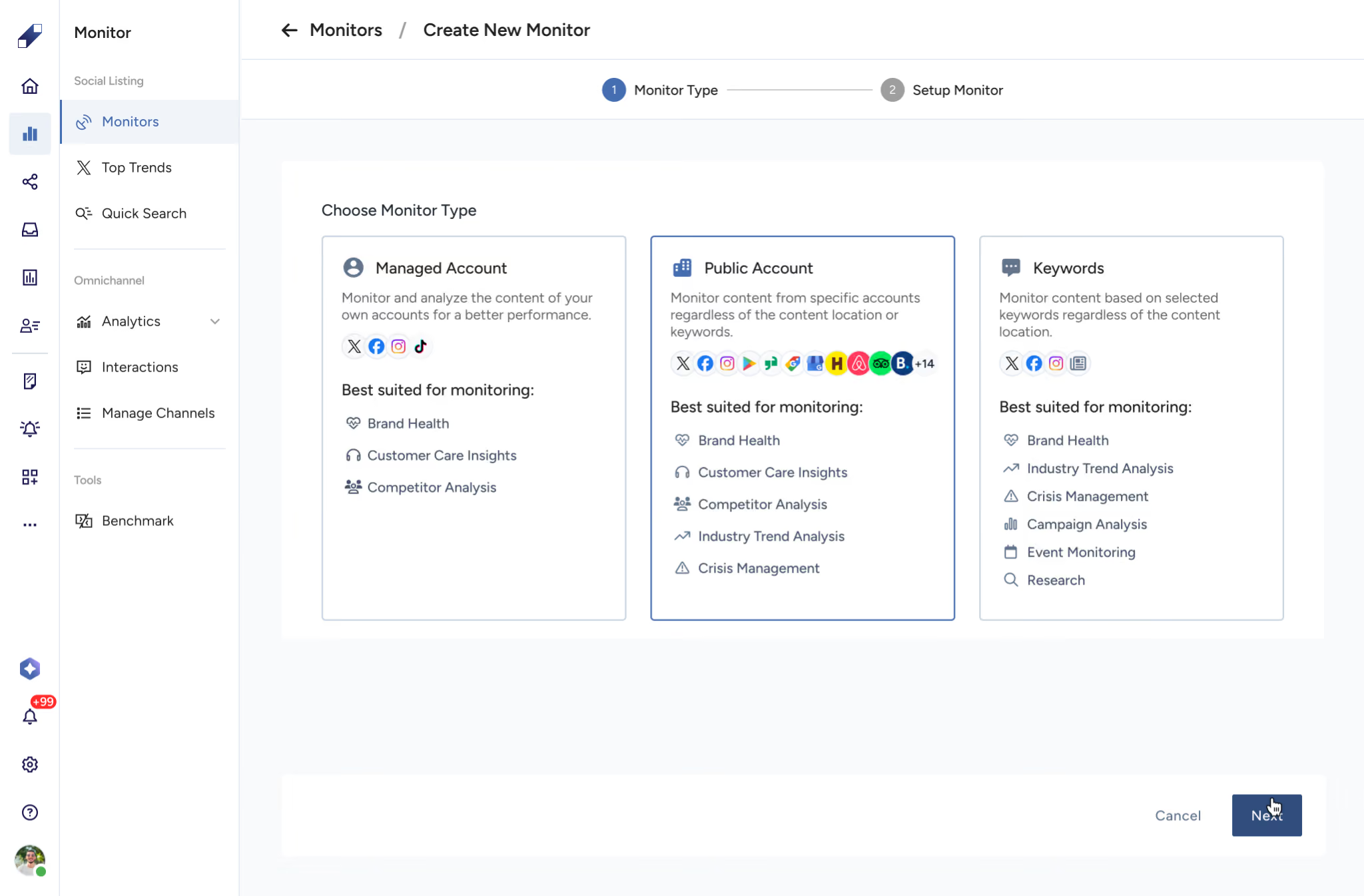
Select Public Reviews from the monitor type options. Enter a monitor name.
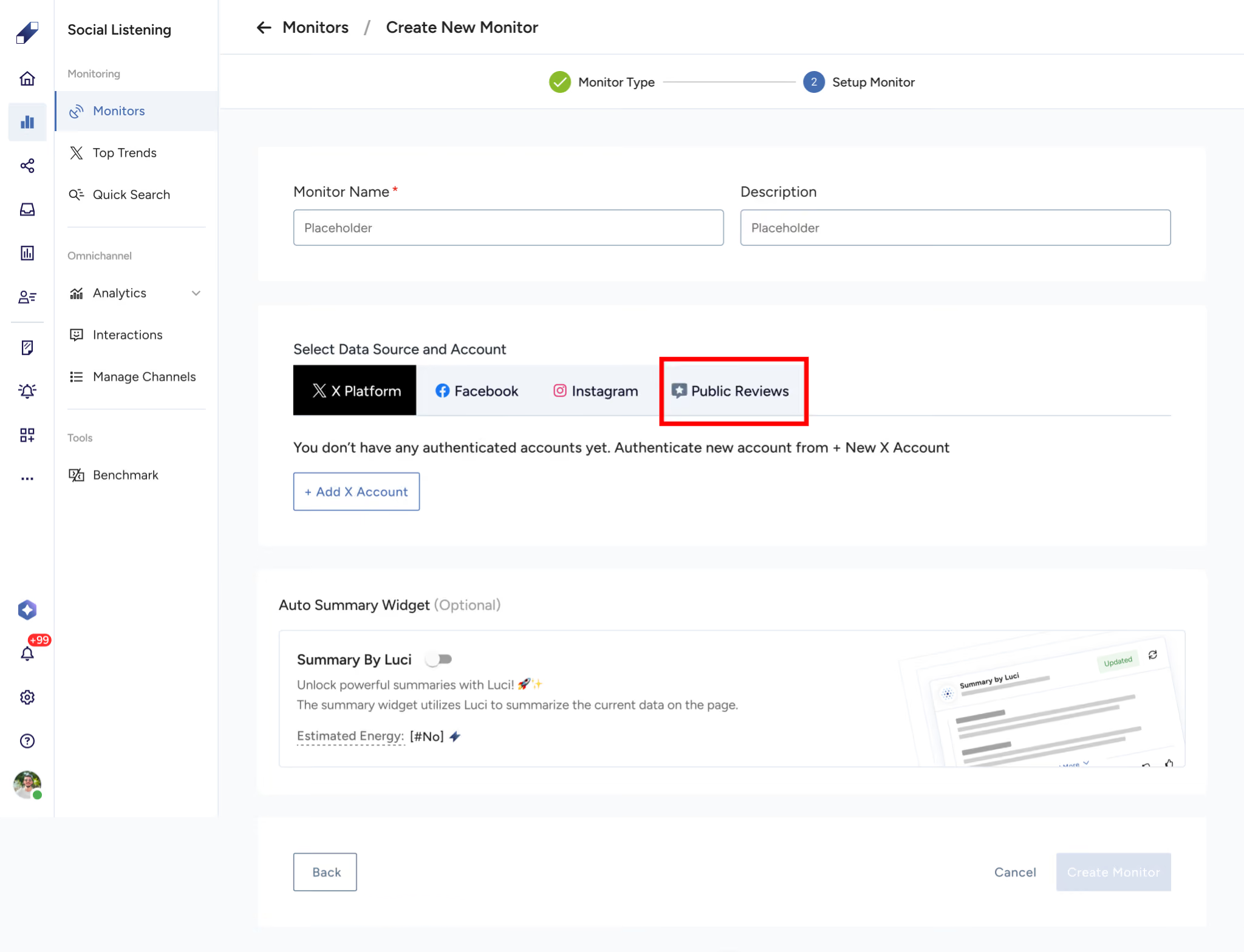
Step 2. Select Platforms and Add Review Profiles
Select one or more platforms from the available list. Up to 21 platforms are available.
For each selected platform, add at least one review account URL.
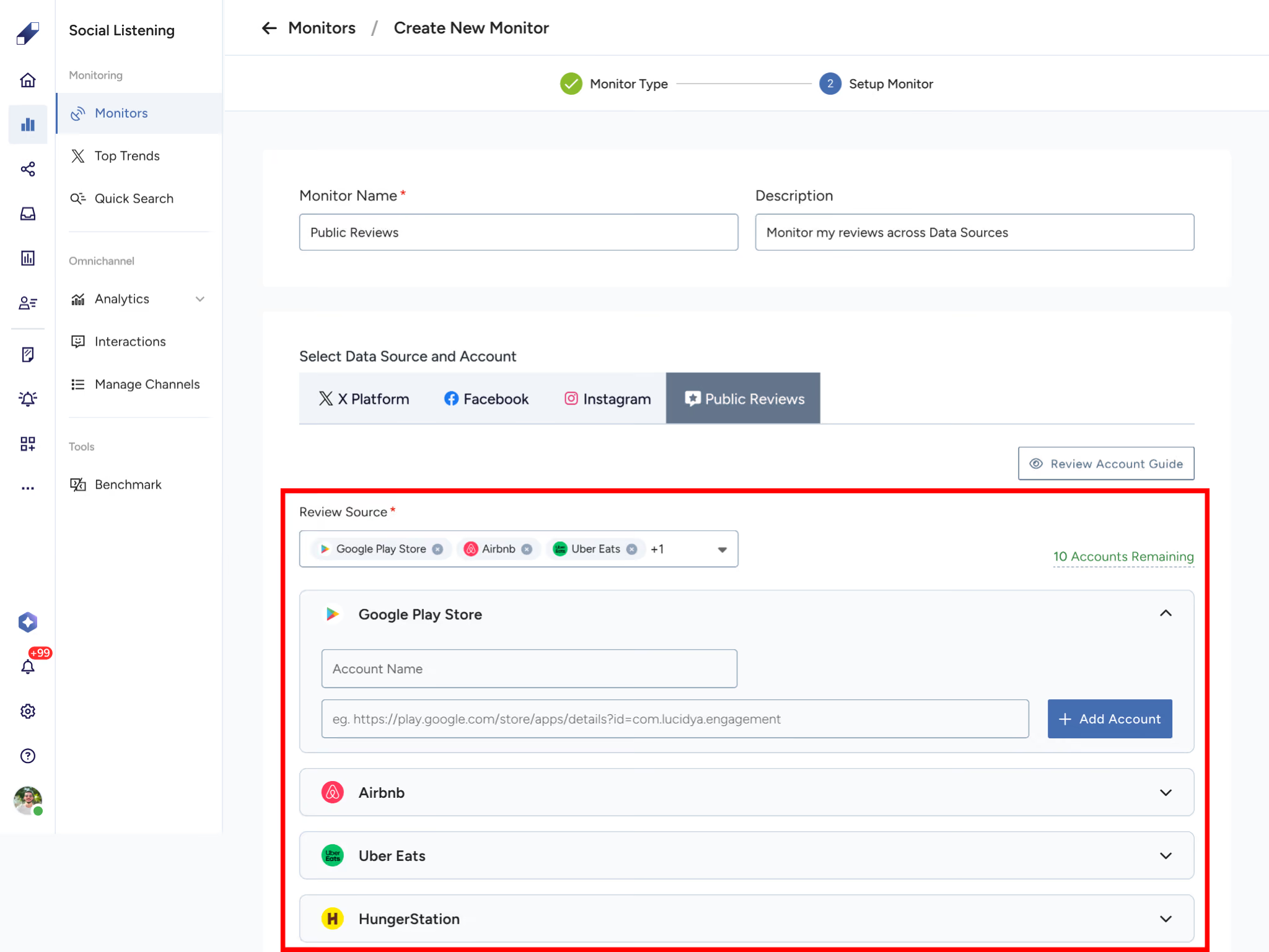
To add more accounts under the same platform, click Add Account. To remove an account before saving, click the remove icon next to the entry.
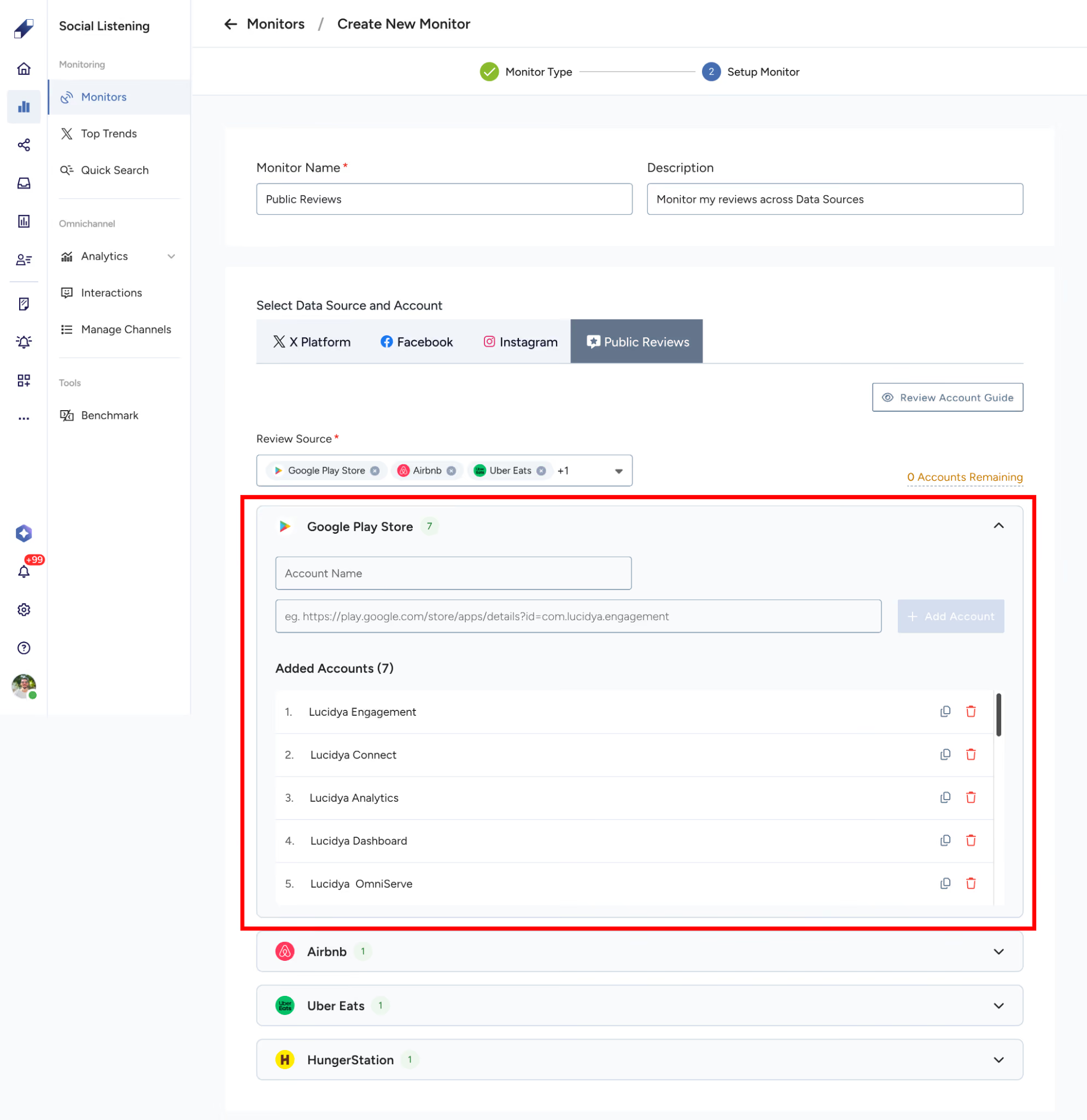
The maximum number of profiles per monitor is 10 by default. A warning appears when you reach the limit and adding beyond it is blocked.
For Google Maps and Google My Business, see Google Maps / GMB Monitor: Supported Input Formats for the specific input types accepted.
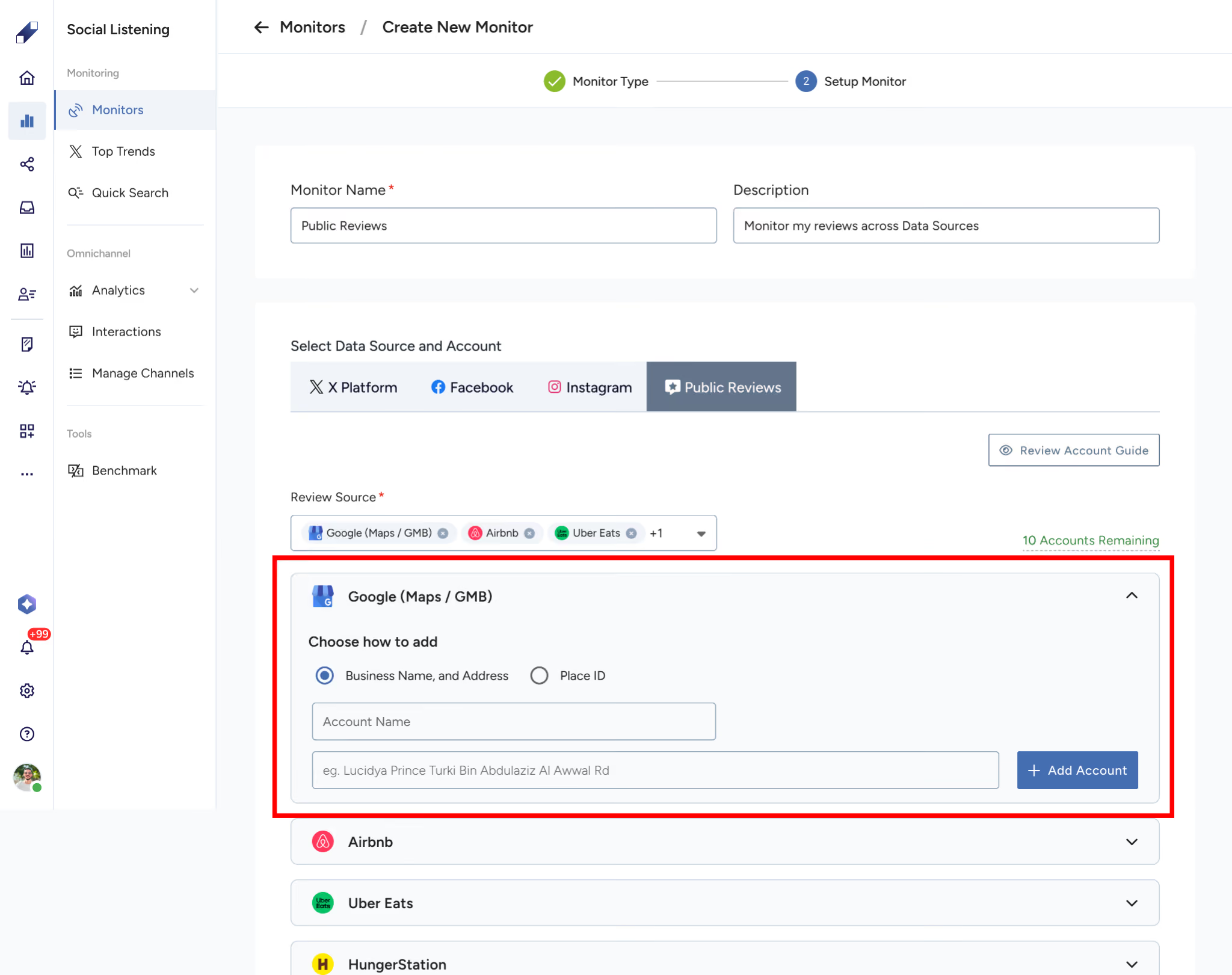
Step 3. Create the Monitor
Click Create Monitor. You will be redirected to the monitor page and data collection will begin according to each platform's collection schedule.
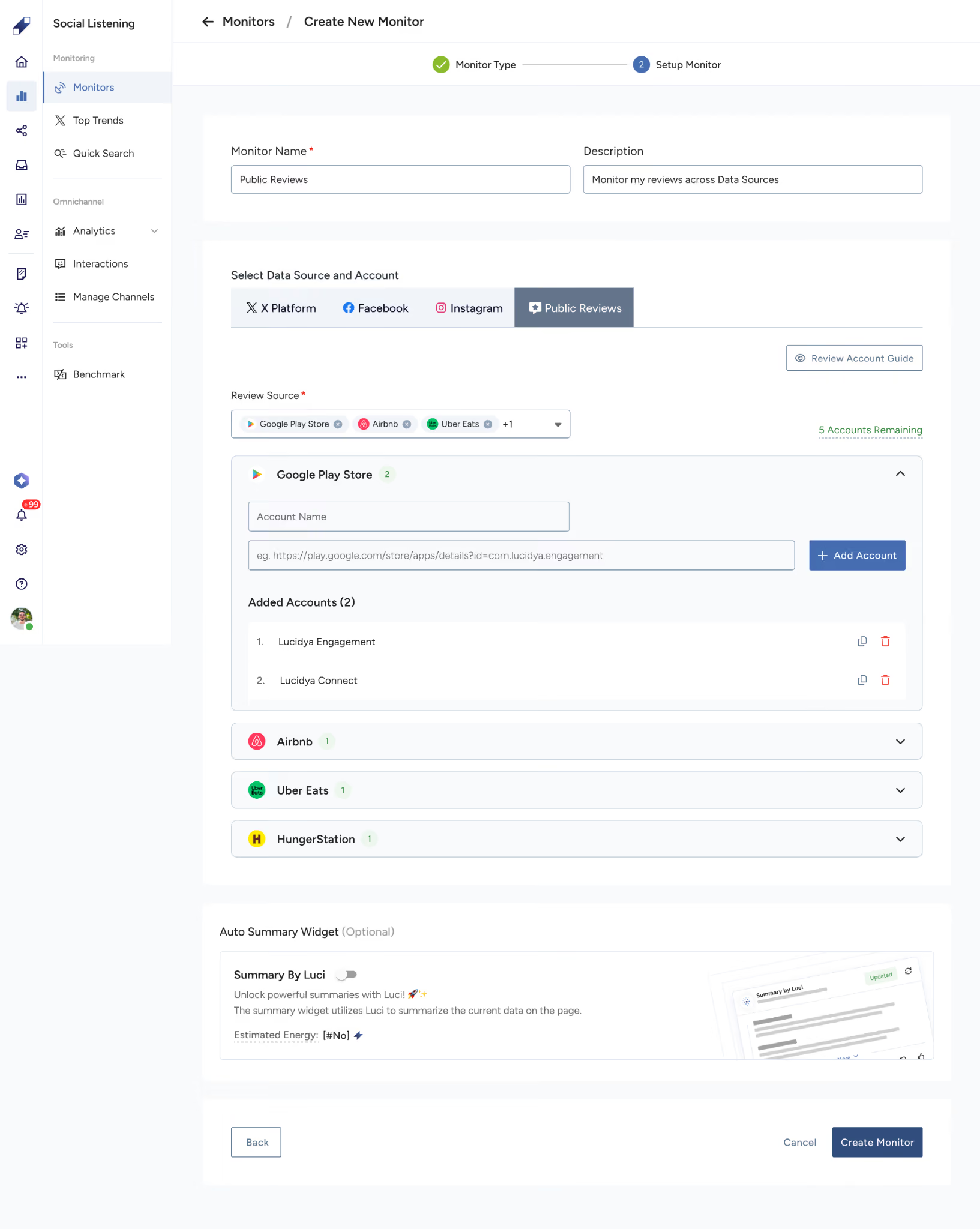
For further assistance contact Lucidya Support.
Frequently asked questions
The default limit is 10 profiles per monitor. A warning appears when you reach the limit.
Yes. You can select multiple platforms and add profiles from each within a single monitor.
The Reviews package must be enabled for your account. Contact your account manager to check your subscription.