
.svg)


Luci in OmniServe Overview
Learn what Luci can do in OmniServe, the sources it uses, its limitations, and how permissions and Energy work.
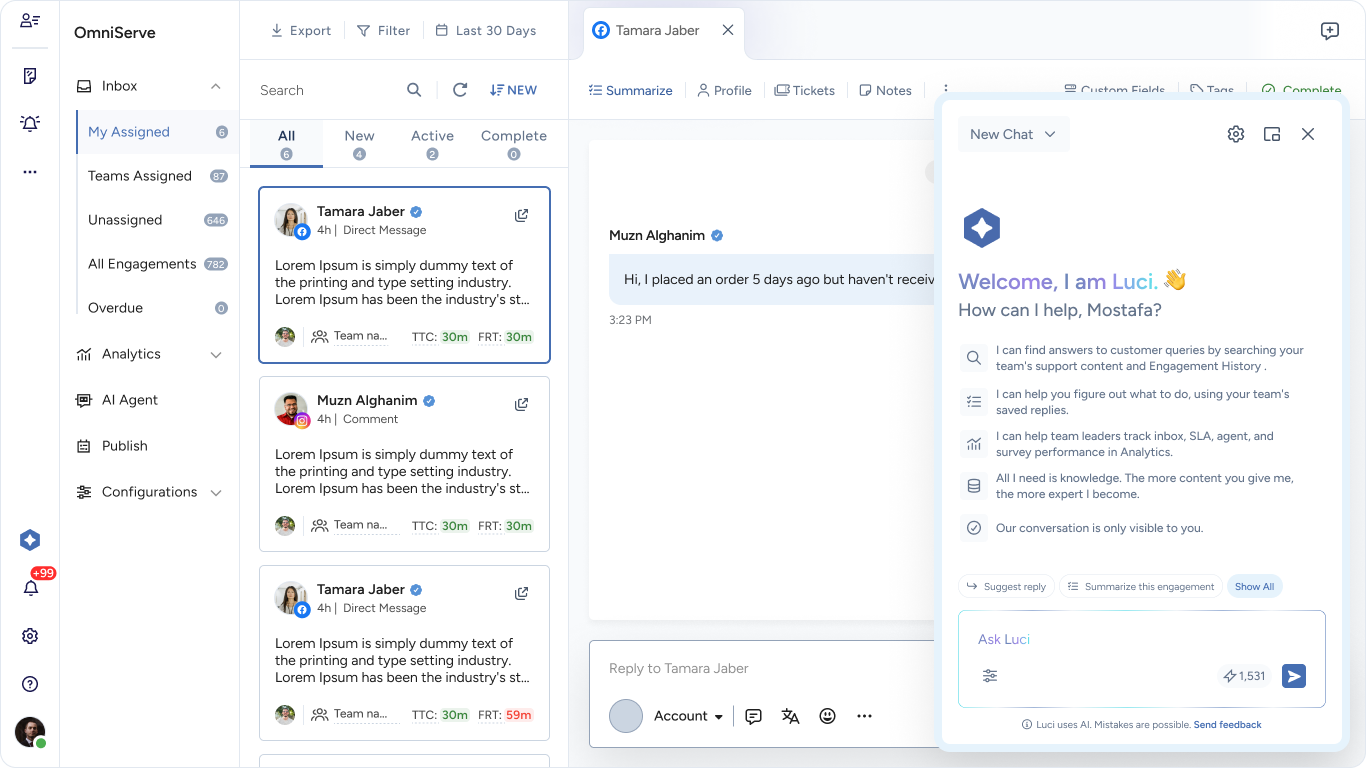
Luci is your AI assistant in OmniServe. It helps Agents and Team Leaders answer customer questions, summarize engagements, and draft replies they can adjust before sending, all without leaving the engagement. Team Leaders can also ask Luci about inbox, SLA, and agent performance. Luci answers only from the data your role can access and shows the sources behind its answers, so you can check them and decide your next step.
What You Can Do
- Get suggested replies and adjust their tone, length, or language
- Verify each answer before you send it
- Track inbox, SLA, agent, and survey performance in Analytics (Team Leaders)
- Summarize an engagement in one click
- Check the sources behind Luci’s answers before you act
- Get answers about the open engagement, the customer’s history, and your team’s Knowledge Base.
Get Answers to Customer Questions
Ask Luci a question about the open engagement, or use a quick action such as Suggest reply or Summarize this engagement. Luci keeps the context of your chat, so you can ask follow-up questions that build on earlier answers.
Customize Replies
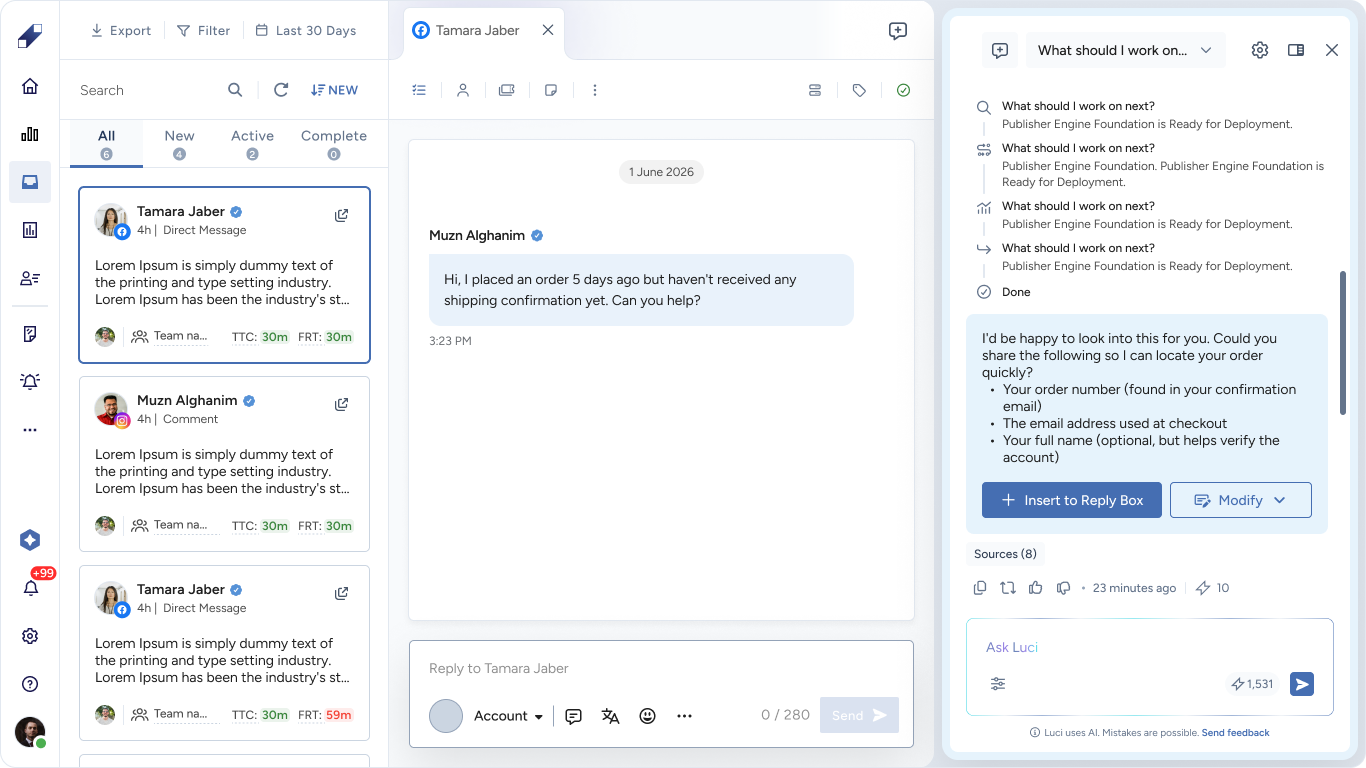
Refine suggested responses using Modify prior to inserting them into your reply area. Tailor the message length, adjust the tone to be warmer or more professional, or convert it to another language. For specific edits like rephrasing or correcting grammar, select Custom instruction and enter your preferred guidance.
Use Trusted Content Sources
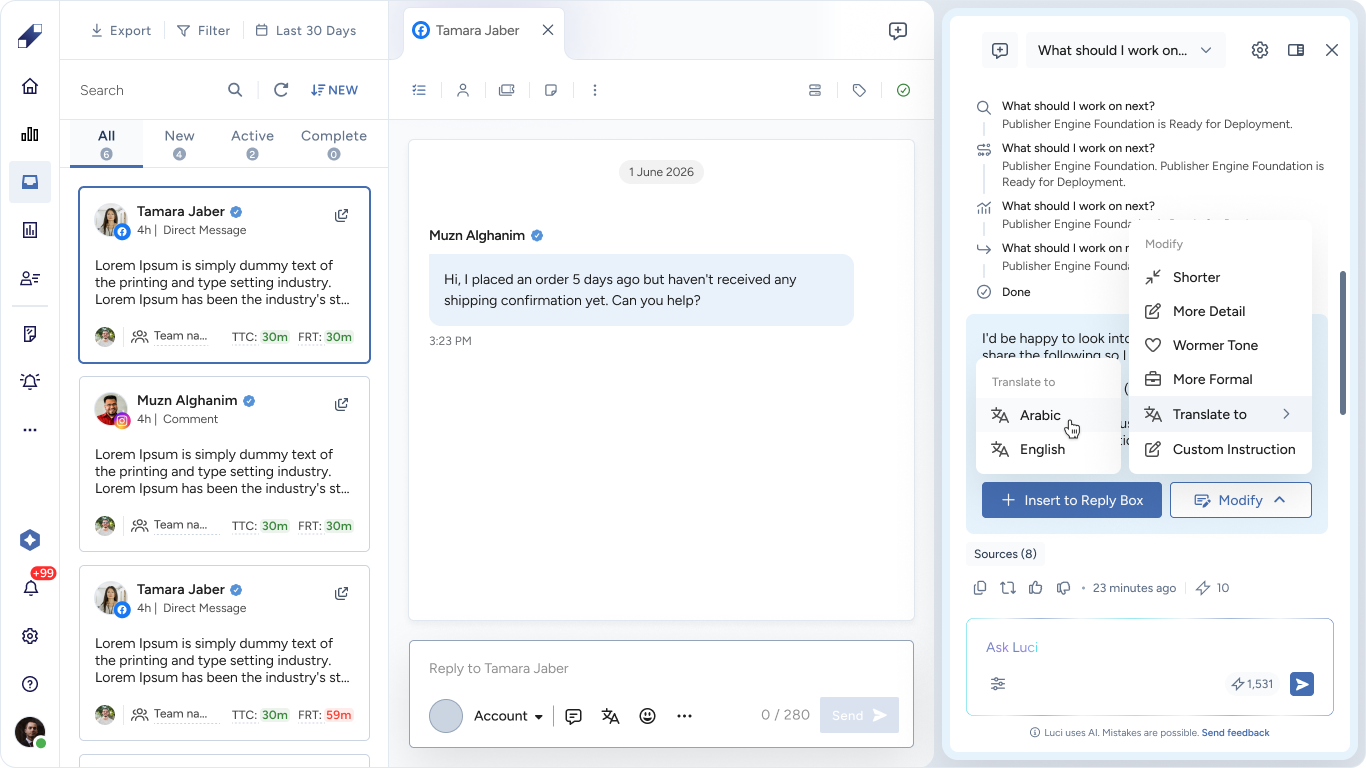
Luci answers using the following sources:
- General Sources: Documents and Webpages, which are the files and URLs your team adds to the Knowledge Base
- OmniServe Sources: Engagement History, Saved Replies, and Notes
Verify Every Answer
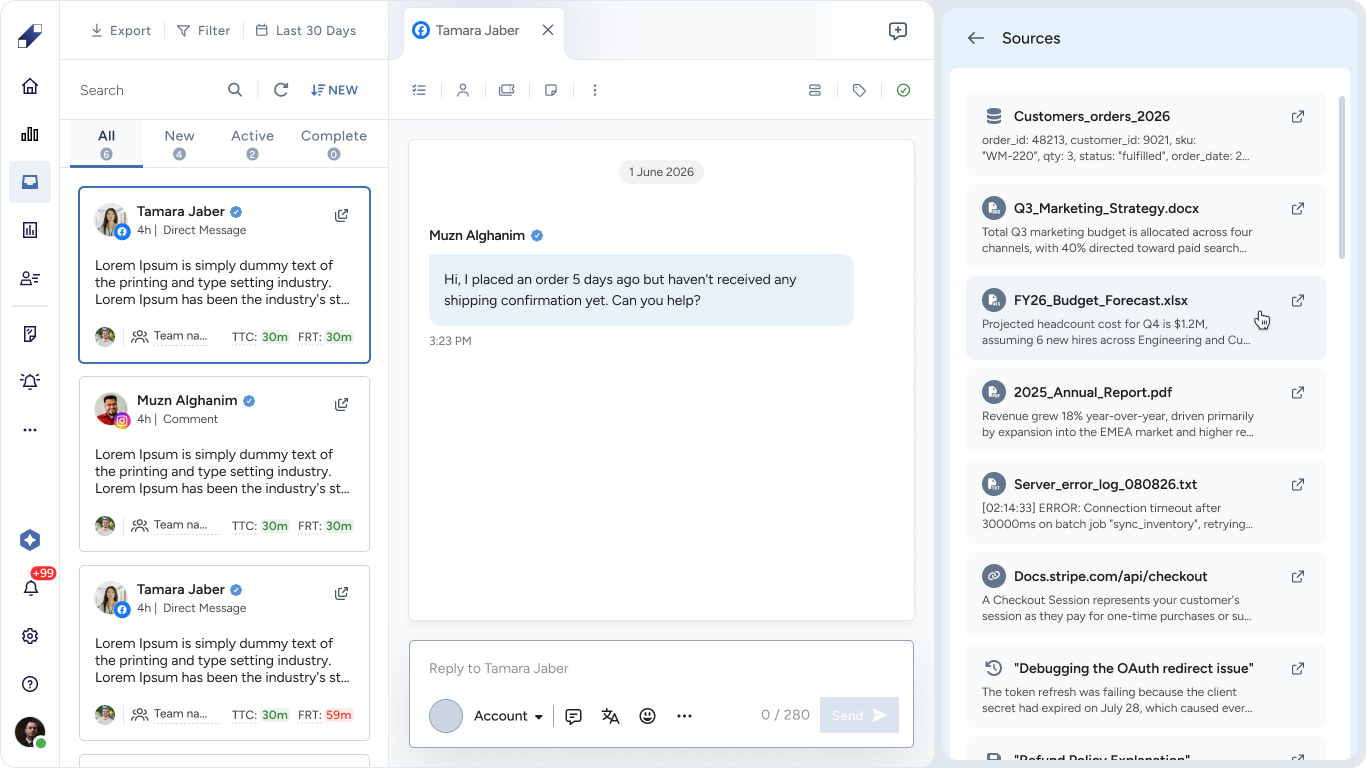
Each answer links its statements to their sources. Review Sources (X) or click a source chip to check the information before you send a reply.
Limitations
- Luci uses only OmniServe data and your Knowledge Base. It cannot answer questions about other Lucidya products.
- Luci never sends replies or takes actions on its own. Every reply goes to the reply box for your review.
- Luci can make mistakes. Review the sources before you send an answer.
- If Luci cannot reach the data it needs, it shows a message saying it is temporarily unable to generate an answer.
- When your Energy balance runs out, you cannot send new questions until more Energy is added to your account.
- Your subscription tier determines how many sources you can include in the Knowledge Base. Check your specific limit directly on the Knowledge Base page.
Permissions Required
Luci operates strictly within your assigned OmniServe access level. Your capabilities and viewable data inside the assistant directly mirror your account permissions. While Agents receive insights specific to their assigned interactions, Team Leaders have expanded access to inquire about overall team and inbox metrics.
Energy
Each question you send to Luci uses Energy. Your remaining balance appears in the Ask Luci box, and each answer shows how much Energy it used.
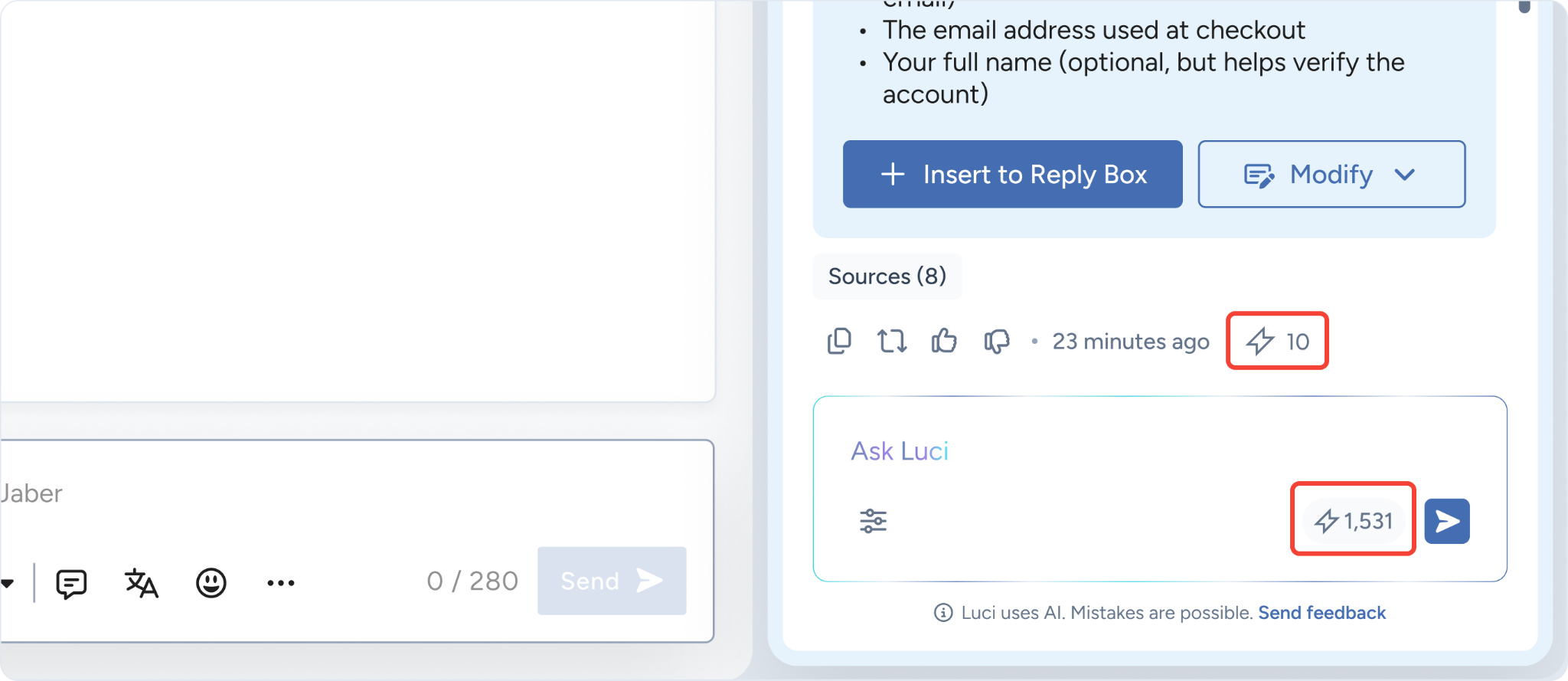
To view your usage, go to Settings → Subscriptions → Luci. To get more Energy, click Request Upgrade.
For further assistance contact Lucidya Support.
Frequently asked questions
No. Luci adds the reply to the reply box, and it is sent only when you click Send.
No. Your conversations with Luci are visible only to you.
Yes. Luci understands Arabic and English, including messages that mix both languages.
Add your support content to the Knowledge Base, and complete the Boost my answers form. For steps, review How to Create Your Own Knowledge Base and How to Boost Luci's Answers.