
.svg)


How to Manage Users and Teams in Lucidya
Learn how to add, edit, deactivate, and delete users and teams in Lucidya, plus an overview of the general and Social Listening permissions you can assign.
User and team management in Lucidya is handled through the Settings menu. This article covers how to access and manage users and teams, and explains the permissions available across general platform features and Social Listening.
Before You Start
You must have Manager permission for the General Settings module to access and manage users and teams.
Step 1. Access the Users Page
- Log in to your Lucidya account.
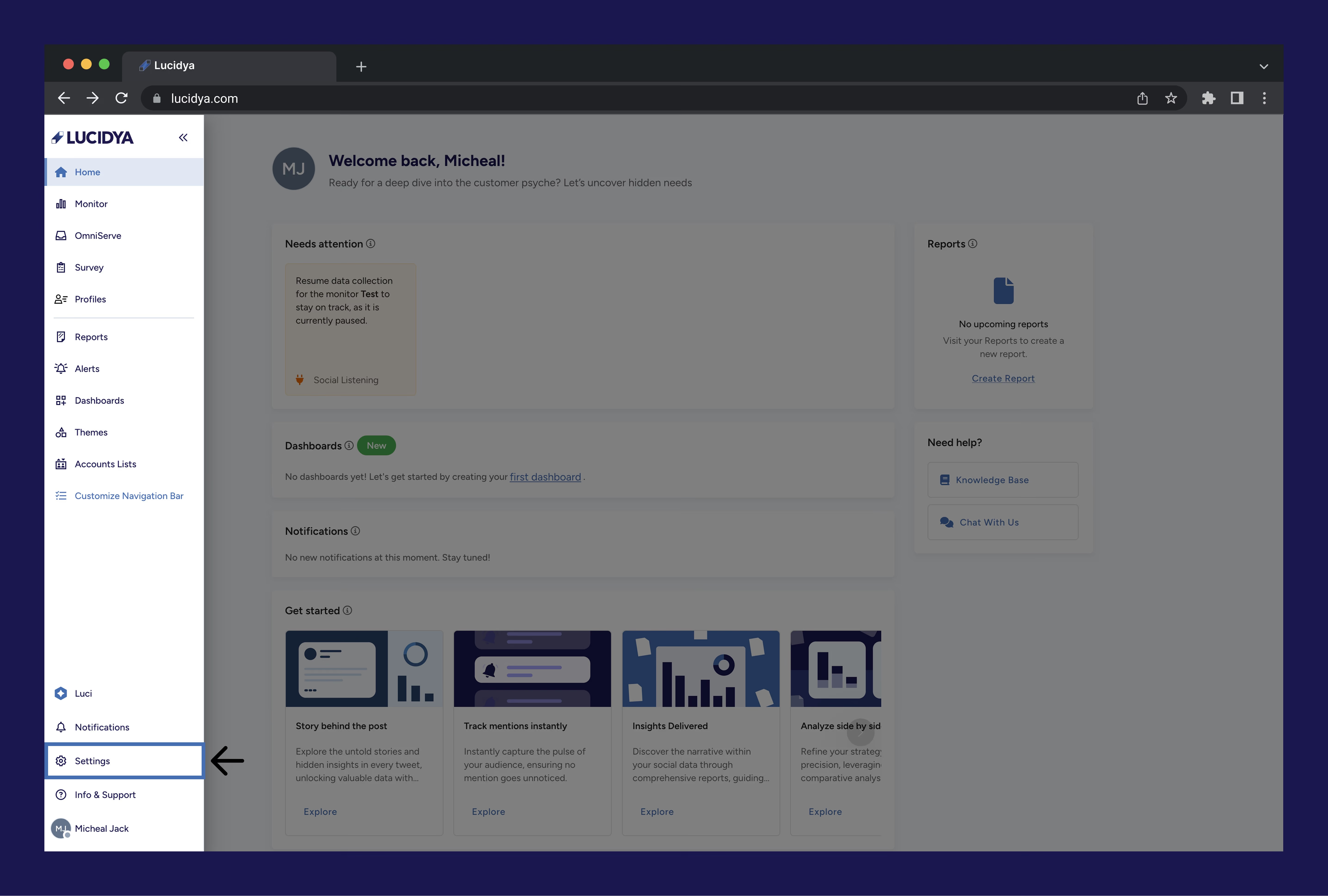
- Click the Settings icon at the bottom of the left sidebar.
- Click Users under the General section on the Settings page.
Step 2. Manage Users
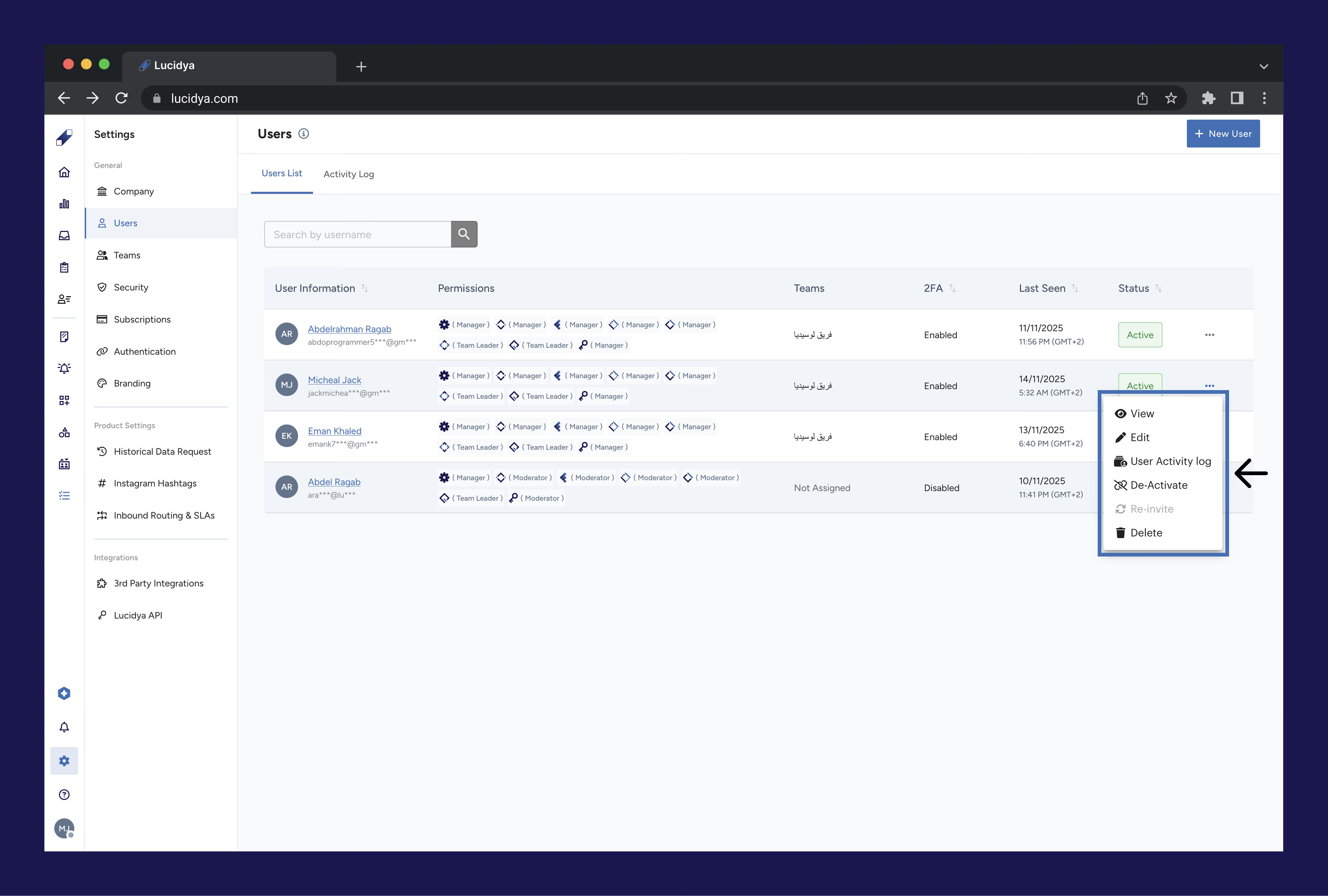
From the Users page you can take the following actions on any user account.
- View: see the user's details and information.
- Edit: modify the user's settings and permissions.
- User Activity Log: track the user's actions and history across the platform.
- Deactivate: temporarily disable the user's access without removing their account or data. They can be reactivated later.
- Re-Invite: send a new invitation to a user who has not yet accepted their original invite.
- Delete: permanently remove the user from the system. This action cannot be undone.
Step 3. Access the Teams Page
- Log in to your Lucidya account.
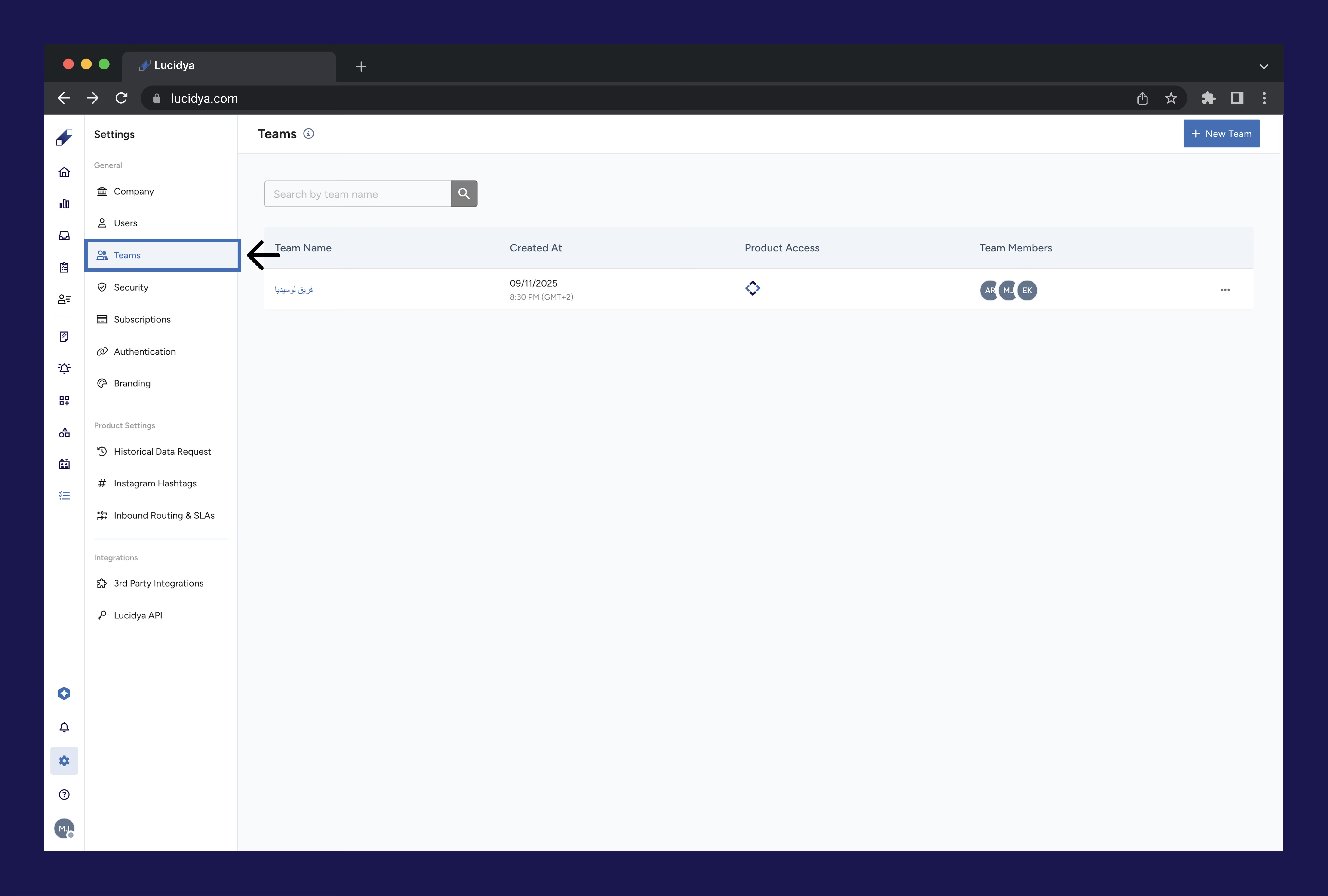
- Click the Settings icon at the bottom of the left sidebar.
- Click Teams under the General section on the Settings page.
Step 4. Manage Teams
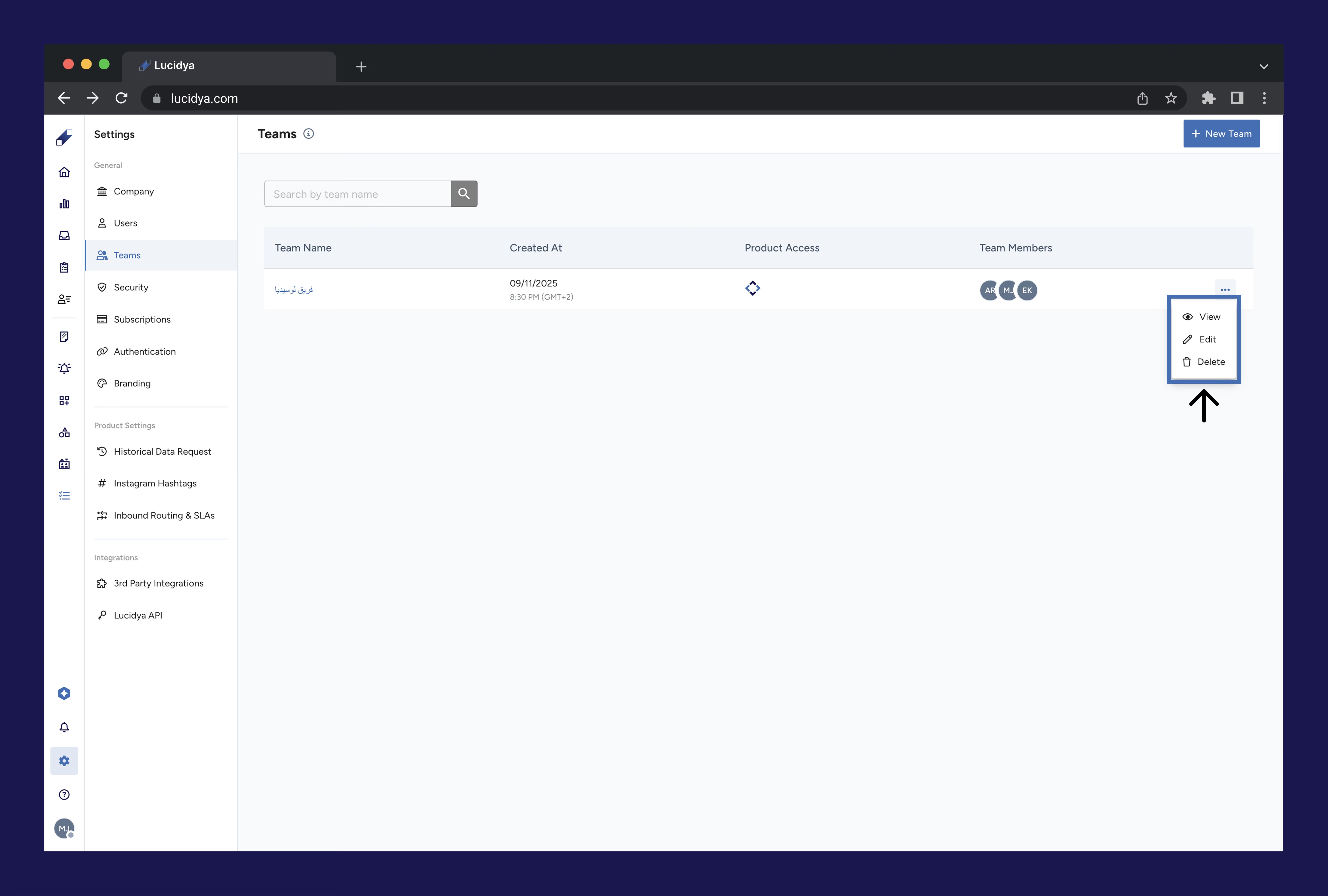
From the Teams page you can take the following actions.
- View: see team details, the team activity log, and the member list.
- Edit: modify the team name, working days, team members, and team settings. To add or remove members, click Edit on the team and update the members list.
- Delete: permanently remove the team from the system. Team members themselves are not deleted and remain in the system as individual users.
Step 5. Understand User Permissions
Permissions are divided into two categories.
General Permissions cover platform-wide access:
- Users Management: managing, deleting, and modifying user permissions.
- Integration with Service Providers: requesting and activating integrations and tracking requests.
- Company Connections: linking the company's X, Facebook, and Instagram accounts to Lucidya.
- Company Settings: editing the company name and colors.
- Service Management: creating, deleting, and modifying reports, alerts, and dashboards.
Social Listening Permissions cover access to Social Listening features:
- Monitor Management: creating, editing, and deleting monitors.
- Exporting Data: exporting reports in PowerPoint and Excel formats from monitors.
- Historical Data: requesting historical data and tracking those requests.
For further assistance, contact Lucidya Support.
Frequently asked questions
You need Manager permission for the General Settings module to access and manage users and teams.
Deactivating temporarily disables access while keeping the account and data intact. The user can be reactivated later. Deleting permanently removes the user and their associated data from the system and cannot be undone.
When you deactivate a user their login is blocked, but their historical activity, ownership of content, and logs remain in the system so that reports and audits stay complete.
Yes. Before deleting a user, review their owned dashboards, monitors, or configurations and reassign them to another user to avoid losing important assets.
The team is permanently removed from the system. Team members are not affected and remain as individual users in the platform.
Yes. A user can belong to more than one team, allowing them to work across multiple groups' queues or schedules depending on how your organization configures teams and permissions.
Changing team membership can affect which queues, assignments, and workloads the user sees in products such as OmniServe, depending on how your organization uses teams for routing and reporting.
Yes. Select the Re-Invite option from the user management menu to send a new invitation.
Yes. Select User Activity Log from the user management menu to track actions and history for that user. For full details on filtering and using the activity log, see How to View User Activity Logs in Lucidya.
Open the Teams page, select the relevant team, and review the members list. You can also use the team activity log to understand how that team is using Lucidya.