


How to Create a Telegram Public Account Monitor
Learn how to create a Public Account monitor to track public Telegram channels and groups, add accounts by username, and view engagement sentiment and themes.
You can create a Public Account monitor in Social Listening to track content published in public Telegram channels and groups. Teams that track brands, competitors, or industry topics can use it to follow Telegram conversations without manual tracking or external tools.
What You Can Do
- Monitor content from public Telegram channels and groups
- Analyze the sentiment of Telegram engagements as positive, negative, or neutral
- Track the themes and categories of Telegram engagements over time
- Exclude posts by keyword, hashtag, or user
- Filter results by post location and language
- Export reports to Excel and PowerPoint
Before You Start
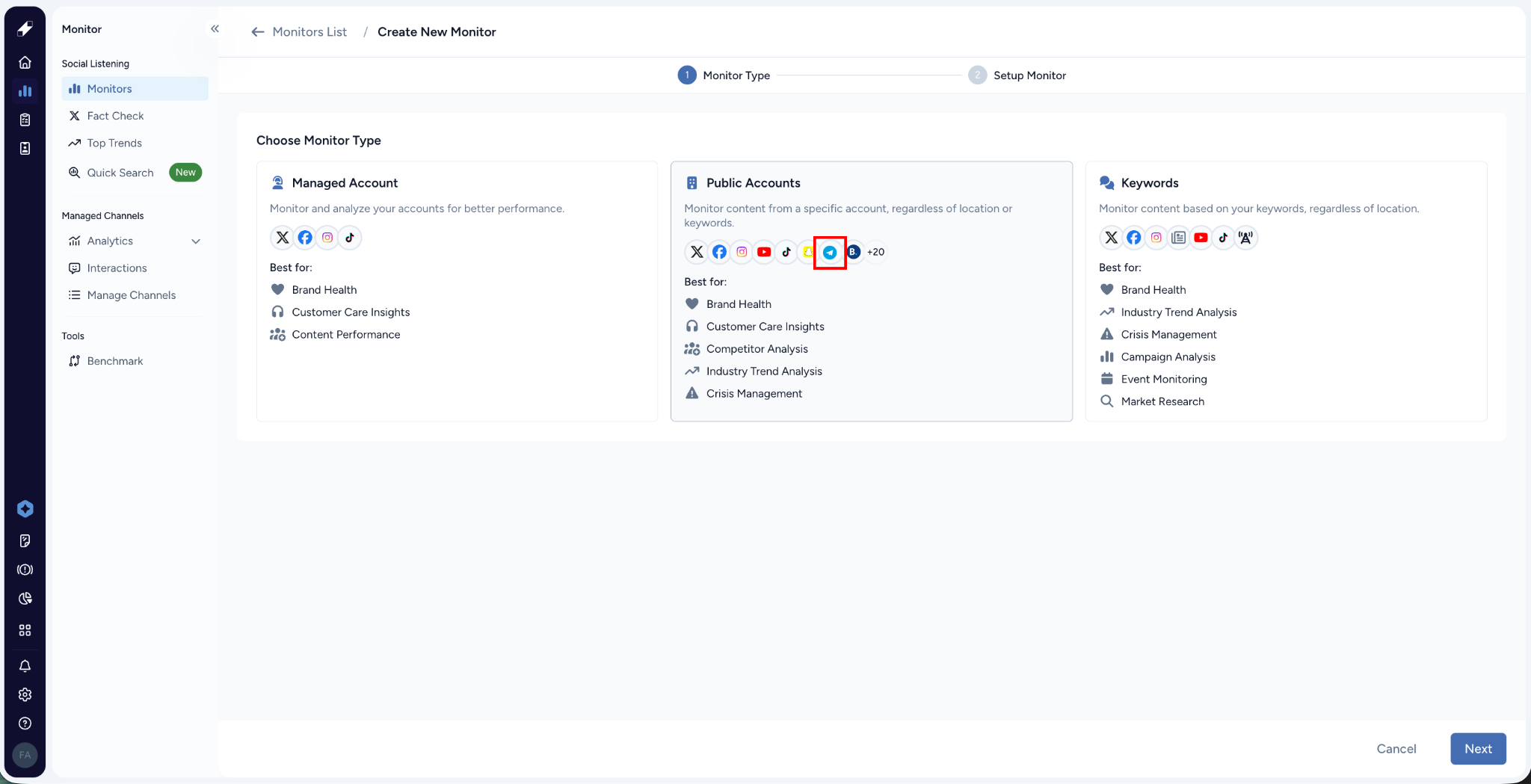
- Telegram appears as a data source within the Public Account monitor type.
- You can only monitor public channels and groups.
- Your remaining account limit appears as Accounts Remaining on the setup page.
Step by Step
Step 1 – Open the Monitor Creation Flow
Go to Social Listening → Monitors. Click New Monitor. Select Public Account, then click Next.
Step 2 – Enter the Monitor Details
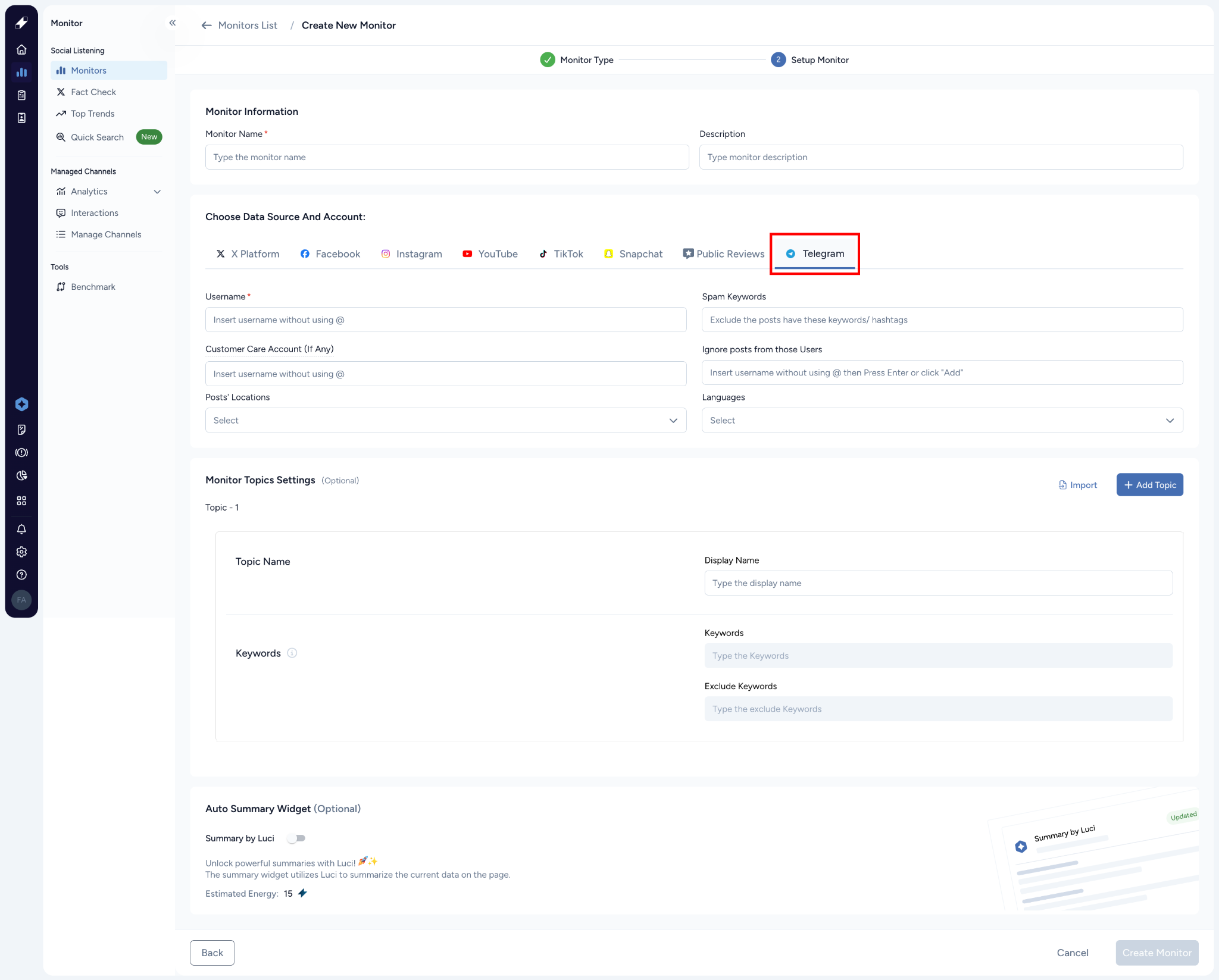
Enter a Monitor Name of under 100 characters. The Description is optional.
Step 3 – Select Telegram as the Data Source
Under Choose Data Source And Account, select Telegram.
Step 4 – Add the Telegram Accounts
In the Usernames field, enter the username of a public channel or group without the @ symbol, then click Add. Repeat this for each account you want to monitor. This field is required.
Step 5 – Refine Your Results (Optional)
You can narrow the content the monitor collects using these fields:
- Spam Keywords: Exclude posts that contain specific keywords or hashtags.
- Posts' Locations: Filter posts by location.
- Languages: Filter posts by language.
- Ignore posts from those Users: Enter usernames without the @ symbol, then press Enter or click Add.
Step 6 – Enable the Auto Summary Widget (Optional)
Turn on Summary By Luci to automatically summarize the data on your monitor page.
Step 7 – Create the Monitor
Click Create Monitor. A confirmation message appears, and the monitor is added to the Monitors list with the Collecting status.
Managing the Monitor
Telegram Account Issues
Lucidya cannot collect data from a Telegram channel or group in these cases:
- Not found: The username does not match an existing channel or group. Check the spelling and add it again.
- Private: The channel or group is private. You can only monitor public channels and groups.
- Inactive: The channel or group has not published posts for a long time.
- Username changed: The channel or group changed its username. Remove it from the monitor, then add it again using the new username.
- ID changed: The channel or group ID on Telegram has changed.
Monitor Actions
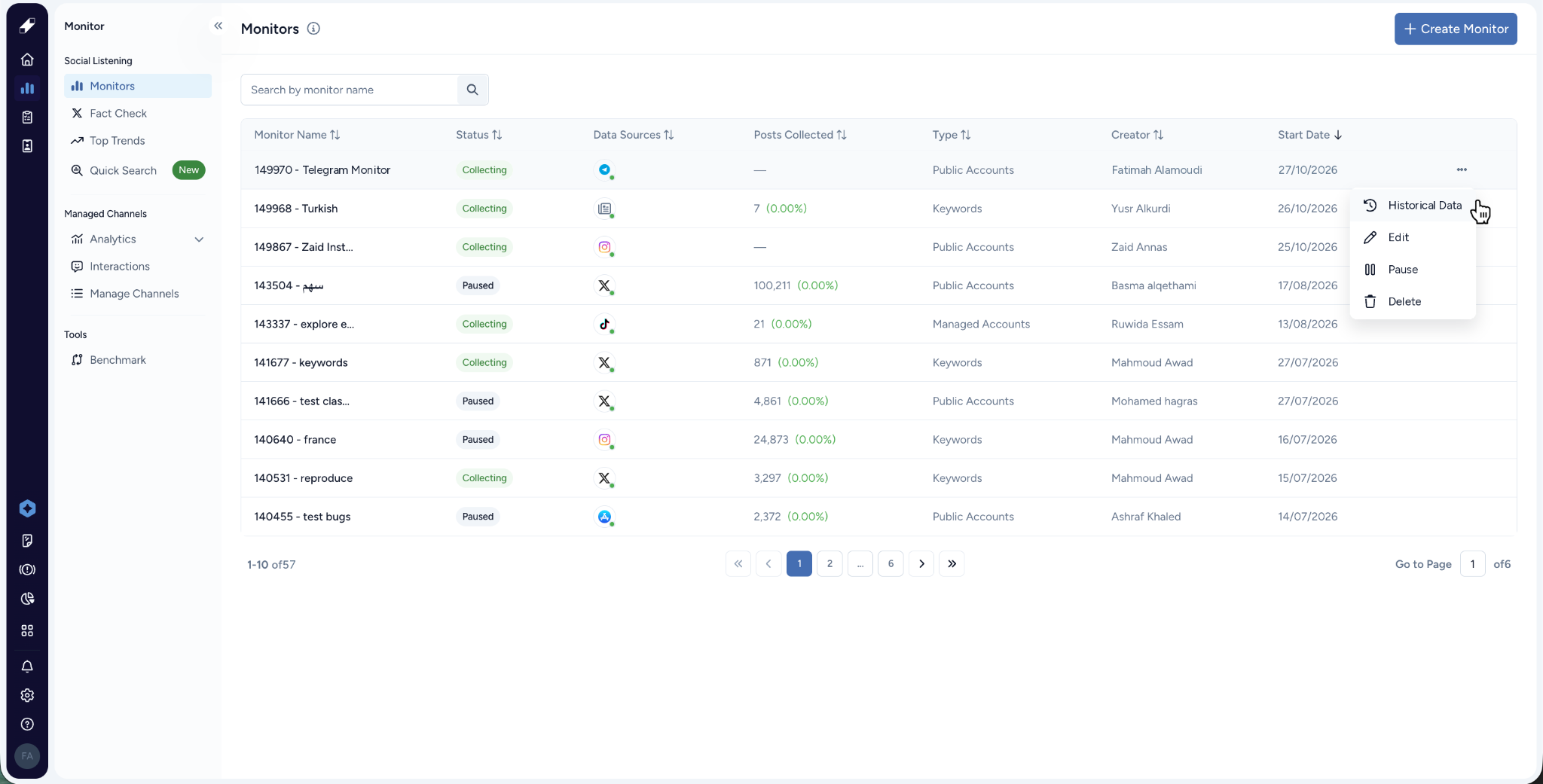
From the Monitors list, click the options menu (...) next to the monitor. You can select:
- Historical Request
- Edit
- Pause
- Delete
For further assistance contact Lucidya Support.
Frequently asked questions
No. You can only monitor public Telegram channels and groups.
Telegram usernames must be 5 to 32 characters long, start with a letter, end with a letter or number, and contain only English letters, numbers, and underscores.
Remove the account from your monitor, then add it again using the new username.