
.svg)


How to Set Up Survey Language and Alignment in Lucidya
Learn how to configure survey language and RTL or LTR alignment per section in Lucidya, including how to create bilingual surveys with mixed Arabic and English content.
Lucidya Surveys supports both Arabic and English and lets you control text alignment to match the language of your survey. This applies to all survey types, Link, QR Code, and Embedded. Alignment can be set independently for the survey header and each individual section.
What You Can Do
- Create surveys with Arabic and English sections in one survey
- Set text alignment independently for each section
- Control text direction (RTL for Arabic, LTR for English)
- Mix languages while maintaining proper formatting
- Change alignment on existing surveys
Before You Start
There is no automatic translation feature in Lucidya. You'll need to write your survey content manually in your preferred language. Create your survey structure first with sections and questions. For full setup steps, see How to Create a Survey in Lucidya or How to Set Up and Embed a Survey on Your Website.
Step by Step
Step 1 - Create Your Survey
Click New Survey and select your survey type (Link, QR Code, or Embedded on Website). Add your sections and questions. For full setup steps, see How to Create a Survey in Lucidya or How to Set Up and Embed a Survey on Your Website.
Step 2 - Set Alignment for the Survey Header
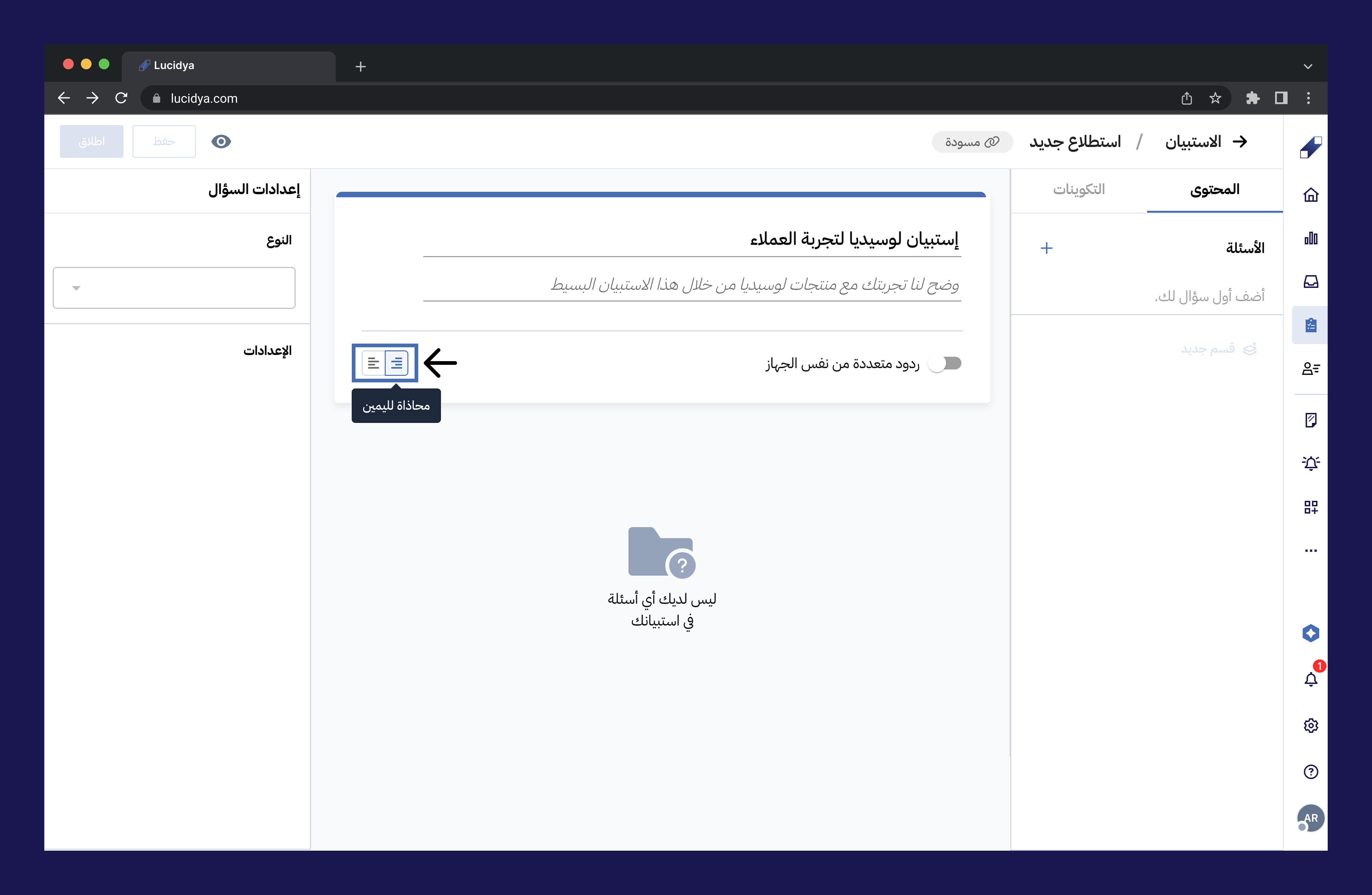
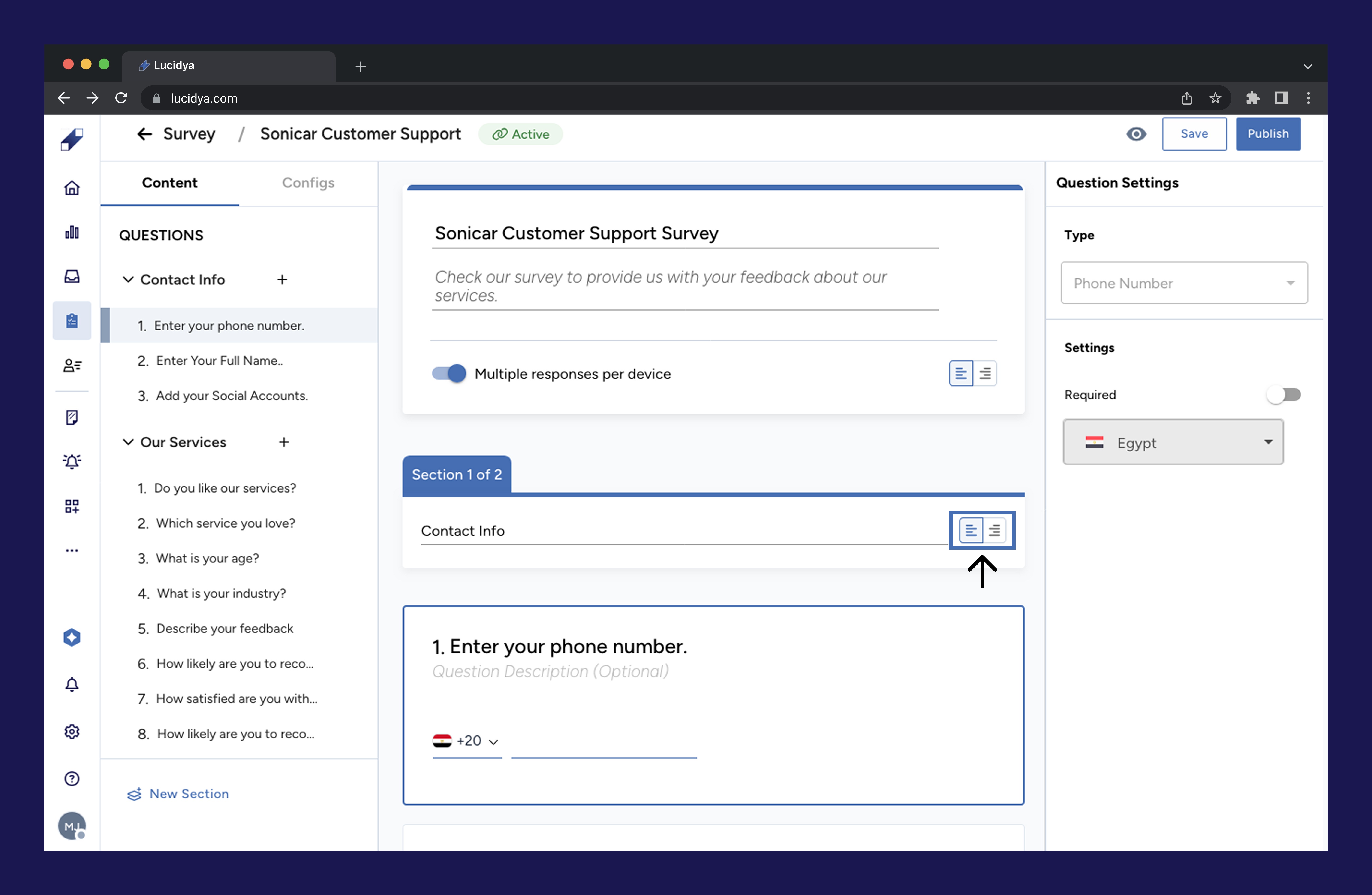
In the Title and Description section of the survey builder, click the alignment icon and set the header to Right Align for Arabic surveys or Left Align for English surveys.
Step 3 - Set Alignment for Each Section
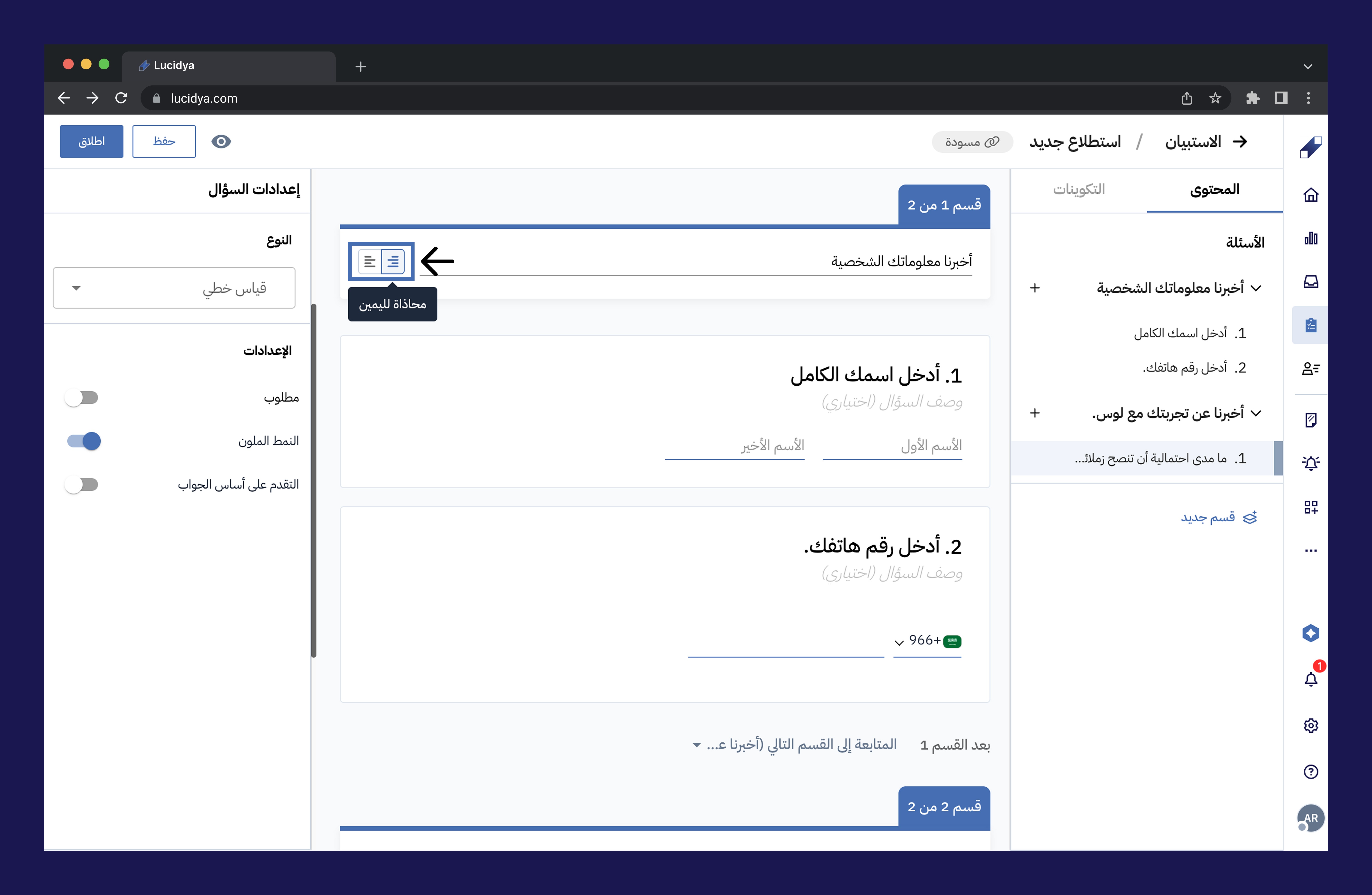
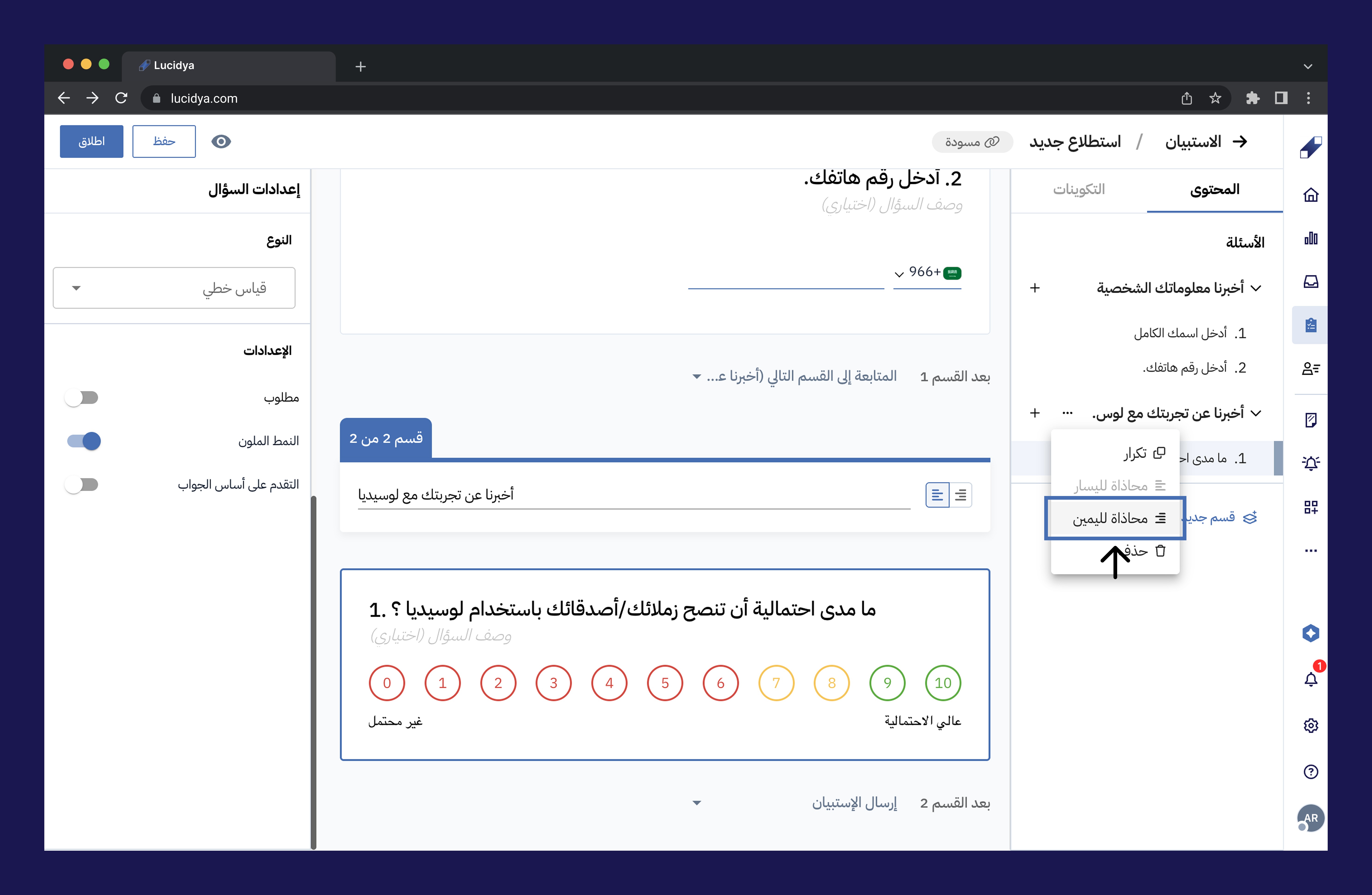
For each section in your survey, click the alignment icon and set it to Right Align (Arabic) or Left Align (English). Alternatively, click the three-dot menu on any section and select RTL Position (Arabic) or LTR Position (English).
Step 4 - Review and Publish
Preview your survey to verify that all sections display with the correct text alignment and direction before publishing.
Managing Multilingual Surveys
Setting Up an Arabic Survey
Both the survey header and all sections should be set to right alignment for the best Arabic experience.
- In the Title and Description section, click the alignment icon and set the header to Right Align.
- For each section, click the alignment icon and set it to Right Align.
- Alternatively, click the three-dot menu on any section and select RTL Position.
Setting Up an English Survey
Both the survey header and all sections should be set to left alignment for the best English experience.
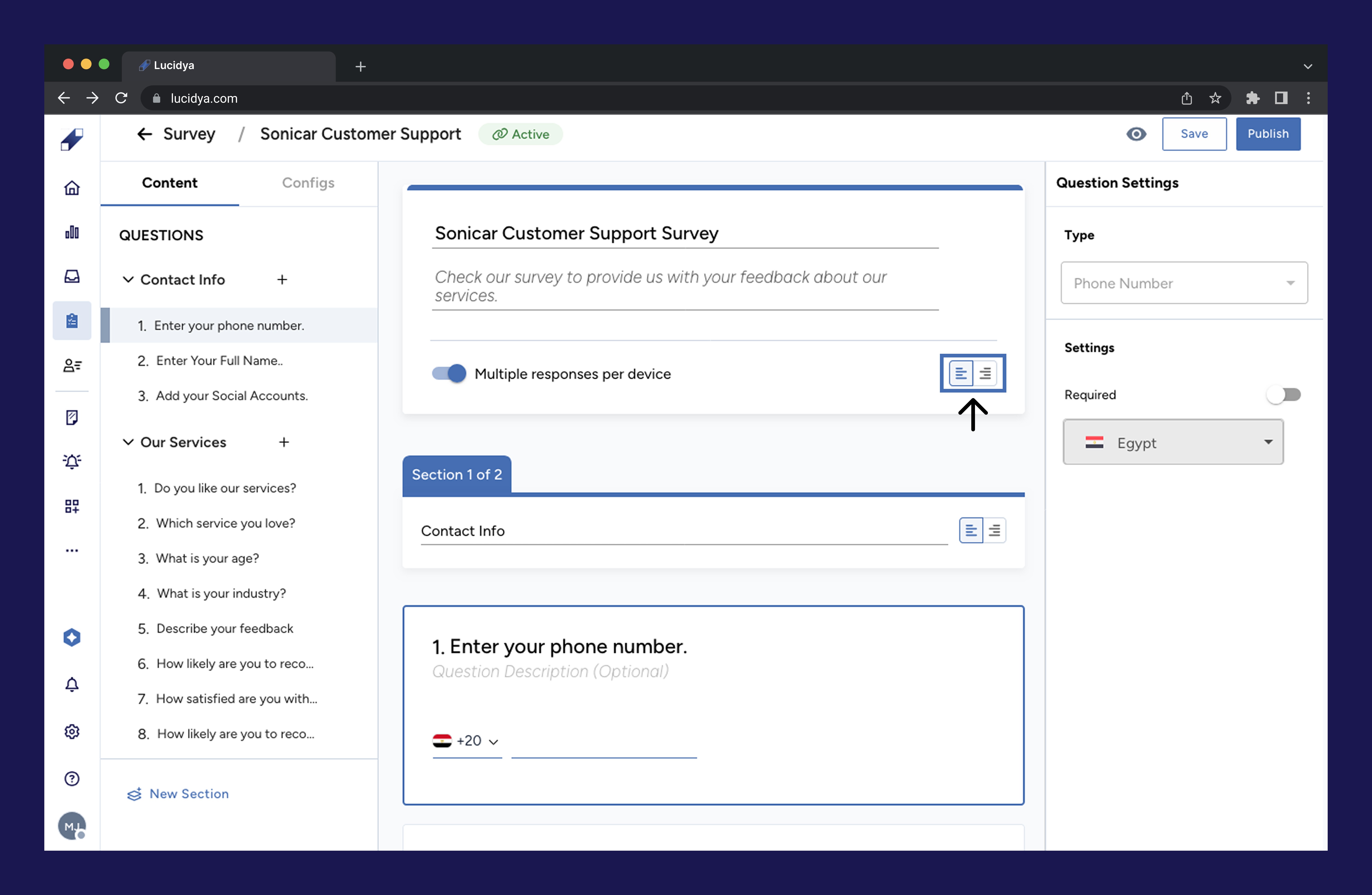
- In the Title and Description section, click the alignment icon and set the header to Left Align.
- For each section, click the alignment icon and set it to Left Align.
- Alternatively, click the three-dot menu on any section and select LTR Position.
Mixing Languages in One Survey
Each section can have its own alignment setting independently. An Arabic section can be right-aligned while an English section in the same survey is left-aligned. This allows you to create multilingual surveys with appropriate alignment for each part.
Changing Alignment on Existing Surveys
To change the alignment of a survey that has already been created, open the survey and edit each section individually. Click the three-dot menu on each section and select RTL Position or LTR Position as needed.
For further assistance, contact Lucidya Support.
Frequently asked questions
Yes. You can include both languages in a single survey by setting alignment per section. If you need both languages to appear within the same question, consider using bilingual text within each question field.
No. Alignment settings only affect how the survey appears to respondents. Data collection works the same regardless of the language or alignment used.
No. There is no automatic translation feature. Survey content must be written manually in the desired language.
The main setting is RTL alignment. Make sure both the survey header and all sections are set to right alignment for the best Arabic language experience.