
.svg)


Analyzing and Managing Monitor Data
A guide to working with data inside your monitors, applying filters, exploring insights, requesting historical data, and managing monitor settings after setup.
Once a monitor is created, it begins collecting data automatically from selected sources. This data can then be explored and analyzed to understand conversations, track performance, and generate insights that support business decisions.
Analyzing and Filtering Monitor Data
Collected conversations can be explored through dashboards and analytics tools to monitor performance, identify trends, and evaluate audience engagement. These insights help teams understand how conversations evolve over time and how audiences respond to different topics or content.
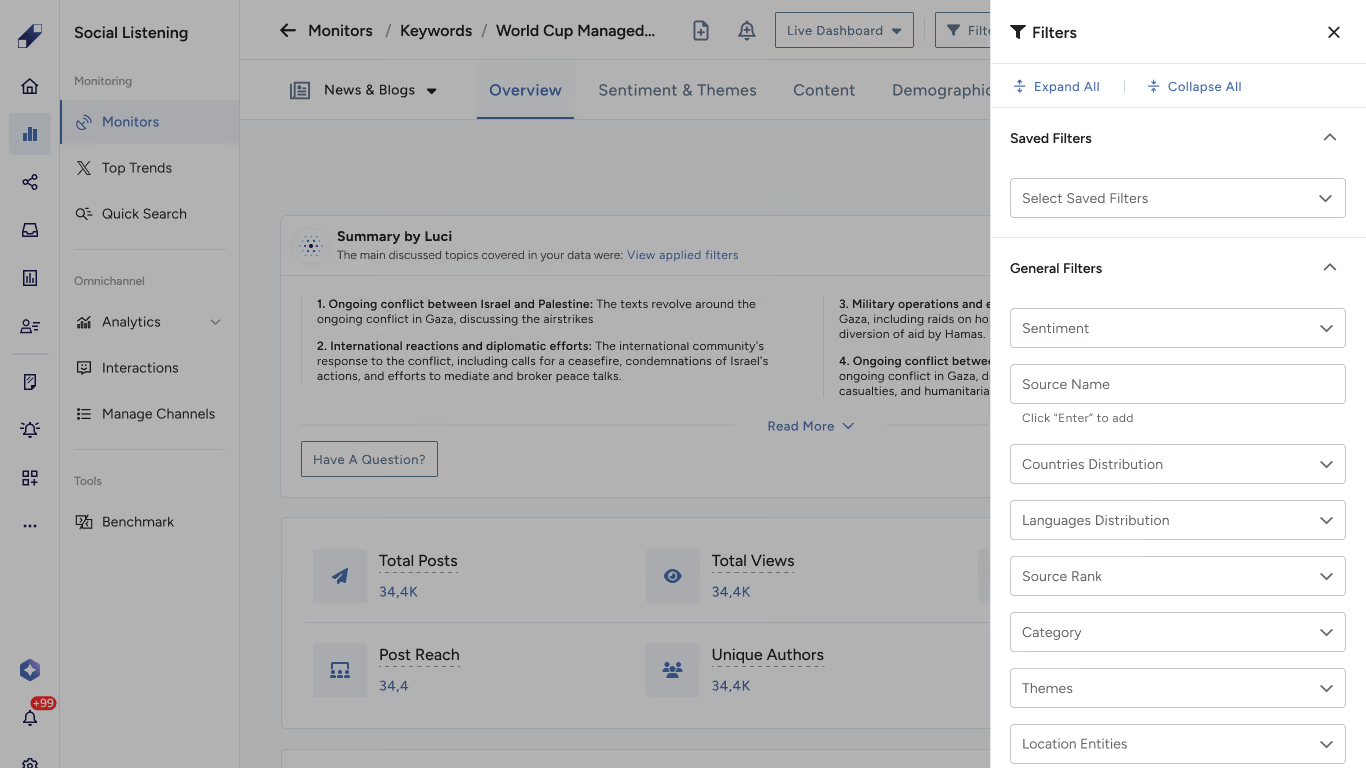
Filters help refine results and focus on the most relevant insights. They can be applied to authors, posts, or engagement metrics, allowing you to analyze conversations from different perspectives. For recurring analysis, filters can be saved and reused to quickly apply the same conditions across different datasets.
For the full filtering walkthrough, see How to Apply and Save Filters in Social Listening. To filter and export audience posts specifically, see How to Filter and Export Audience Posts in Social Listening.
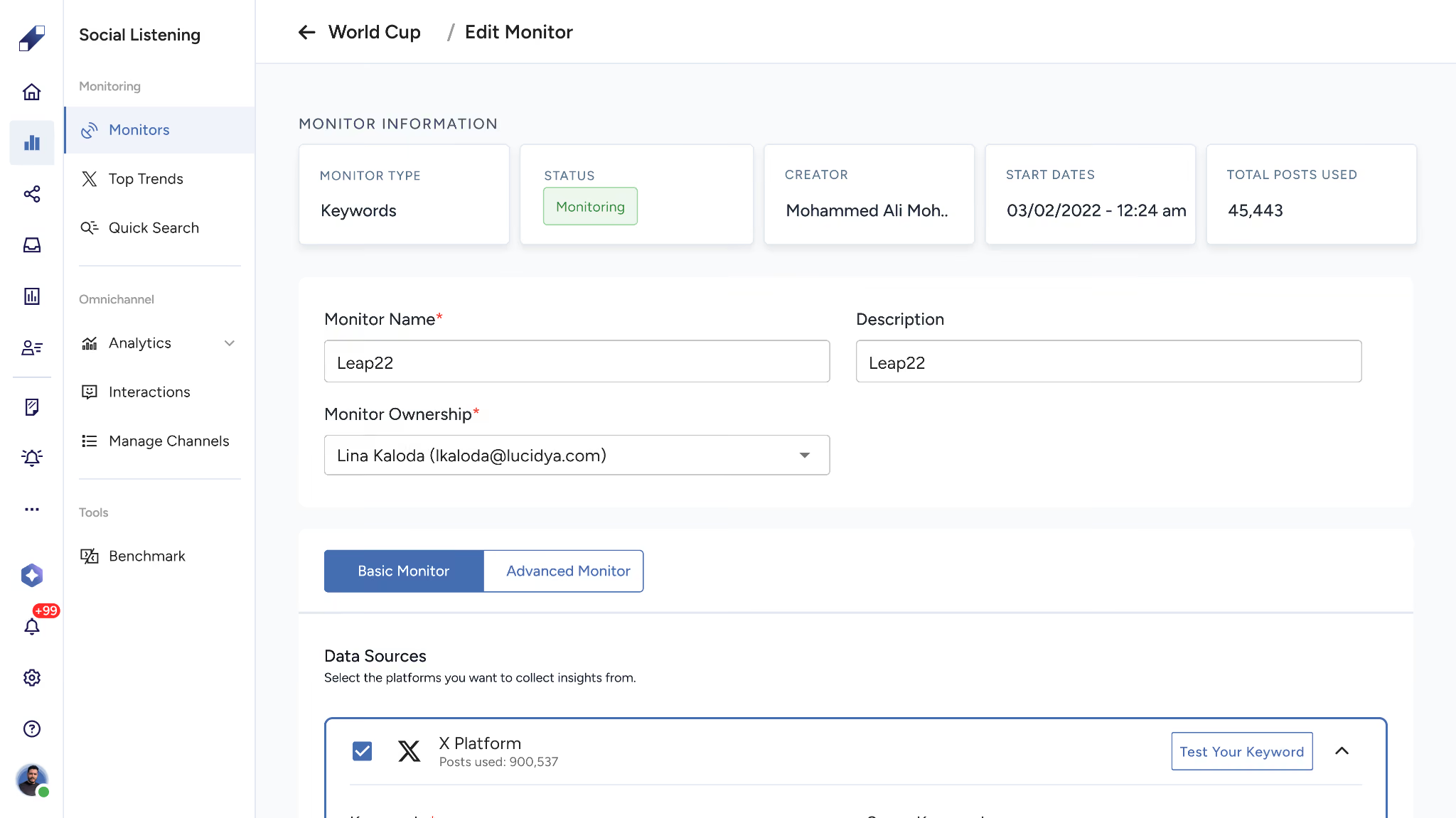
Managing Monitors
Monitors can be updated at any time to reflect changing monitoring needs. You can modify configurations such as tracked accounts, keywords, or conditions to keep the collected data relevant and aligned with your objectives. Monitors can also be paused or removed when they're no longer needed.
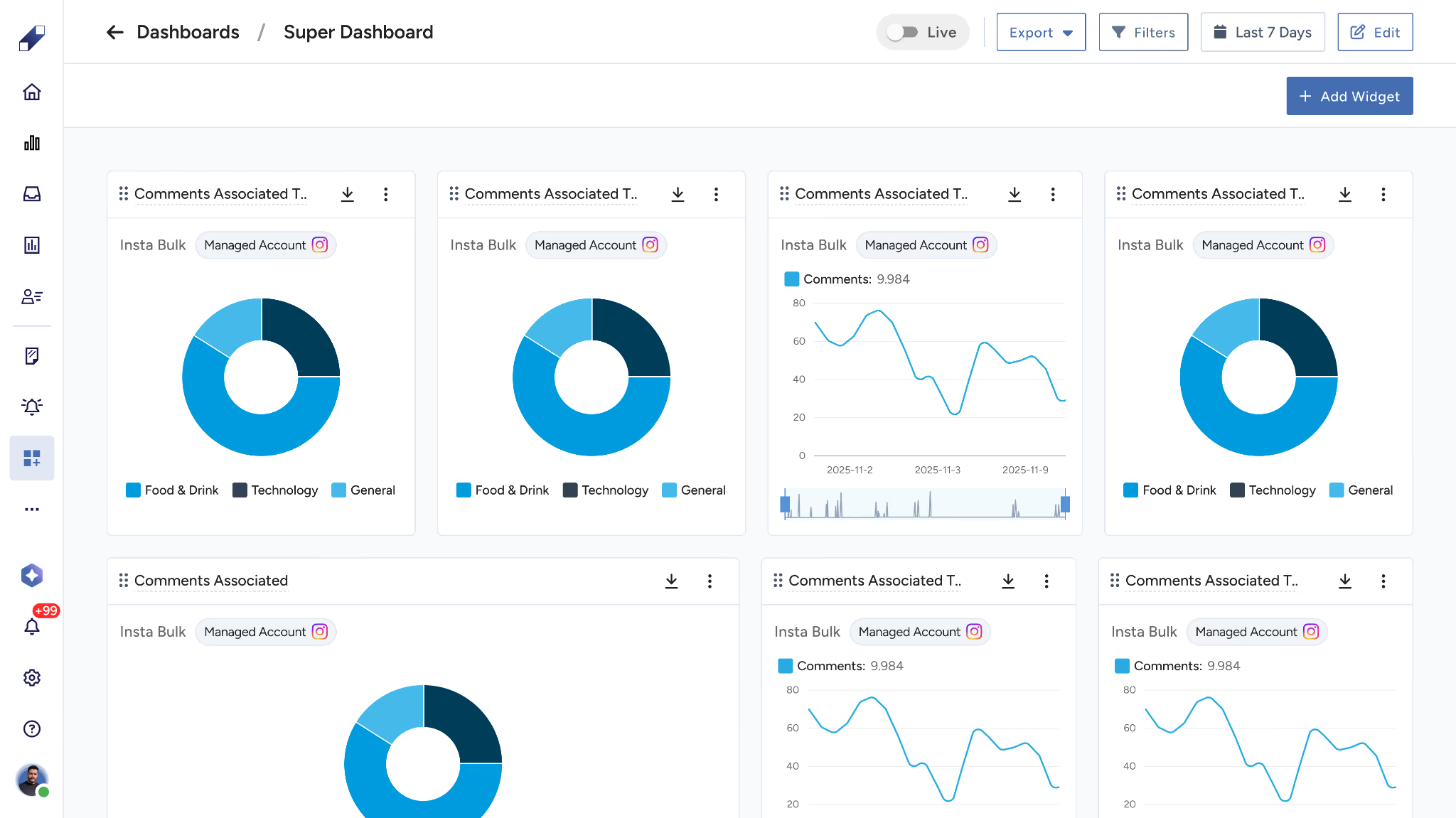
Monitors can also be used to create dashboards or live dashboards, letting teams track conversations, engagement, and key insights in real time and maintain continuous visibility into performance.
Extending Data Coverage
For supported data sources, you can request historical data to retrieve conversations from before the monitor was created and include them in your results. The availability and coverage of historical data depend on the selected data source.
For the full request process, see How to Request Historical Data in Social Listening.
Summary by Luci
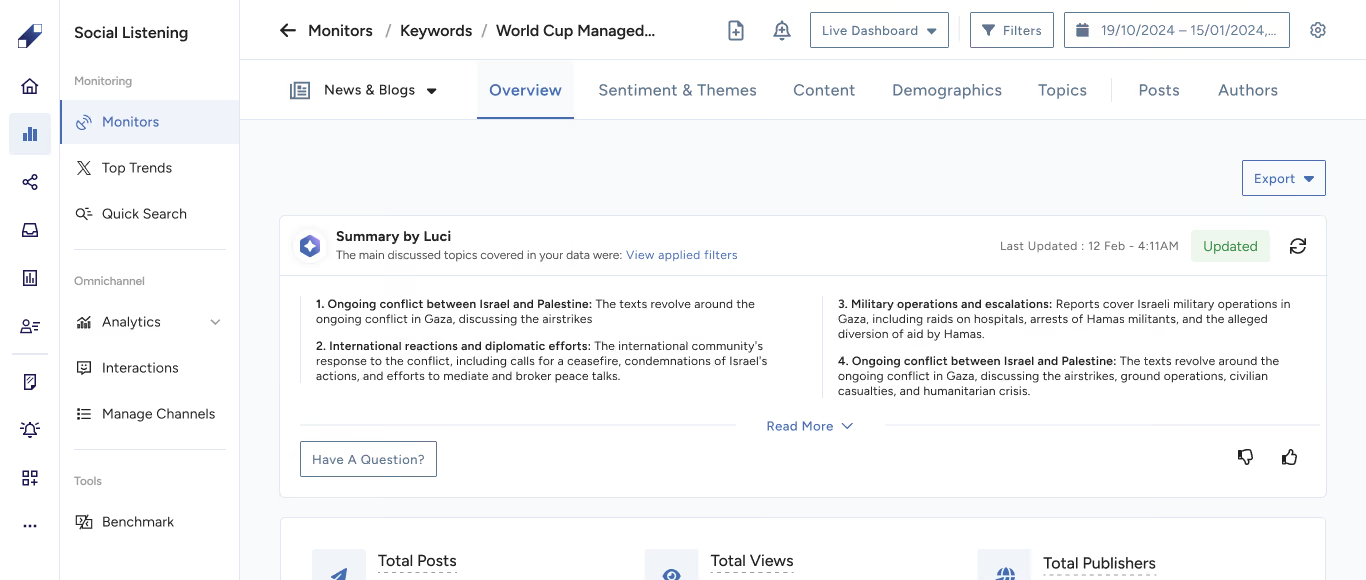
Collected conversations can be summarized using Summary by Luci, which highlights key themes and trends within the data. This helps teams quickly understand large volumes of conversations and focus on the most important insights.
For further assistance, contact Lucidya Support.
Frequently asked questions
The monitor automatically begins collecting data from the selected sources. This data can then be explored through dashboards and analytics tools to track performance, identify trends, and generate insights that support business decisions.
Filters allow you to narrow down results and focus on the most relevant insights. They can be applied to authors, posts, or engagement metrics. For recurring analysis, filters can be saved and reused to quickly apply the same conditions across different datasets.
Yes. Monitors can be updated at any time to reflect changing monitoring needs, including modifying tracked accounts, keywords, and conditions, as well as pausing or removing a monitor when it's no longer needed.
Historical data refers to conversations that predate the creation of a monitor. It can be requested for supported data sources to extend analysis beyond newly collected conversations. Availability and coverage depend on the selected data source.
Summary by Luci highlights key themes and trends within collected conversations, helping teams quickly grasp large volumes of data and focus on the most important insights without reviewing every conversation individually.